222 Chapter 4 Use the Océ TDS700 productive scanner
Improving the image quality
Improving the image quality
Introduction
You can improve the image quality by modifying the exposure setting, or making
use of special functions. You will learn how to switch on and off automatic
background compensation, how to use the lighter and darker keys to achieve the best
possible copy quality, or how to adjust the brightness based on the type of image you
want to copy. In addition you will learn when to use the Bold function to enhance
weak lines.
[143]
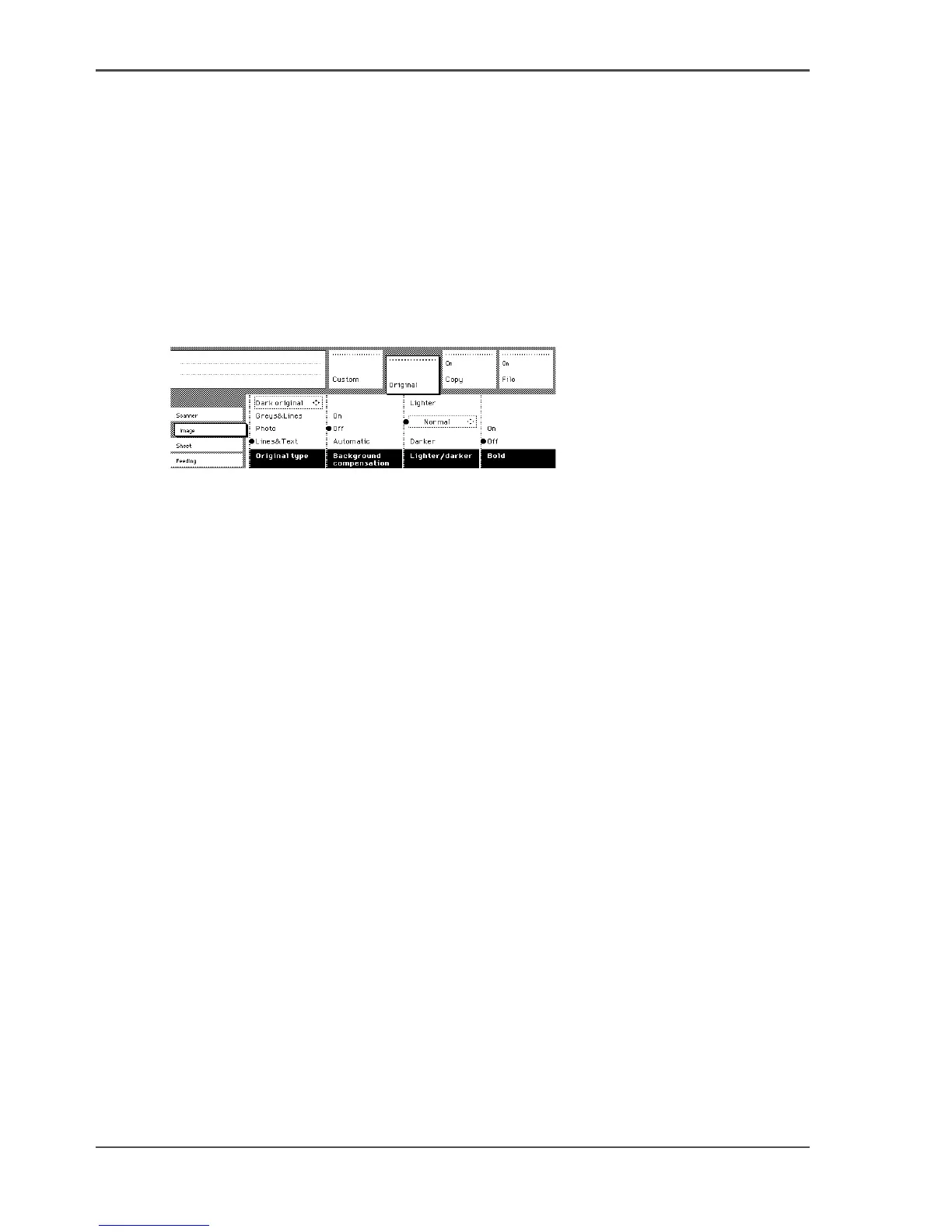
Original type
The Original type you choose influences a number of system settings that optimise
the print quality. By choosing an original type, you choose a number of automated
optimisation actions performed by the printer to get the best result.
Automatic background compensation
The automatic background compensation will provide a good quality copy from a
large variety of originals. The automatic background compensation setting, which is
switched on (by default), ensures the production of background-free copies of most
line drawings.
Brightness
You can change the brightness of a print or copy by modifying the Lighter/darker of
the scanner. The setting can be set to lighter and darker.
Press the ‘Lighter/darker function key and use the arrow keys to set the values as
desired.
The Up and Down arrow keys can be used to gradually increase or decrease the
Lighter/darker setting; the Left or Right arrow keys can be used to go to the highest
or lowest available level at once. If you want to go from any negative value to the
highest possible positive value, or vice versa, you have to press the appropriate Left
or Right key twice.












 To Next Page