Transport and Navigation : Transport Controls
6 - 142
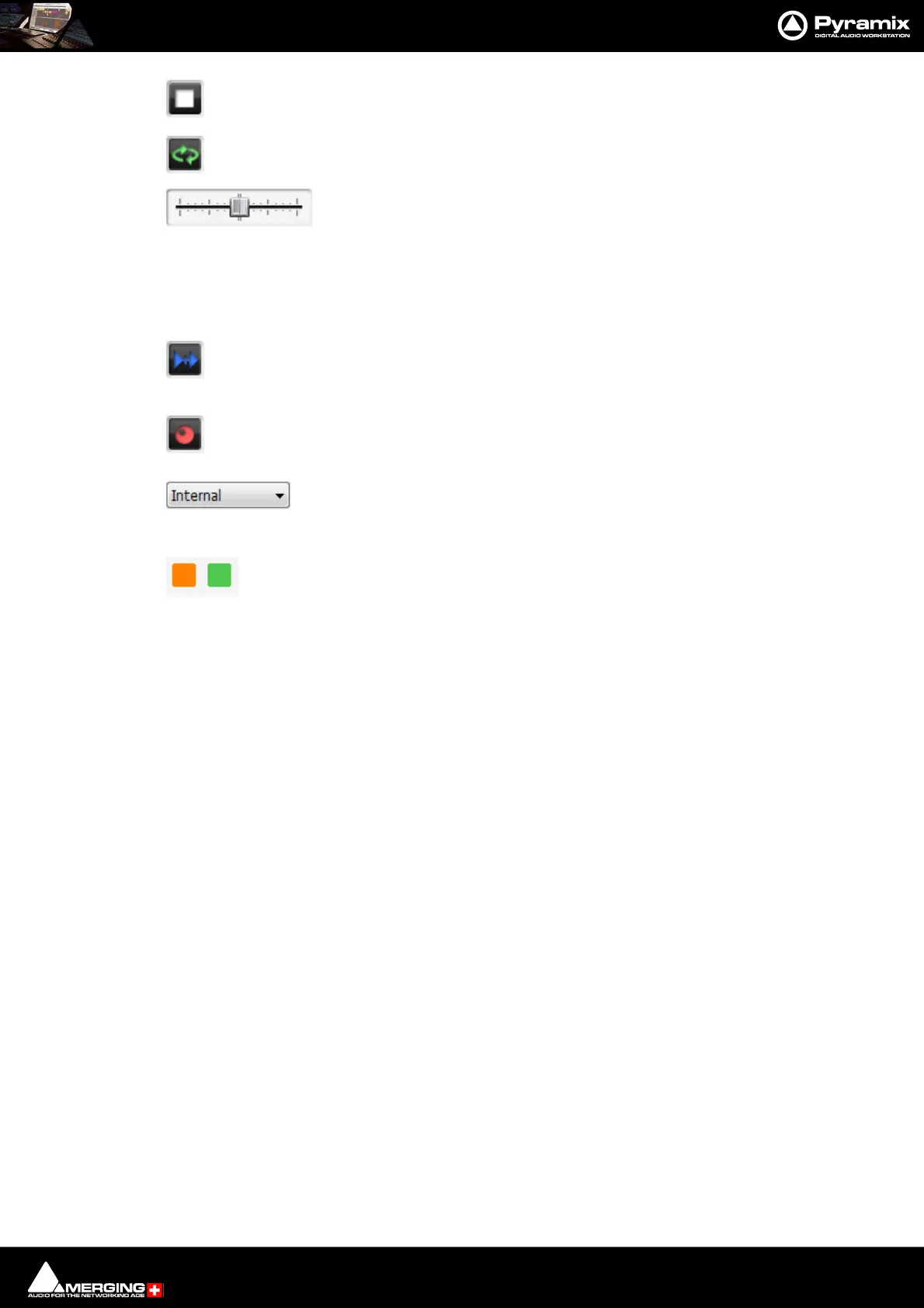
The Stop button stops playback.
The Loop Play toggle button puts the Active Machine into a Loop Play Mode, which continu-
ously plays between the current In and Out points.
In the default, Shuttle, mode the Shuttle Control slider shuttles the Play Head for-
ward (right) or backward (left) at up to 8 X play speed. (Depending on the Jog Speed Ceiling
Setting in Settings > Jog Chase. When Machines > Controllers > Jog Wheel Mode - Pitch
is selected the slide varies playback speed plus or minus 25% when the transport is in Play.
When the transport is not in Play the slider operates in normal, Shuttle, mode.
When the Chase toggle button is active, the Active Machine will only play back when valid
time code is detected on the chosen TimeCode input port.
The Controllers Online / Offline button. (Grey = Online Red = Offline) Toggles external hard-
ware controllers On and Off line.
The drop-down list selects which machine is currently controlled. Select Internal
from the list to ensure you are directly controlling the Pyramix Composition Play Head and
not some external device (I.e.RS-422 Sony 9-pin P2 controlled machine)
The colored buttons indicate the presence of a Background Recorder or recorders. One
button will be shown per Background recorder. Clicking on a button switches the Transport
Bar controls to the associated Background Recorder. Please see also: Background
Recorders on page 149
To the right of this is an area where any of the Floating Tool Palettes can be ‘Docked’. By default this will have the
Automation Toolbar docked. Please see: Global Dynamic Automation Modes on page 397



 To Next Page