Fade Editor : The Graphical Display
9 - 201
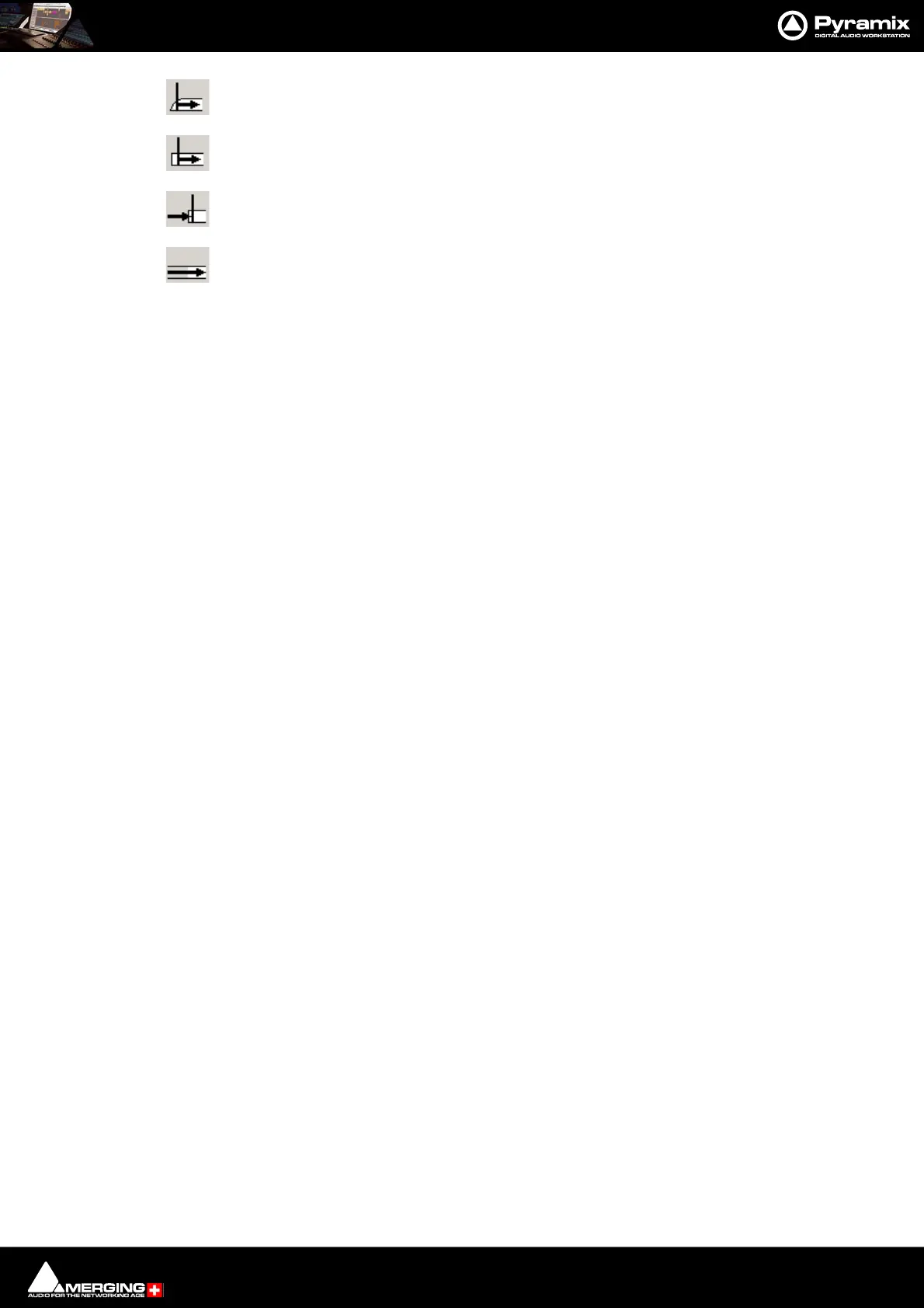
Audition Fade In from the Reference Point with Curve
Audition Fade from the Reference Point without Curve
Audition before Start of Fade In from the Reference Point
Audition Fade In before its Start
Undo Note:
By default Undo in the fade editor is restricted to the last action only in order to conserve memory. In a complex
mix the sheer number of actions to be remembered for undo can lead to excessive memory consumption. This
behavior can be changed in Settings > All Settings > Application > Editing : Fade Editor. Simply check the box
for Enable Undo for every Fade Editor change.
The Graphical Display
Consists of the following elements:
• The TimeCode scale displaying the Zoom range on its left.
• A Reference Point which is set by default at the edit point or in the middle of the (X) Fade. This marker can
be moved by clicking in the TimeCode Scale and is just a Reference Point for Auditioning (see above) or for
Auto-Center (see below)
• All Tracks or a selection can be displayed (see Parameters & Options below)
• At the left of each Track display The Track name of each Clip is shown, with a toggling Edit On/Off selec-
tor. This allows one or more Clip’s/Fades to be excluded from further modification.
• A Vertical Scrollbar navigates through hidden Tracks if any
• An Horizontal Scrollbar navigates before and after the Fade position
• The outgoing and incoming Clip fades are displayed with curves
• The Fade Position can be moved by clicking and dragging within the Fade area (Cursor changes to
hand)
• The Fade Length can be changed by clicking and dragging on the left or right side of the Fade area.
(cursor changes to <|>)
• The Media of the Clips can be moved by clicking and dragging outside the Fade area. (Cursor
changes to hand with tape reel)
• The Fade Curves can be modified by clicking and dragging on the Bezier Control Point Handles in
the Fade black box
Waveform Color Change
The waveform color can be used to indicate where the main Playhead Cursor is in relation to the Reference Point.
When the Update waveform color with cursor position check box is ticked in Settings > All Settings > Appli-
cation > Editing : Fade Editor the waveform(s) color will change to the color chosen in Settings > All Settings >
Application > TimeLine Layout : Clips & Waveforms - FadeEditor Waveform Position Color according to the
location of the main Playhead Cursor and the Reference Point (default is centre of crossfade)



 To Next Page