Mixer : Dithering Options
10 - 279
Dithering... Opens the Dithering window. Please see: below and Dither on page 436 for an
explanation of the need for dither.
Enable Delay Compensation Enables Delay Compensation for the mixer.
Add Strip
Add Bus
Remove Select All Strips, All Buses or All to remove groups of mixer components or every com-
ponent.
Auto-connect Automatically connects the Mixer inputs and outputs using the available inputs and
outputs of the installed daughter card (s) and the Mixers Preferred Monitoring Outputs
Wizard... Launches the Configuration Wizard. Please see: Mixer Configuration Wizard on
page 273
Show VS3 Plug-Ins Info Pops up the VS3 Plug-Ins Information window. Please see: VS3 Plug-Ins Information
on page 344
Show Distribution Redundant
Dithering Options
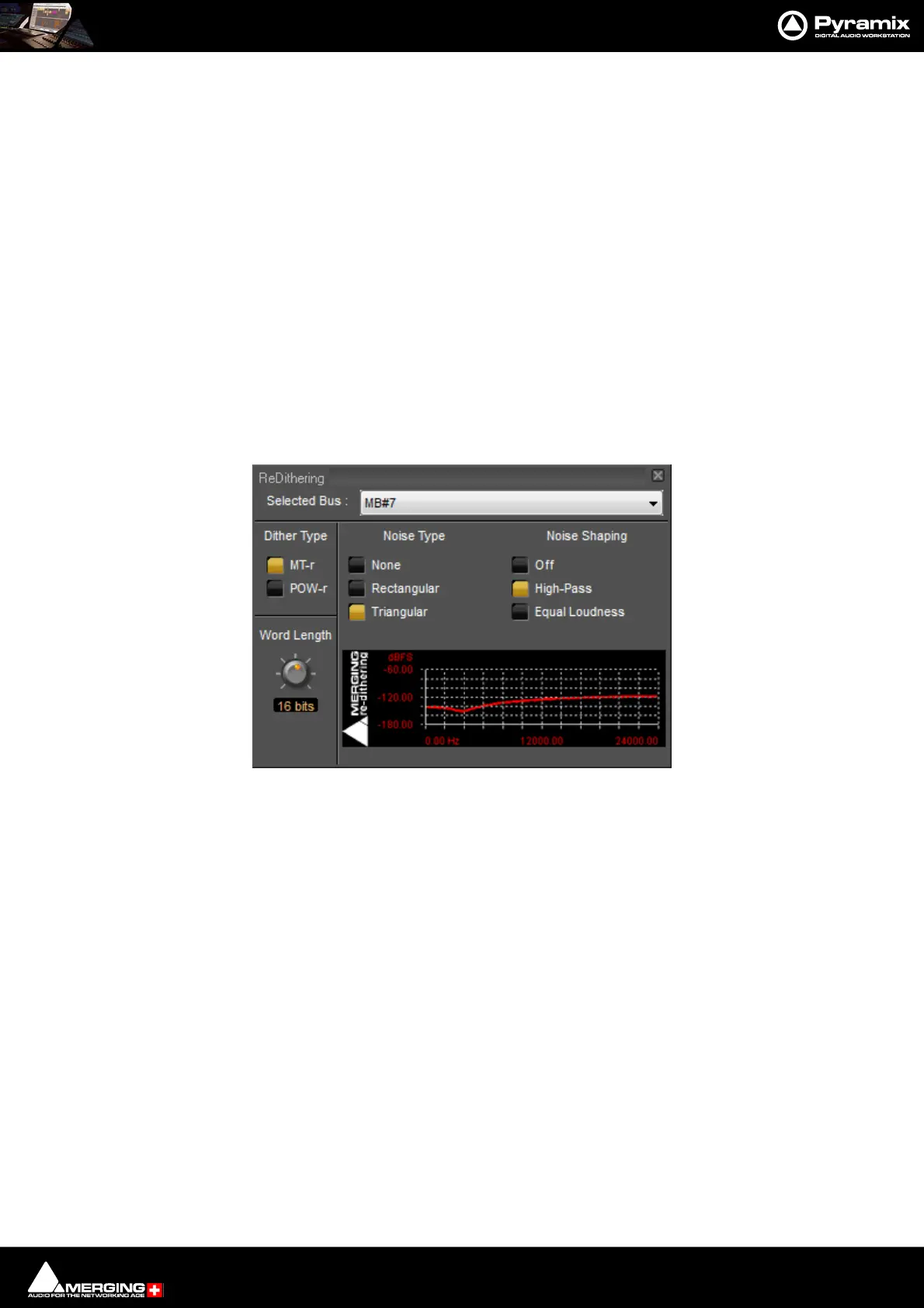
To open the ReDithering window, right-click anywhere on the mixer surface and select Settings > Dithering...
The Dithering window opens.
Selected Bus :
The combo box allows the choice of any of the Mixer’s buses.
Dither Type
The Pyramix Mixer offers a choice of dither algorithms. MT-r and POW-r click the box to choose. The bottom-right
hand panel changes to reflect the options available with the selected dither process.
Word Length
The output word length of the digital audio data can be varied from 8 bits to 24 bits. Click on the rotary knob and
drag left and right to adjust the value.
MT-r Options
PDF (Probability Density Function)
Refers to Dither Noise Type. In basic terms, the addition of a dither signal (noise) into the digital audio streams
improves linearity in the reproduction of low-level signals. In other words, as signal level drops (such as in a fade
out) dithering helps to maintain a smooth decay. There are three options:
Dithering MT-r floating Window



 To Next Page