Mixer : Mixer Components
10 - 220
Basic Strip
Controls and Faders
Rotary Controls, sliders and Faders may be adjusted by grabbing them with the mouse and dragging. Rotary con-
trols and horizontal sliders are adjusted by dragging left or right and faders by dragging up or down. Double-click-
ing a Fader, slider or Rotary knob returns the value to the default. E.g. unity gain on a Channel Strip Fader. Holding
down the Ctrl key increaes the resolution to 0.1dB Keyboard up and down arrows adjust gain by 0.1dB per press,
with Shift 0.5dB per press and with Ctrl + Shift 1.0dB per press.
Buttons
Buttons on the main mixer surface are black when inactive. When active they ‘light up’.
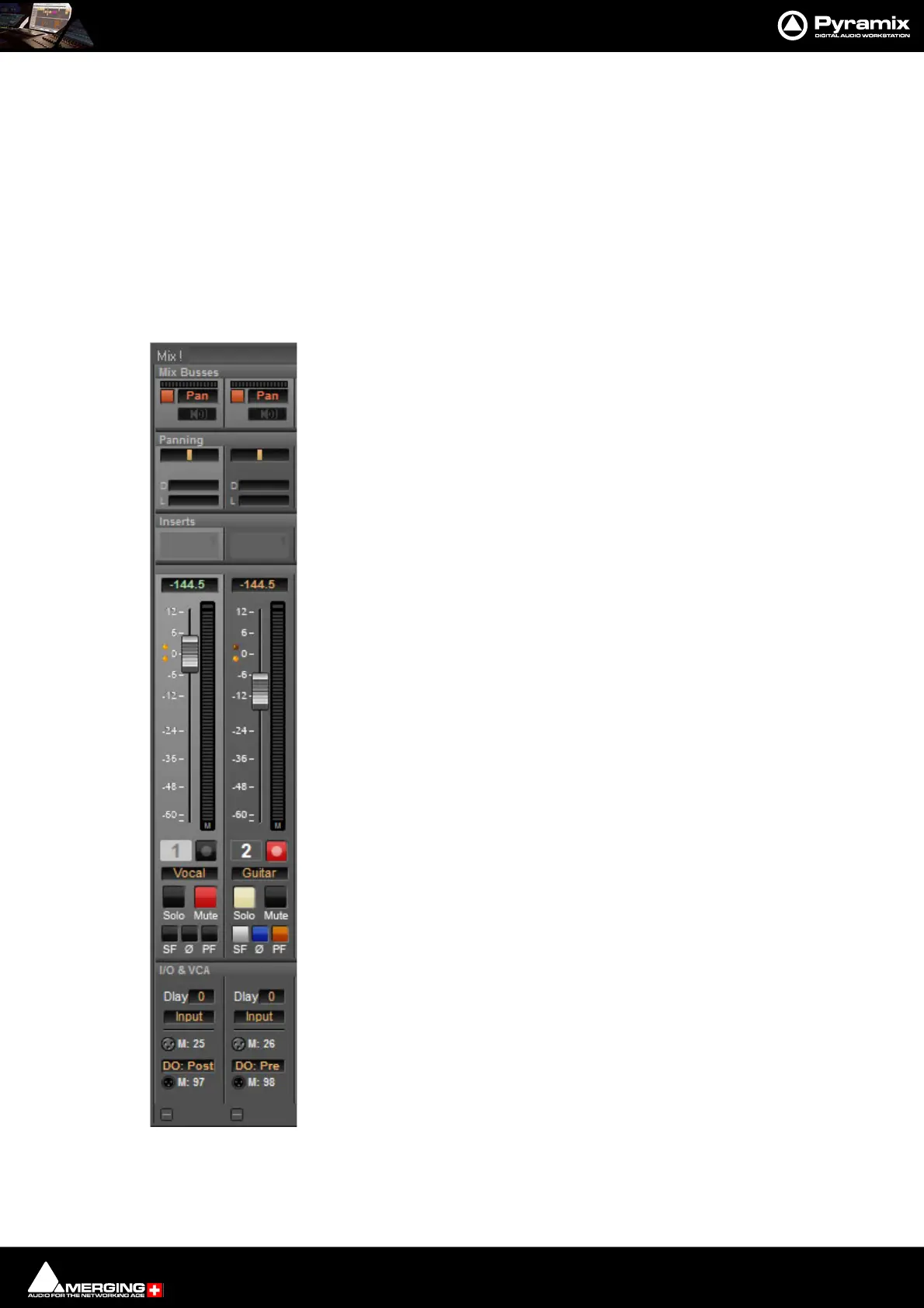
A basic mono channel strip contains:
Mix Bus Send
Output Meter
On /Off toggle switch, Pan / Router Click in the box to select.
Bus Trim. click on the button to open the Bus Trim pop-up.
Panning
Pan Slider Panner type can be 3D, 2D or Pan/Balance as shown here.
Divergence and LFE Sliders. LFE only relevant if present in Bus
Inserts
Slots for VS3 and VST Plug-ins and External Inserts.
Numeric display of fader output level value, if cursor is over a fader knob shows fader
gain. If a pan-slider is being moved, shows current pan position. May be clicked to
enter a fader gain value directly.
Fader and Post-Fader (default) Input bargraph Peak Meter(s)
Bargraph shows peak level.
Rec enable(d) Enables/disables recording for the associated track. Lights red when
enabled. (Purple when source is after effects.)
Solo solos the strip, Mute mutes the strip. Ctrl + Solo cancels all other Solos.
SaFe prevents the strip being muted by solo operations elsewhere. Ø reverses the
channel phase. PF changes the metering position to Pre-Fader.
I/O &VCA - If a VCA Group or Groups is present the select buttons also appear here.
Delay A delay value (in samples) can be set in this box.
Input Clicking on Input pops-up a box with the choice of the strip taking its input from
a physical connection or any output bus.
Input and Direct Output Assignment
Right-click on the XLR icons to pop-up a drop down list of valid assignments.
Note: Direct Outputs must first be enabled in the Mixer : Route page.
Please see: Channel Direct Outputs on page 223



 To Next Page