Media Management & Libraries : Media Management and Library Tab Windows
4 - 59
The Trimmer
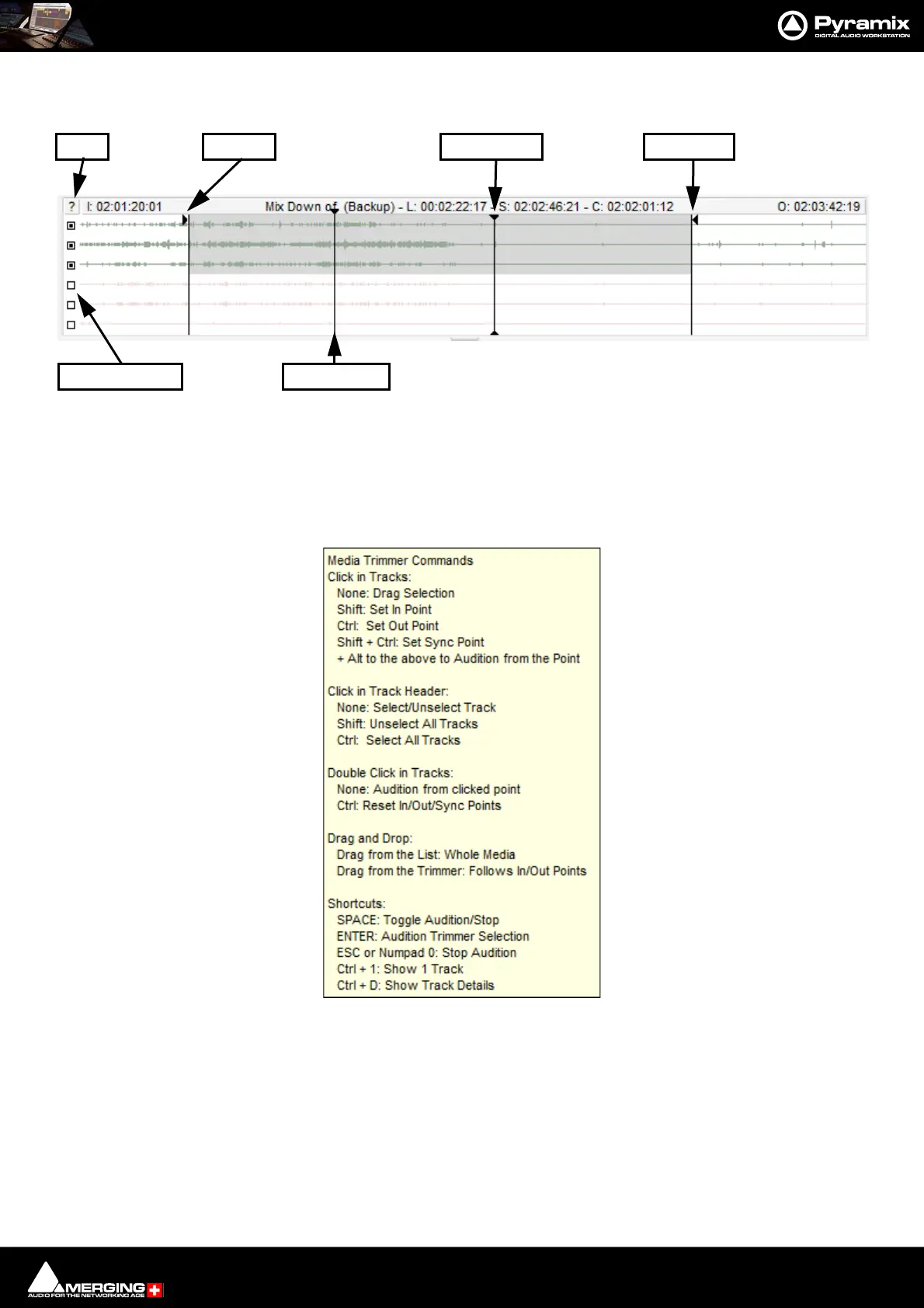
All Library and Media Management Windows have a Composition/Media Trimmer:
The Trimmer can be shown/hidden with the menu item Trimmer > Show. An object highlighted (selected) in the
list view is automatically opened in the trimmer. Multi-channel objects may be auditioned and trimmed. A small
square to the left of each Track displayed allows Tracks to be de-selected/selected for playback in the Trimmer. The
Trimmer output is stereo for 2 channel media. For Media with more than two channels the routing is assumed to
be stereo. If the Media contains Channel Type metadata (PMF, BWF, Wave, MP3...NOT AIFF) the monitoring will
automatically route the mapping to the associated monitoring patch. Clicking on the ? at top-left opens the
Media Trimmer Commands list:
Media, Clips or Compositions can be trimmed in the following ways:
• Double-click: Plays the object through the Monitoring Section from the point where you double-click.
Note: Trimmer sound output is via the Monitor Panel. If no sound is heard through the current L
& R Monitor Outputs you may need to assign values to the None entry in the Main Grid and
Downmixes section of the Monitor Please see: Media Manager and Library Monitoring on
page 321
• Click & Drag: Drag the object to the timeline or to an other library properly trimmed (from the In point to
the Out point. Dragging it from the list view takes it untrimmed).
Library Trimmer
Trim In
Trim Out
Sync Point
Playhead
Mute Buttons
Help



 To Next Page