Applications : Project Templates
20 - 509
Project Templates
Pyramix provides the user with a number of Templates for various applications. A Template is a complete Pyramix
Project, without any associated audio, specially configured to suit a particular type of activity. Apart from configur-
ing the appearance of Pyramix, the Track layout and Mixer design, templates also include important optimizations
to suit the activity.
Please see: Optimizing Pyramix on page 653
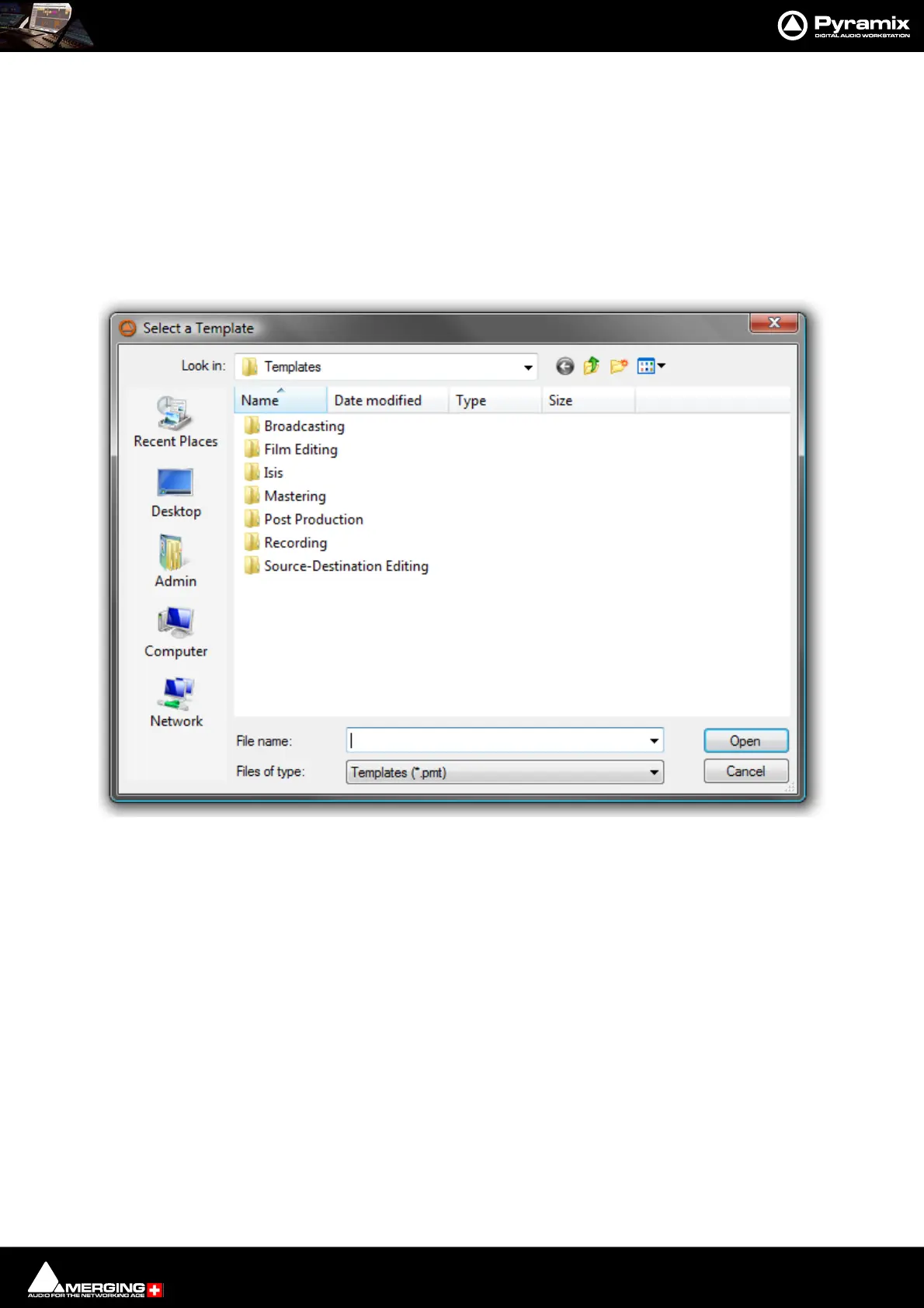
These templates also offer a good starting point for creating your own customized templates. To begin a new proj-
ect using a template choose Project > New from Template which opens the Select a Template file browser.
When a template is opened a dialog box appears requesting the user to choose a Media Folder for the new proj-
ect. Unless the project is saved using the Save As option, the first time it is saved the Save As dialog will appear.
Further Templates will be added as they are developed.
To save a new Template choose File > Save as Template, name and save.
Virtual Multi-track
A number of Templates suitable for multi-track recording are provided with Pyramix. These Templates have all
the required settings already in place. If none of the supplied Templates is exactly suitable for your task it will save
time if you modify the one closest to your needs and save it as a Template for future use.
Settings for Multi-track recording
Multi-track recording can be demanding on disk performance, DSP and the host CPU. In order to optimize Pyramix
for the purpose if not using one of the supplied Templates the following settings should be made in the Record
Page:



 To Next Page