Recording and Acquisition : Take Logger
7 - 157
Take Logger
Scope
The Take Logger can control any available recorder, the Active Project or any Background Recorder. The Active
Project cannot be in Dubbing Mode.
Operation
Note: When the Take Logger has the focus ALL regular keyboard shortcuts are disabled. key-
board shortcuts specific to the Take Logger become active. These shortcuts are assigned in the
Keyboard Shortcuts Editor. Please see: Customizing Keyboard Shortcuts on page 505.
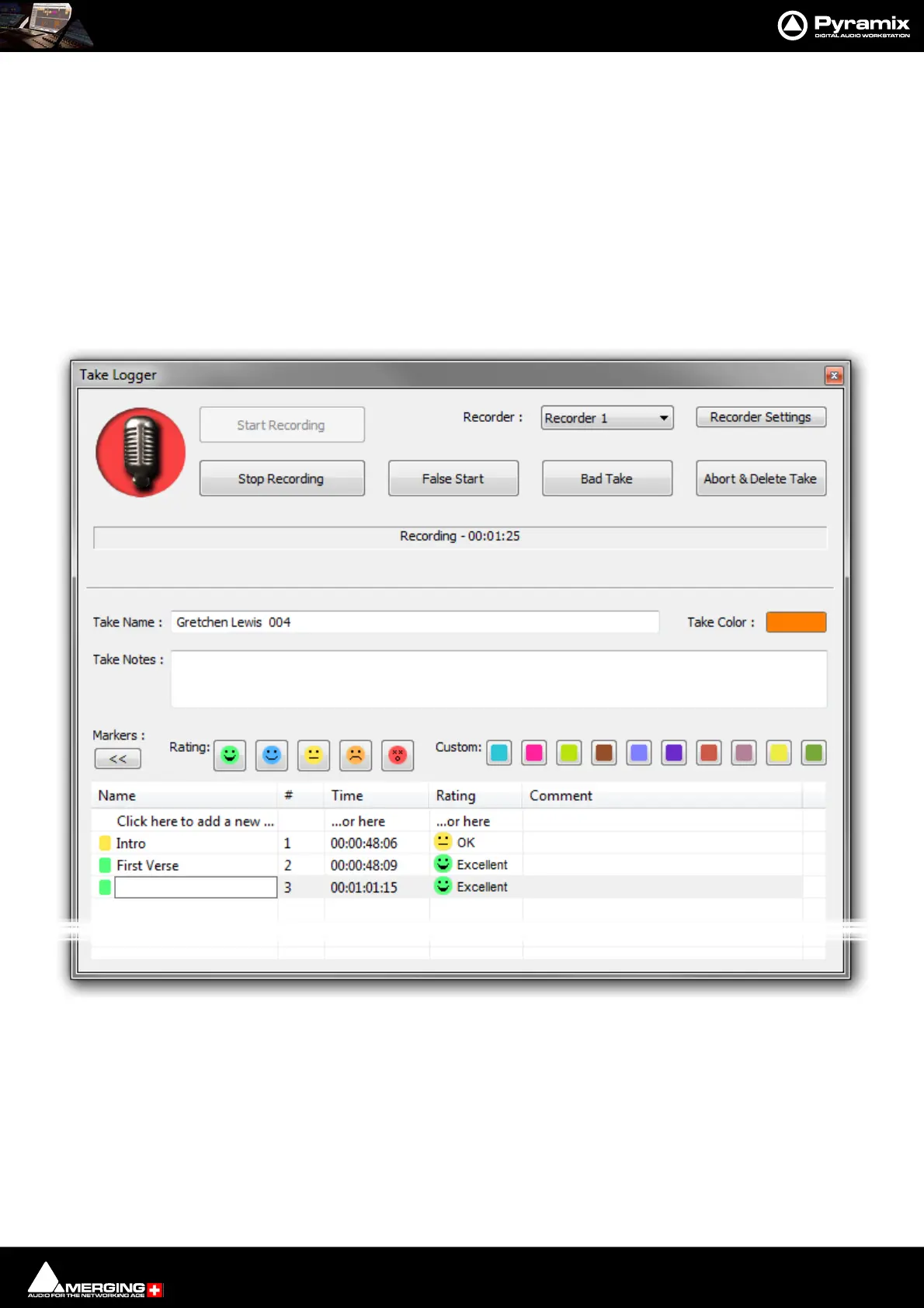
The Take Logger window is opened from View > Windows / Tools > Take Logger:
Start Recording
Clicking on the button Starts the recording on the selected recorder.
Stop Recording
Clicking on the button Stops the recording on the selected recorder. If this is a Background Recorder it is left in
Enabled mode. I.e. continuously pre-buffering for the length of time specified in Background Recorder Settings.
Use Stop Recording to end a successful recording. The Take number is incremented automatically.
False Start



 To Next Page