File and Project Interchange : Import / Export
18 - 482
Import
Select AAF in the Interchange Import dialog. Choose the appropriate import options leaving Audio Options
Force Fade Curves: set to Keep as they are and click on Import.
(Please see also: Options on page 478)
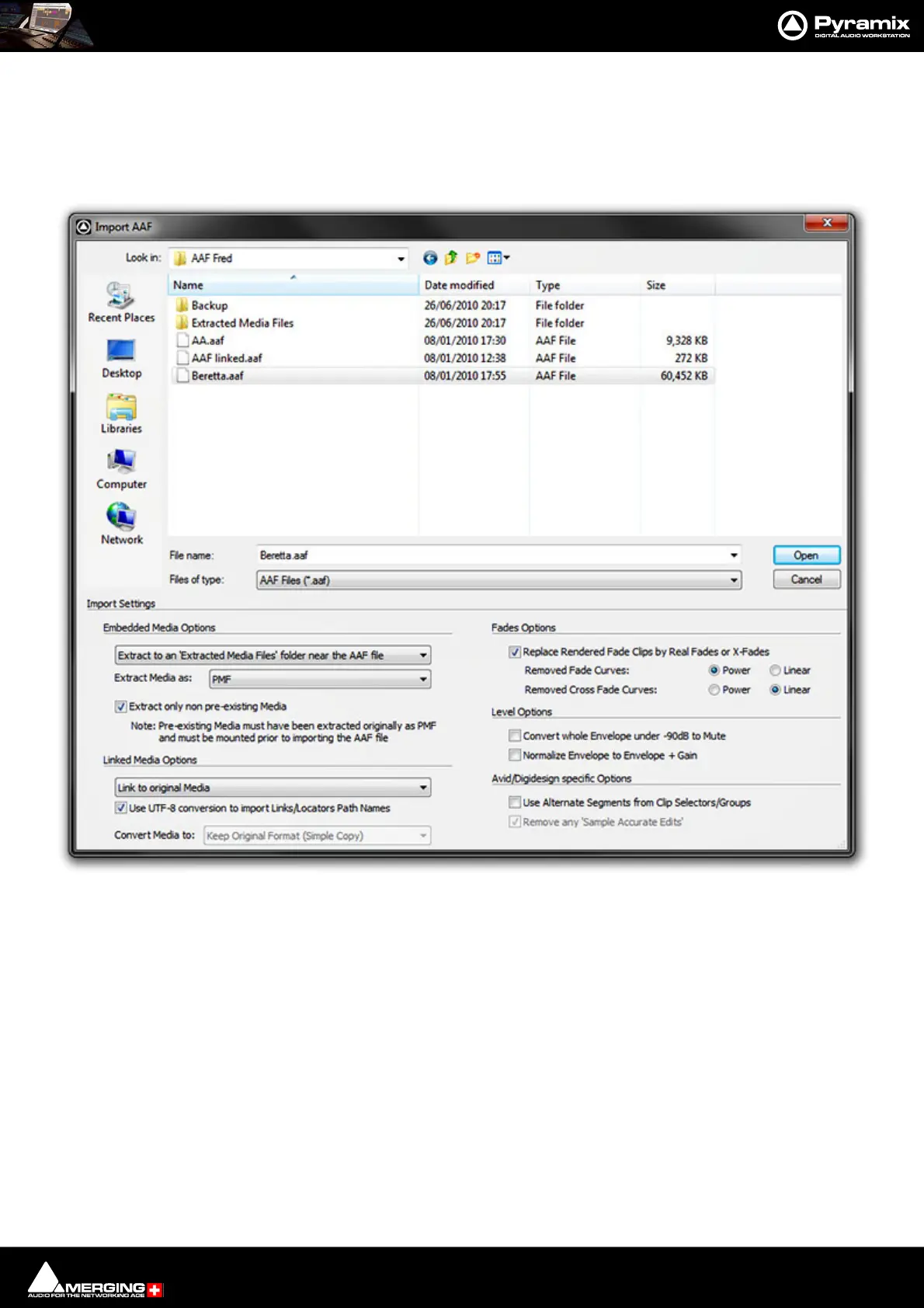
The Import AAF File window opens:
The lower section of the dialog contains Import Settings, the upper section is a File Browser. The Open button
initiates the Import once a suitable AAF file has been selected and the Import Settings have been made.
Import Settings
Embedded Media Options
The drop-down list has the following options:
• Extract to an ‘Extracted Media Files’ folder near the AAF file
• Extract to the Project Default Media Folder
• Extract to a new Sub-folder in the Project Default Media Folder
(Sub-folder will be named automatically after the AAF source file)
• Prompt for a Folder to Extract Media to
• Do not Extract any Media
Interchange - Import AAF dialog



 To Next Page