Automation : Editing and Automation
14 - 410
• Clicking on the Clean Up Versions button
• Clicking on the Clean Up All Tracks button
• Saving with the “Keep only current and locked versions while saving” option in the Automation Settings
• The “Limit versions to the number of Undo/Redo” option is enabled in the Automation Settings
Locked versions will NOT be preserved when:
• Clicking on the Delete Current Version button
• Clicking on the Delete All Versions button
• Clicking on the Delete All Tracks button
VCA Follow Masters
When ticked (default) Moving Clips in the Timeline will result in both Masters and VCAs following the automation.
Masters Controls Link
The drop-down list enables you to select which Track(s) or Track Groups will, when edited, affect the position of
automation applied to Master controls, buses etc.
Like Markers or CD/SACD Markers, all Masters controls can be either:
• Independent (No action on any Track will affect the Masters)
• Linked to Any Track (Any editing action requiring synchronization will affect the Masters controls)
• Linked to Any Track without a Group
• Link to Track Group A, B, C, etc…
Close
Closes the dialog.
View Several Parameters
To view more than one automation parameter in the Timeline for a Track, create Automation Sub-tracks for each
parameter you wish to view. Please see also Automation Sub-Tracks on page 107
Undo/Redo
The menu item Edit > Undo/Redo also reacts to Automation actions providing a shortcut to the Automation
Tracks Window.
Editing and Automation
Overview
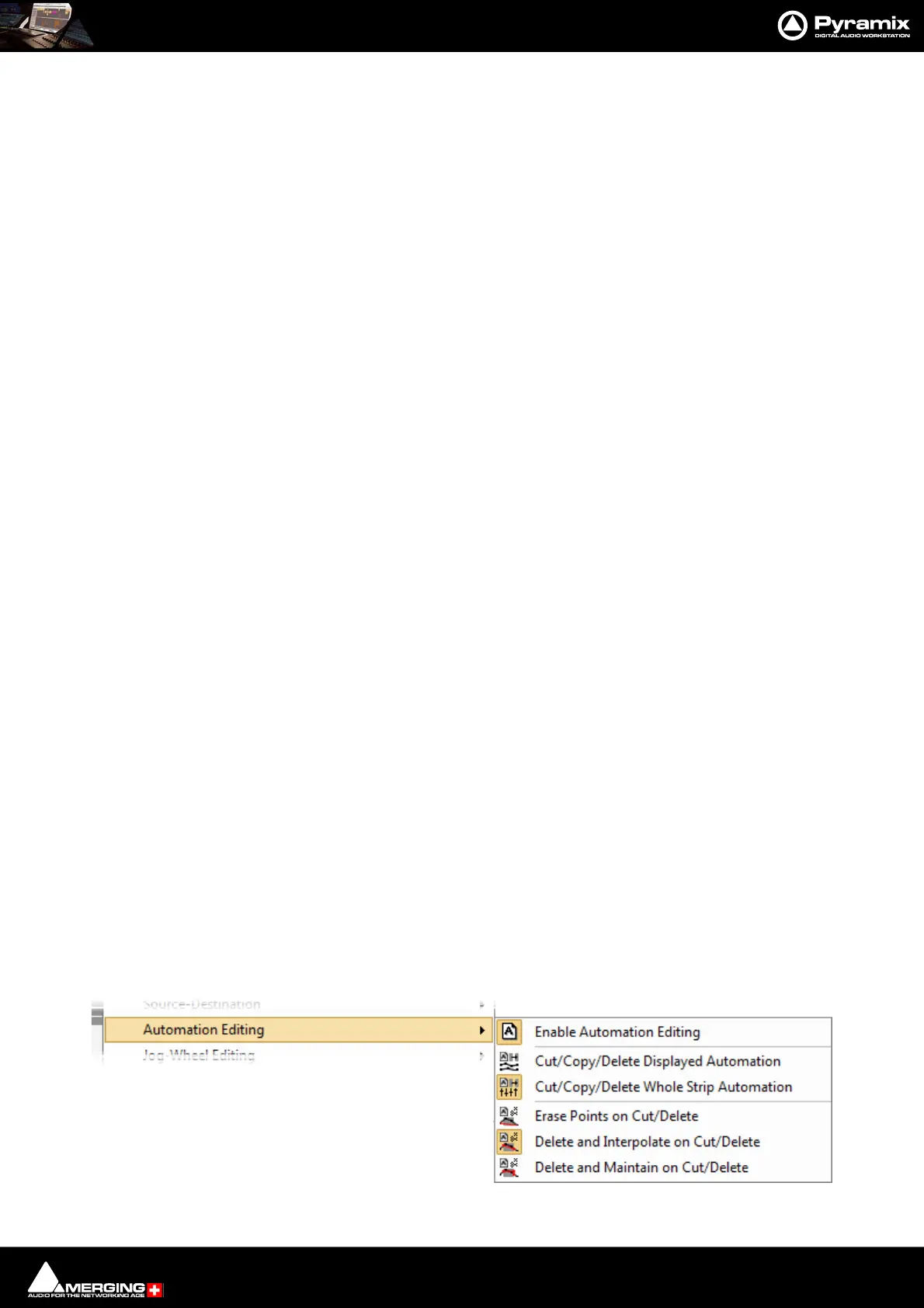
Editing data exists independently of the Clips on Tracks. When Clips are edited in the timeline any automation
data applying to Clips affected by the editing process is treated according to choices made in the Edit > Automa-
tion Editing sub-menu :



 To Next Page