Transport and Navigation : The Overview
6 - 145
The Overview
The Project Management Panel Overview Tab offers a powerful and simple means of navigating around the Proj-
ect Editing Panel.
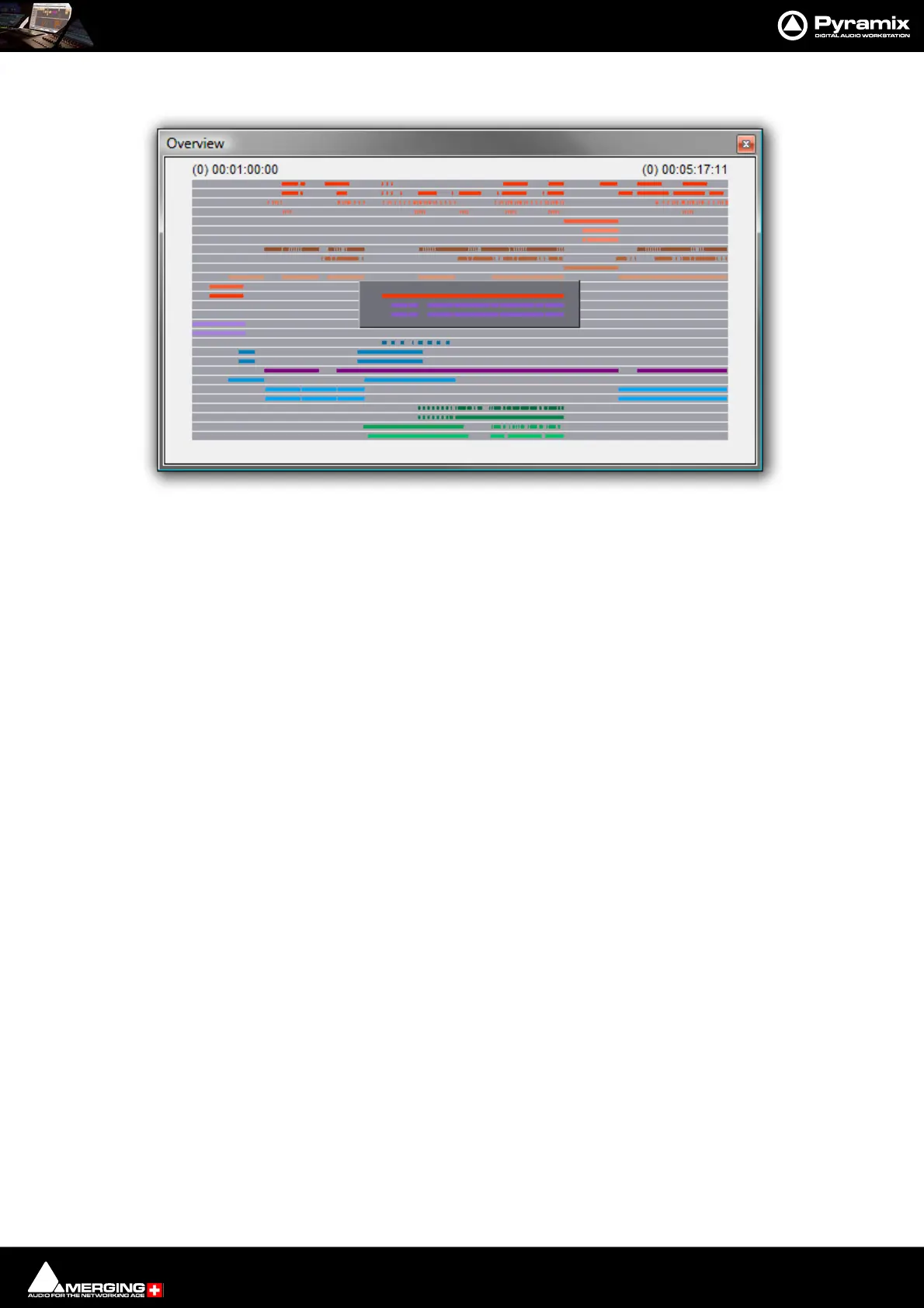
Overview displays a graphic representation of the entire current Composition, showing the location of all Clips.
A shaded gray box indicates the location and zoom range of the part of the Composition which is currently dis-
played in the Project Editing Panel. Clips are shown as rectangles in the same color as their background on the
Timeline.
Click anywhere in the Overview to center the Project Editing Panel display on that point. Click and drag on the
shaded gray box to move the section of the Composition shown in the Project Editing Panel without changing the
current horizontal zoom. The zoom range of the Project Editing Panel can be adjusted by dragging the edges of
the shaded gray box in the Overview. An alternative method for adjusting horizontal zoom is to press the Alt key
while clicking and dragging across the desired range for the zoom, just as you can do directly in the Project Editing
Panel itself.
Virtual Transport 2
VT 2 is a built in synchronizer. It synchronizes VCube with Pyramix running on the same machine or on a remote
machine connected over the network. Please see: Virtual Transport 2 on page 768
VT 2 also provides MIDI Sync capabilities. Please see: MIDI Sync on page 712



 To Next Page