Recording and Acquisition : Getting Audio into Pyramix Virtual Studio
7 - 148
Resolution (bit depth or word length) and Format (file type). As previously mentioned, unless you have a specific
reason for using a different format we recommend using the default PMF format.
Note: These settings are completely independent of the settings for Mix-down and Render.
Record Source Before or After Effects
The record source can be before or after any effects in the Mixer Strip. This can be set globally from the Gain +-
pop-up menu or individually from the right-click context menu when hovering the mouse pointer over the rele-
vant strip.
Track Record Modes
Each Track has a tri-state Record Ready toggle button, located to the left of the Track itself in the Track Informa-
tion and Setup Area.
Tip: Right clicking on a Track arming button opens the Settings > Project page immediately on the Record page.
Play
The Green Dot in the Track Header indicates Record Safe mode, the default when Tracks
are newly created. When in this state, the Track cannot be recorded to.
Record Ready (Manual)
Click on the Green Dot once to toggle to Record Ready mode. This is indicated by the dot
turning into the Red Dot. The Track will now go into Record mode immediately when the
Master Record button is pressed in the Transport Strip or Transport window.
Record Punch In (Auto)
Alt-Click on the Red Dot to toggle to Record Punch In mode. This is indicated by a Red Dot
flanked by 2 red vertical lines. In this mode, when the Master Record button is pressed in
the Transport Strip or Transport window, the Track will stay in Play mode until the current
Mark In point is reached, then the Track will go into Record mode. It will stay in Record
mode until the current Mark Out point is reached.
After Recording
New recordings will be processed according to the settings made in the Settings > All Settings > Project >
Record page. Please see: Record on page 726
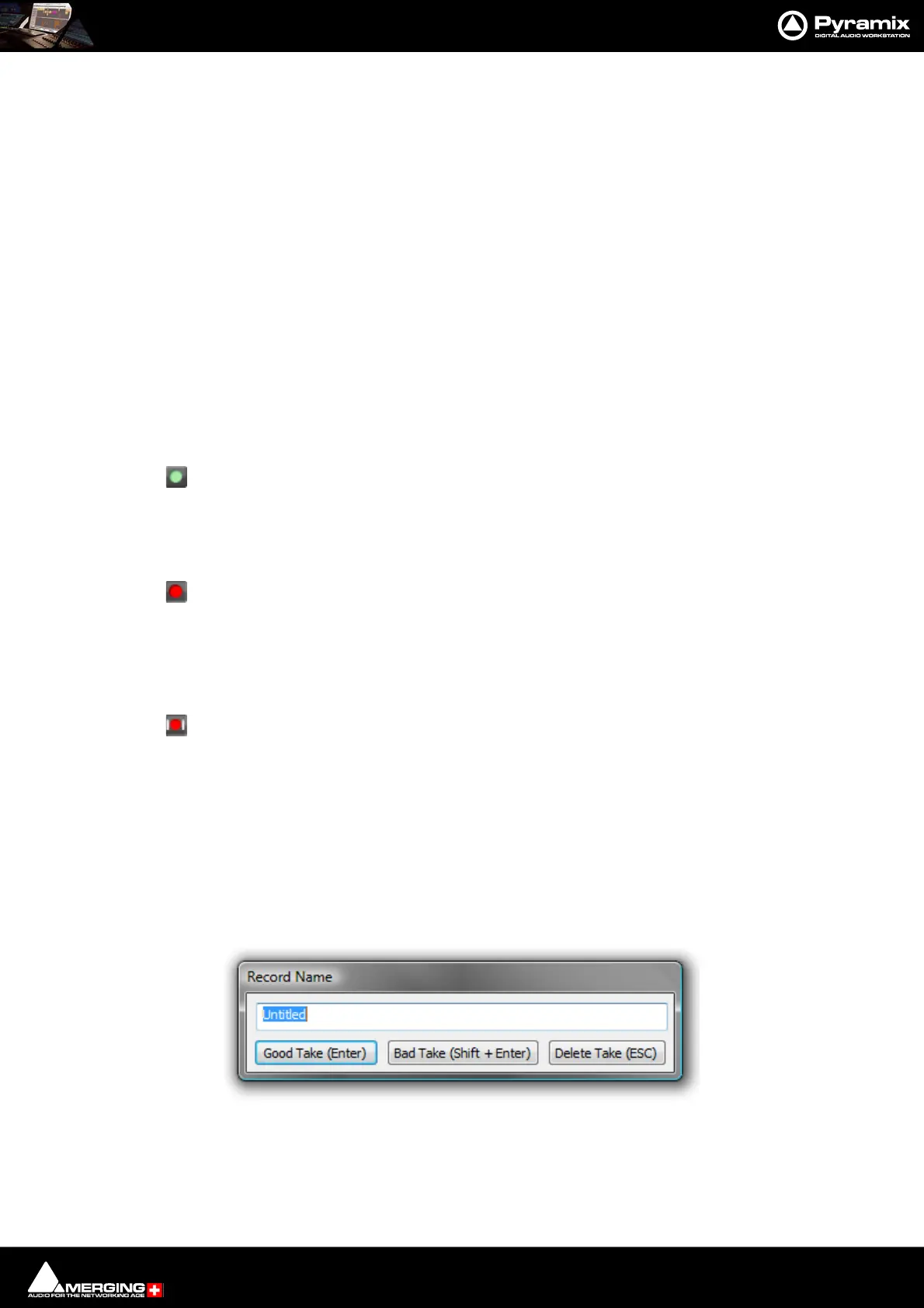
If the Prompt for name after recording box is checked the Record Name dialog appears when the recording is
finished and the transport stopped.
Type a name for the recording (or leave the default) then select one of the button options.



 To Next Page