File and Project Interchange : Import / Export
18 - 494
If the EDL Frame Rate is correct, simply click the OK button. Otherwise, select the correct rate from the drop down
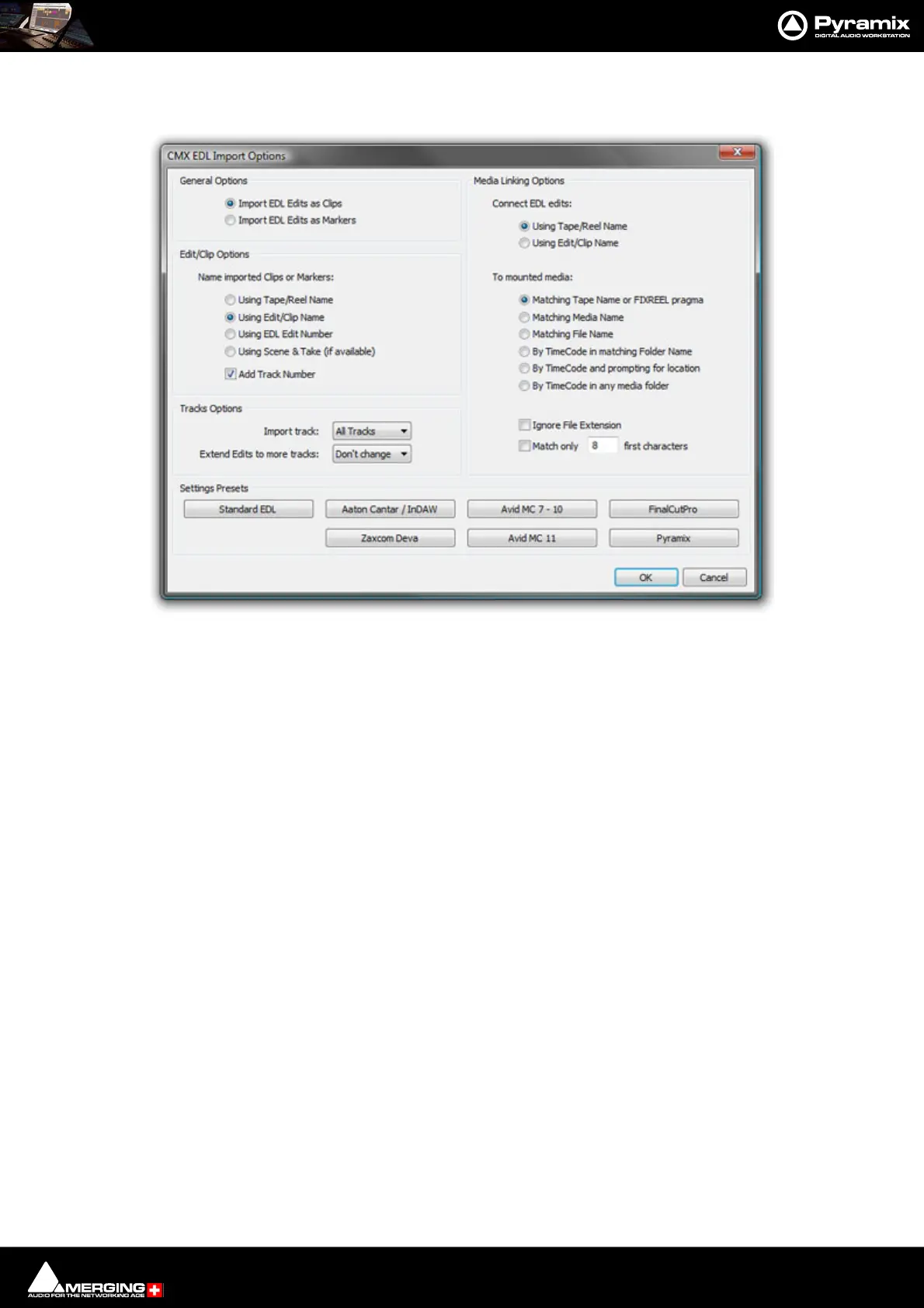
list and click the OK button. The CMX EDL Import Options main dialog opens.
The Settings Presets buttons at the bottom of the box set the options for a variety of common CMX variants. If
the edl you wish to import matches one of these, simply click the appropriate Preset button. The settings are
reflected in the rest of the dialog. Click the OK button to begin the Import.
If the edl is not one of the common variants or the intention is to perform a partial or re-conform, make the appro-
priate choices in the dialog before clicking on the OK button to begin the Import.
Exporting a CMX EDL
To export a CMX EDL choose Project > Export... and select CMX EDL in the Interchange - Export dialog. Click
on the Export button to open a file browser where you can select or create a suitable destination for the file.
Click on the Save button to start the export.
Note: Any Compositions or Cues which cross “TimeCode Midnight” into a different day will be
split and wrapped back to the start. E.g. I have a Cue which starts at 23:59: 51:00 in Day0 and fin-
ishes at 00:01:10:00 in Day +1. In the EDL this Cue will be split into two Cues. The first will run
from 23:59:51:00 to 24:00:00:00 and the second from 00:00:00:00 to 00:01:10:00 both in Day
0.
Cue Sheets Printer
The Cue Sheets Printer is a mini application for printing Cue Sheets from a Project. Full instructions can be found
at the end of this chapter. Please see: Cue Sheet Printer on page 501
Note:
DDP Import
Import DDP file.
CMX EDL Import Options dialog



 To Next Page