Monitor : Monitor ! page
11 - 314
Monitor ! page
The Monitor ! window is divided vertically into three sections.
Sources, left-hand section:
The button top-left of the title bar enables/disables the Monitor and lights yellow when enabled. This allows DSP
power to be saved when comprehensive monitoring control is not required. Below the Enable Monitoring but-
ton is a tree view of all buses used in the mixer. Clicking on the + and - boxes shows and hides branches in the
usual way. Click on any complete bus or any available stem or any bus/stem channel to select it for monitoring.
Selection is exclusive unless the Ctrl key held is down. Then selection is cumulative and clicking adds or subtracts
Sources according to their current state.
Buses / Externals button
Note: At bottom left in the screenshot above the button labelled Buses indicates which sources
are available for activation. Clicking on this button toggles through Buses, Externals and Buses
/ Externals.
Note: Multiple selections are made by holding the Ctrl key and clicking.
Main, centre section:
Selected Sources
<< SR1 >>: Select previous/next Pyramix source. Only sources visible in the Sources section are available. I.e.
If the component channels of a bus or stem are collapsed this bus or stem is switched as a unit when the compo-
nent channels are visible in the Sources section then clicking on the << or >> buttons steps through each avail-
able channel in turn.
<< -- -- >>: Select previous/next External Source. Only External Sources visible in the Sources section are avail-
able.
Note: Clicking on any of the << or >> buttons cancels the selection made previously in the
Sources section.
Selected Output
<< Surround 5.1 >>: Select previous/next Speaker Set.
<< Main >>: Select the previous/next Downmix defined in the Configure page.
Main area
Speakers are only shown when connected in the Configure page.
Halo Meters
The speakers have “halo” meters as seen above. The bigger the colored area, the louder the speaker.
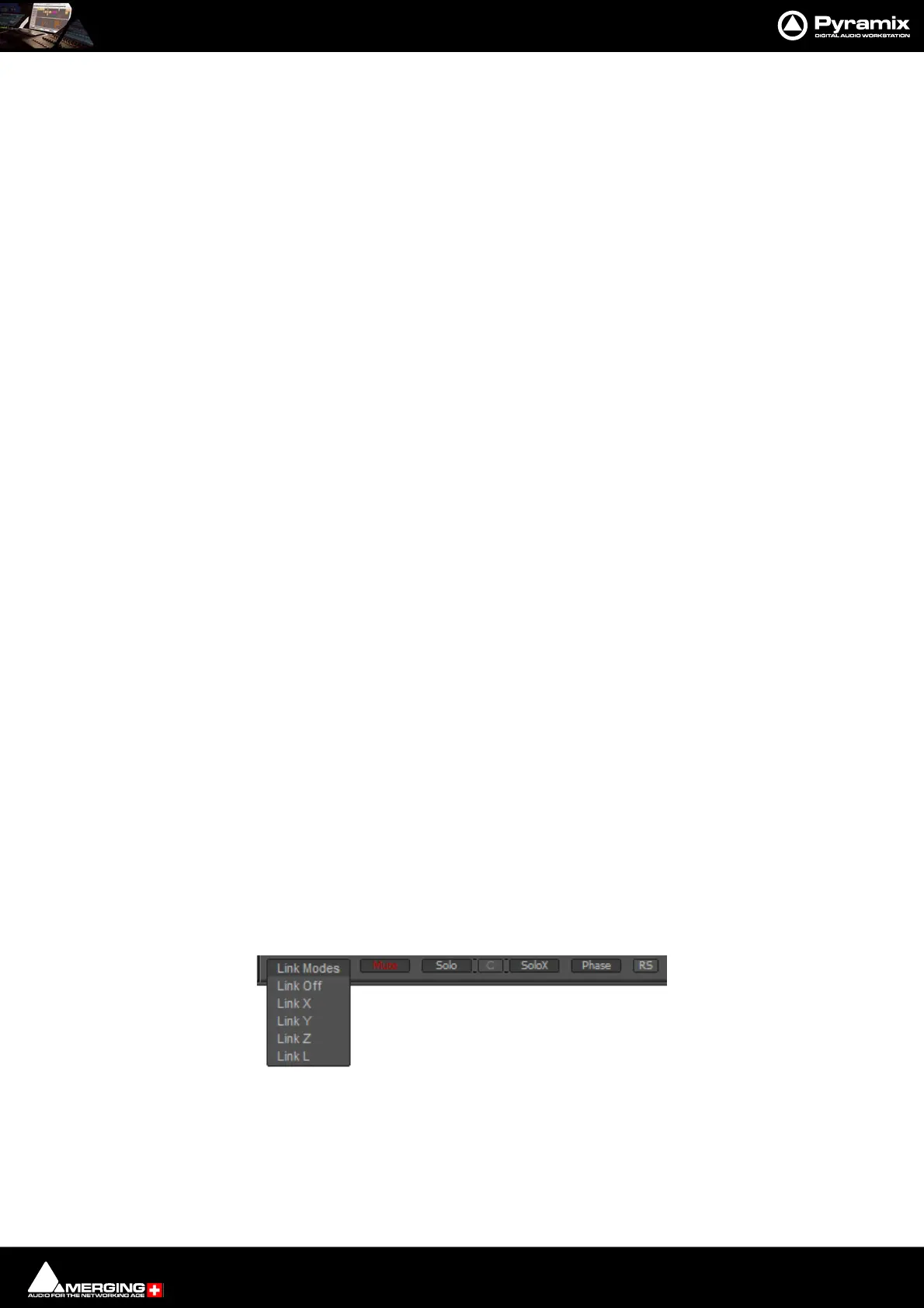
The buttons at the bottom determine the linking and function of the active Speaker buttons.
Link Clicking on this button pops up a list of possible Link Modes.
Link Off No Link is applied to parameters selected (Mute, Solo, Solo X, Phase...)
Link X Links Left and Right (and everything along the X axis).
Link Y Links the Front with the Back (and everything along the Y axis).



 To Next Page