Video : Video Tracks
21 - 520
Delay Compensation
The video will often be delayed with respect to the audio whether displayed via the graphics card or a dedicated
video card. Pyramix is able to compensate for this.
Separate delay compensation settings are available for the graphics card and optional video card. These may be
found in the Settings > All Settings > Video > Settings page.
Graphics delay Compensates for the graphic card(s) output delay.(computer screen) Type a value
(in frames) or use the increment / decrement buttons.
Video delay Compensates for the video card(s) output(s) (Blackmagic Design). Type a value (in
frames) or use the increment / decrement buttons.
Recommendations:
• To avoid excessive memory consumption and consequent impact on audio performance, work with intra-
frame proxy files whenever possible.
• H264 is not recommended for editing.
• If using Video in the Timeline of a a DXD or DSD Project we recommend using ONE video output for opti-
mum performance.
Pro Res or DNxHD are recommended for editing and performance purposes.
Video Tracks
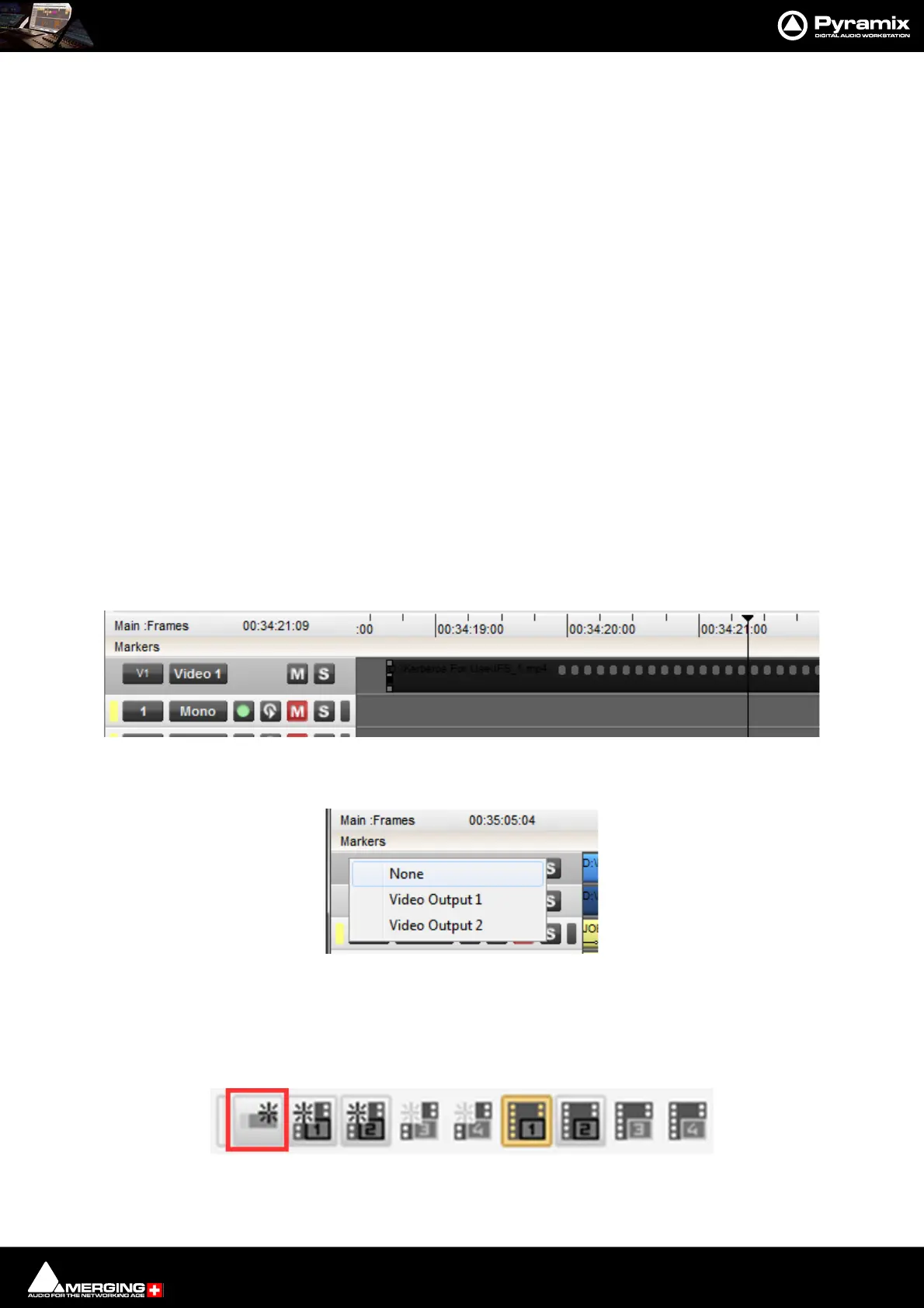
Video Tracks are quite similar to Audio Tracks and many operations are the same, move, lock, split, cut, copy and
paste, dissolve etc.. The Mute and Solo buttons in the Track Header work in the same way as Audio Mute and Solo.
Clicking on the Video Track number (V1 in this case) pops up a menu to select the Video Output for the Track:
Adding a Video Track
A new empty Video Track may be added from Video > New Video Track or from the right-click context menu
accessed when the mouse cursor is over the Track Headers Add Video Track or from the Add Video Track button
in the Video Toolbar:
Video Track Output pop-up
Video Toolbar Add Video Track



 To Next Page