Video : Video Output
21 - 522
When several Tracks are patched to the same Video Output, they are composited in the bottom-up order. Two
Tracks patched to different Outputs are displayed independently (see Video Tab window and Video Output Win-
dows). This can be useful for comparing Video Clips or in a multi-camera workflow.
Note: By default, all imported layers are patched and composited into Video Output 1.
Thumbnails
Video Thumbnail images may be added to the Video Track in the Timeline. Thumbnails generation is initiated
manually by right-clicking on the relevant Video Track and selecting Display > Image. Thumbnail Generation may
be cancelled by Right-Clicking and selecting Cancel Image Generation on the generation message at the bottom
left-hand corner of the Pyramix GUI.
Video Output
Output Windows
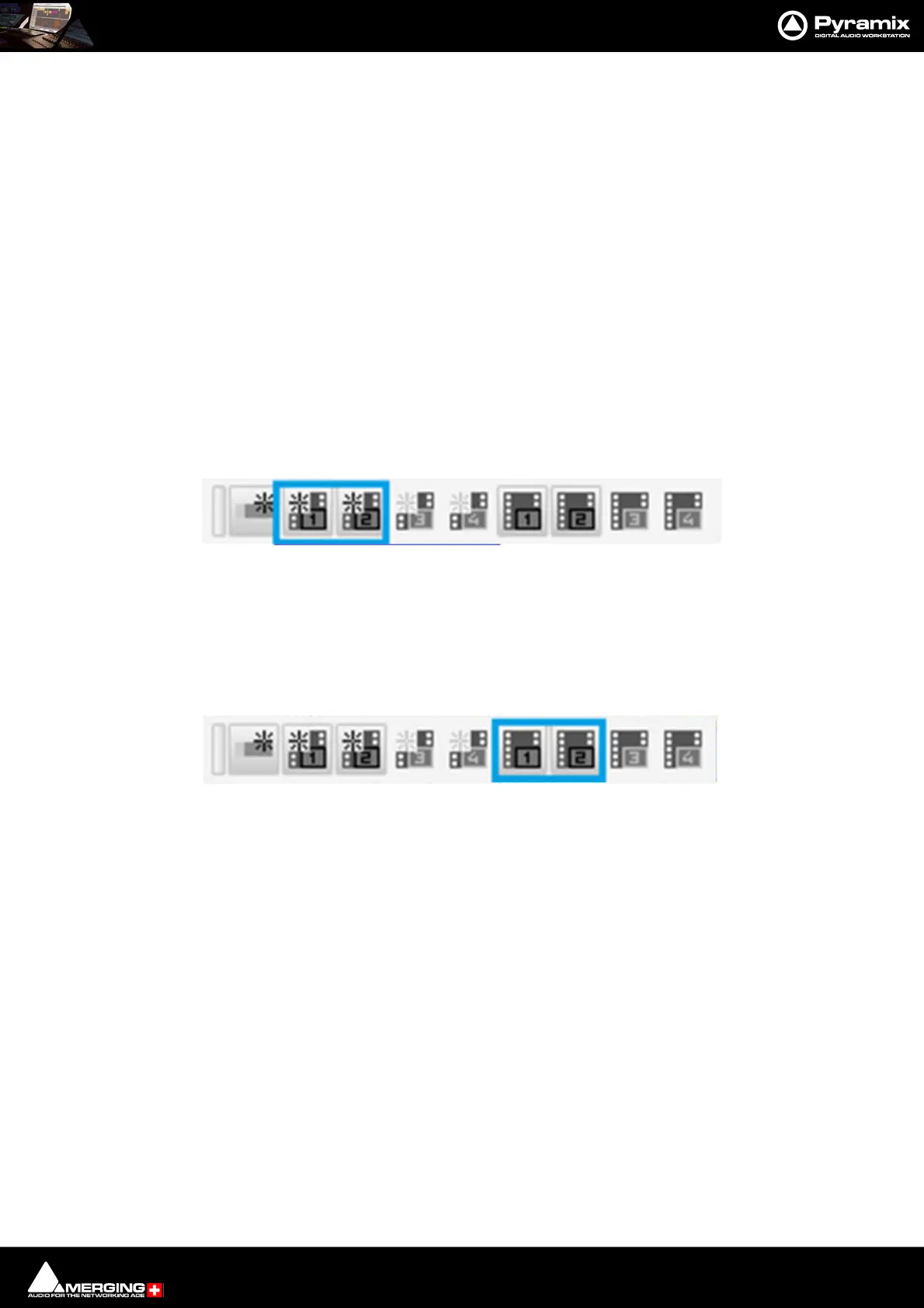
Output Windows are added from Video > New Video Window... > New Video Window Output 1,2,3 or 4 or from
the Video Toolbar.
The left-hand four buttons add Video Output Windows for each of the outputs:
Click on the buttons to create Video Output Windows. Multiple Windows for each output are supported.
Note: Two Output Windows are available currently. Four may be made available as an option at a
later date. The extra buttons are greyed out and inoperative for now.
The right-hand four buttons toggle all Output Windows open and closed per Output:
A shortcut key may be assigned to display or hide all the video frames routed to the respective Video Output (1 or
2). This can be bypassed using the Always Visible context menu option (see below).
Video Toolbar Create Output Windows
Video Toolbar Toggle Output Windows



 To Next Page