Mixer : Mixer Components
10 - 223
Multi Channel Strips
In a Multi Channel Strip there are as many bargraph meters as there are channels. The Panner type can be None,
(which hides the Panner if you are using the Router) 3D, 2D or Pan/Balance.
Channel Direct Outputs
All Input Strip Channels can have Direct Outputs. The Direct Out connection is disabled by default. It can be
enabled in the Mixer Route Tab using the Strips Direct Out Page by clicking on (Click to Enable) in the Strip
Header in the routing matrix. When active (Click to Enable) disappears. Clicking again in the Strip Header disables
the Direct Out and(Click to Enable) reappears.
The Direct Out can be routed per Channel to any output by clicking on a crosspoint in the matrix. The Direct Out
can be sent Pre or Post Fader. Click on the DO: Post box in the Mixer I/O section to toggle. The Direct Out is cur-
rently always Post Effects. Direct Outs are not shown in the I/O section of the mixer unless they are activated in
the Route page.
Direct Monitoring Input Strips
Direct Monitoring Input Strips are a special version of the basic Input Strip designed specifically for recording. The
principal feature of these strips is minimum monitoring latency for the artist. This is achieved by applying auto-
matic delay compensation only to the signal fed to the main output bus. For this reason, Aux Sends and Effects
cannot be installed in Direct Monitoring Input Strips and they cannot be routed to SubGroups. Three types are
available:
Mono - Direct Monitoring
Stereo - Direct Monitoring
MS - Direct Monitoring
Note: Track returns to these strips do not have automatic delay compensation applied and are
intended for monitoring only. When mixing down the Track outputs should be connected to
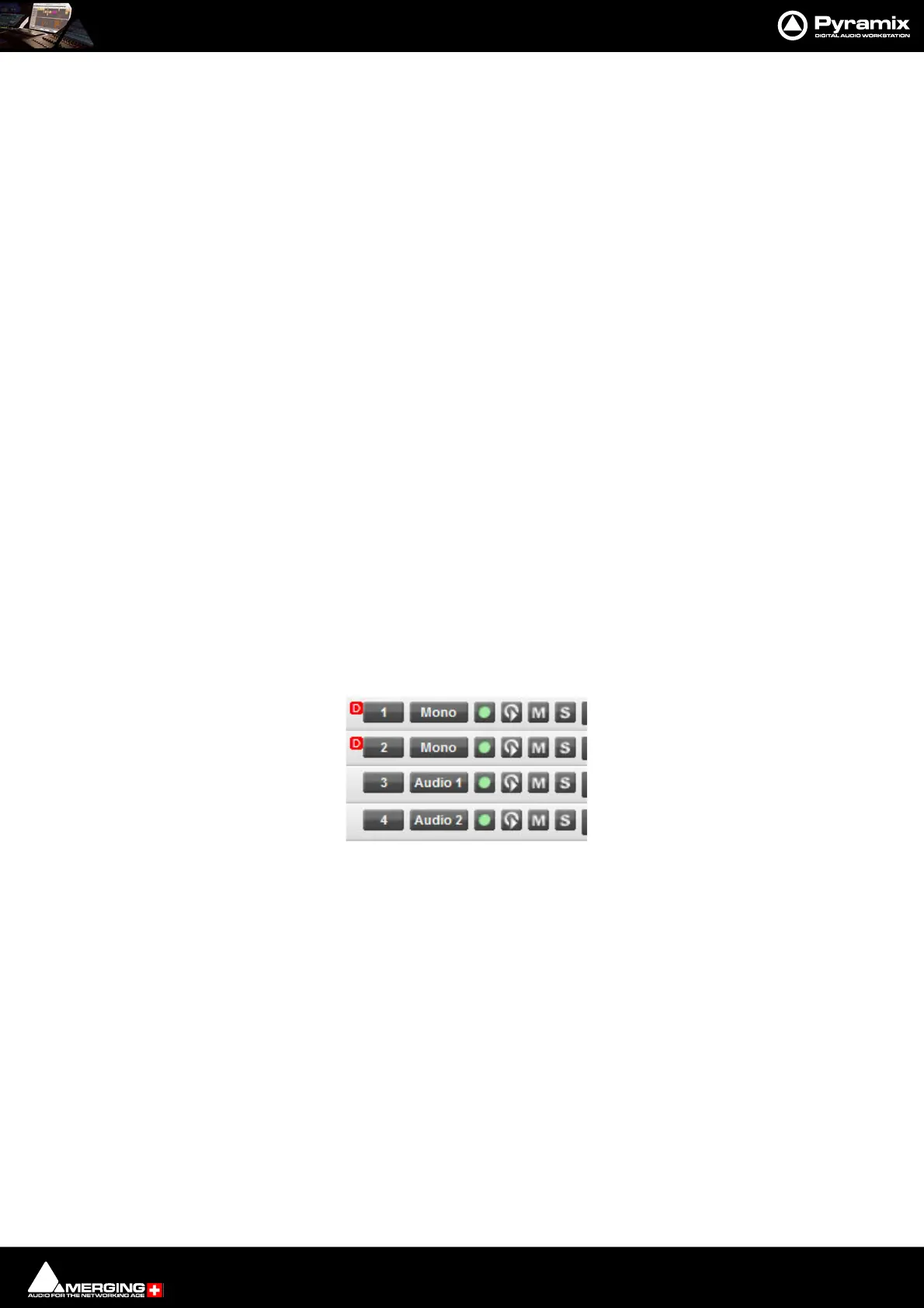
‘normal’ strips. To indicate this clearly, Tracks feeding Direct Monitoring Input Strips show a small
red box with ‘D’ in the header:
Adding Direct Monitoring Input Strips
To add a Direct Monitoring Strip right-click on a blank area of an existing strip to the right of where you wish to
add it. Select Strip > Add > Mono -Direct Monitoring, Stereo - Direct Monitoring or MS - Direct Monitoring
from the context menu as appropriate.
Note: If Auto-Delay Compensation is turned on for the Mixer then the recording from a Direct
Monitoring Input Strip will be in sync with the existing Tracks while maintaining minimum
latency for foldback to the artist.
Input Strips Fed From Internal Return Buses
Note: A Strip fed from an Internal Return Bus will NOT be fully Delay Compensated when in
Auto-Monitoring mode and when in Repro mode the red ‘D’ will be highlighted due to non-
compensation. On the other hand the recorded material will be Compensated correctly and in
sync with the current timeline events.
Track Header Direct monitoring Indicators



 To Next Page