File and Project Interchange : Import / Export
18 - 496
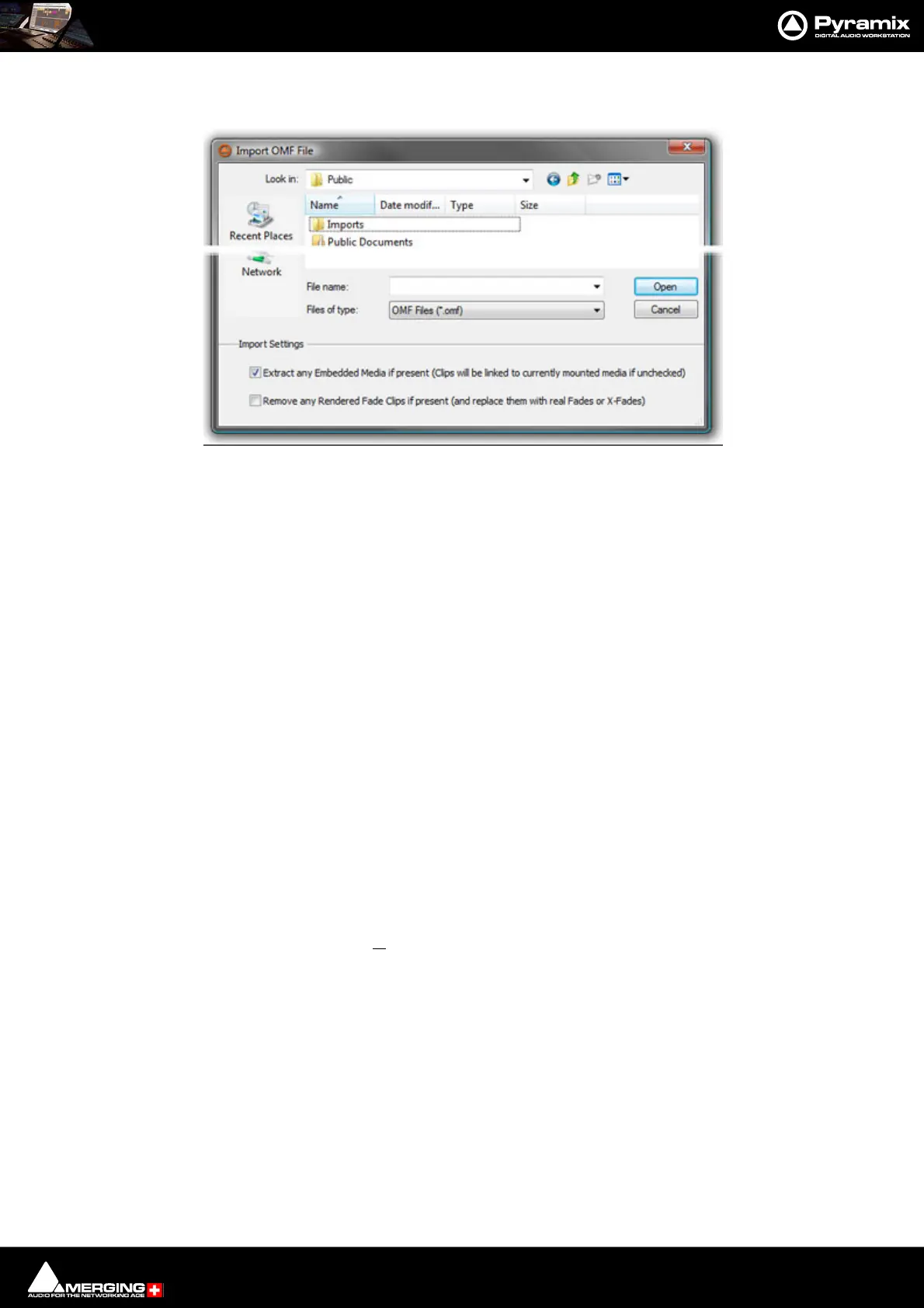
Selecting Project > Import followed by OMF in the Interchange Import dialog opens the Import OMF File
browser window.
Import Settings
At the bottom of the browser window two import settings check boxes offer the options to:
Extract any Embedded Media if present (Clips will be linked to currently mounted media if unchecked)
(default is ticked) and
Remove any Rendered Fade Clips if present (and replace them with real fades or X-Fades)
Default is un-ticked
When importing an OMF file with embedded audio for the first time, leave the Extract option ticked to extract the
media files. Please un-tick the Extract any Embedded Media if present box on subsequent imports of the same
OMF file (because the media will already be present).
If the same file is imported a second time, there's no need to extract the audio twice, simply mount the folder
where it's been extracted to, prior to importing the OMF file. The OMF Media Handler generates an external Wave-
form (.pk) file when the file is first imported.
When importing an OMF file that references (links) to external audio files, the folder(s) that contain these files
must be Mounted in Pyramix before importing the OMF file. (This also applies to Sonic Solutions import).
Ticking the Remove any Rendered Fade Clips if present box converts any rendered fades or X-fades present in
the OMF file into normal Pyramix real-time fades. These can subsequently be manipulated in the usual Pyramix
manner.
OMF Mounting Rules
(Media Management Tab window, Media Folder > Mounting Rules)
AIFF files generated by Avid systems and BWF files generated by Pro Tools with the option Enforce Avid Compat-
ibility have a built-in OMF chunk and have always been recognized by Pyramix as an OMF Media. The Mounting
Import OMF File browser window



 To Next Page