Conforming and Reconforming : Reconform
22 - 546
Step 4
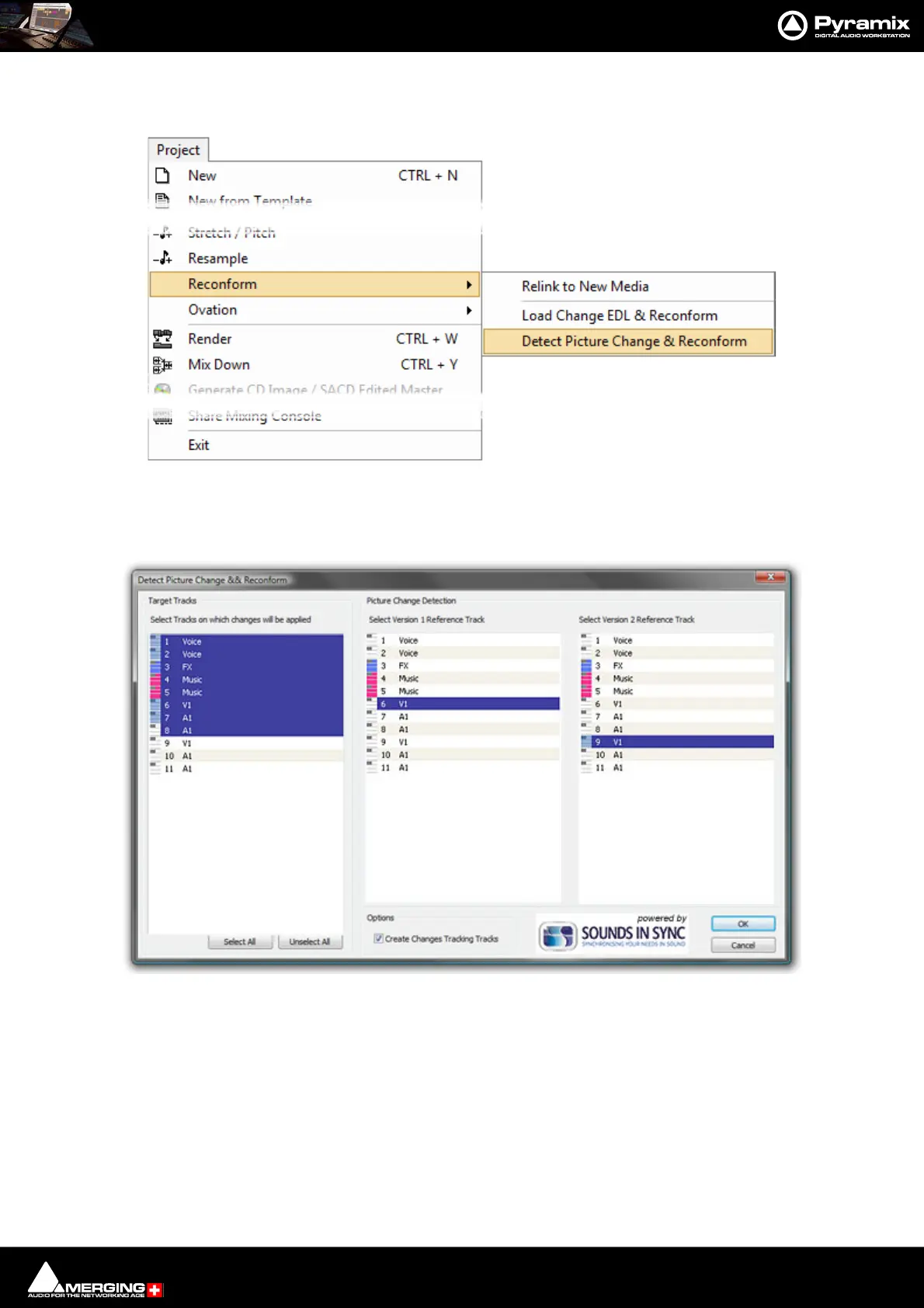
Select, Project > Reconform > Detect Picture Changes & Reconform (Ctrl+R):
The Detect Picture Change & Reconform dialog opens.
Step 5
Select all Tracks that will have to be reconformed (generally all Tracks in the project except those belonging to the
Version2 Video project, but including Version1 Video and Audio Tracks). Select the Track that will be the Version1
Reference Track for the picture change detection (generally the V1 Track of the Version1 Video Project), then
Select the Track that will be the Version2 Reference Track for the picture change detection (generally the V1 Track
of the Version2 Video Project).
Tick the Create Changes Tracking Tracks box if these are required.
When all the selections have been made click on OK to perform the Reconform:
Pyramix Project > Detect Picture Change & Reconform
Detect Picture Change & Reconform dialog



 To Next Page