Appendices : Appendix V - Network Connections
31 - 796
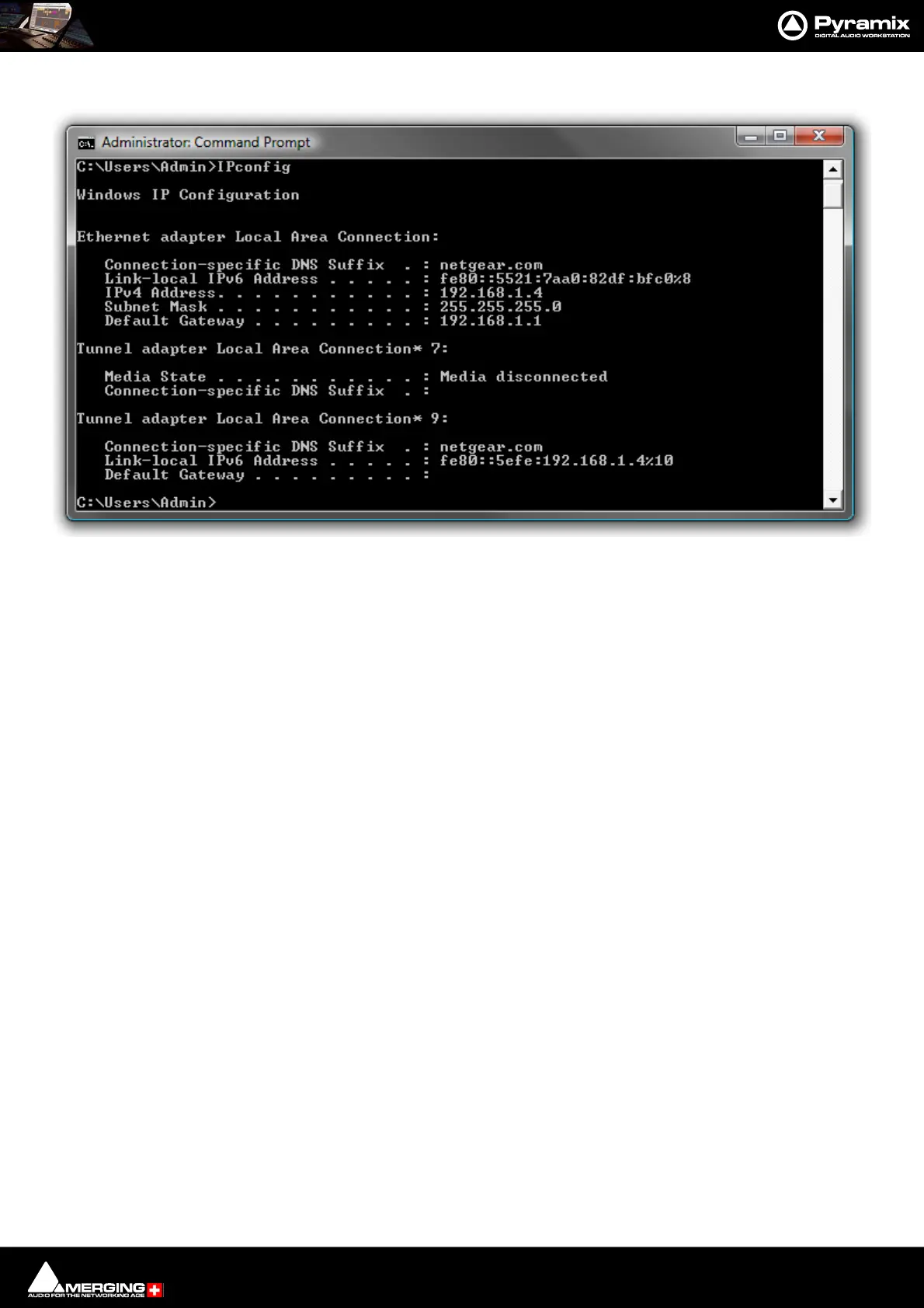
IPCONFIG followed by Enter. The IP configuration for the machine will be shown like this:
Checking Network Connections
Using “Ping”
To check that the connections you have set up are operational do the following:
Open a Command Prompt window. (Start > All programs > Accessories > Command Prompt) then type in
the following command:
PING 192.168.0.3 (or whatever TCP/IP address is currently assigned to the workstation or device you wish to
check) followed by Enter then wait for the machine to reply. Repeat the process for all other connected work-
stations / controllers.
Using Windows Explorer
In a Windows Explorer window, right-click on My Network Places and choose Explore > Entire Network /
Microsoft Windows Network / Workgroup or Domain (choose whichever is appropriate) then verify that all
Pyramix and VCube workstations can search/see each other on the network, including shared hard drives and
folders. (Having all machines in the same “Workgroup” (default workgroup is “WORKGROUP”) helps.
Note: It may take some time for the TCP/IP lists to be appropriately updated to reflect the
complete network topology on all machines. (Particularly when additional computers are
added to a large existing network). Please allow for time for these operations to be properly
carried out in the background. It may in fact take something like 10 to 50 minutes depend-
ing on the size of the network. (In certain situations, E.g. a small 2 machine peer-to-peer net-
work, rebooting both machines may speed up the process).
Command Prompt Window with IPCONFIG



 To Next Page