Media Management & Libraries : Library Tab Windows
4 - 86
Mount Referenced Media Automatically mounts the most recent location where media in the current project were
found
Update Referenced Media Paths To update a library, mount all the media folders involved then select this menu item
Import MTInterchange XML Opens the Import MTInterchange XML Browser Window
Export to MTIntercange XML Opens the Export MTInterchange XML Browser Window
Import MTInterChange XML Opens a File Browser to locate the XML file you wish to import
Export to MTInterChange XML Opens a File Browser to select a folder for exporting an MTInterchange XML
Import OMF Library (Avid Bin) Opens a File Browser to locate the OMF Library you wish to import
Export to Akai DD-Series No longer available
New Shelf Adds a new Shelf (folder) in the current Library or Shelf
Open Shelf Opens selected/highlighted Shelf
Up One Level Moves right-hand pane display up one level in the hierarchy
Properties Pops up a window showing the Properties of the currently selected object
Edit Menu
Cut Cuts Object from pane. Object will be deleted unless pasted elsewhere.
Copy Copy object
Copy Trimmer Selection As it says
Paste Paste object (Media is preserved at its current location)
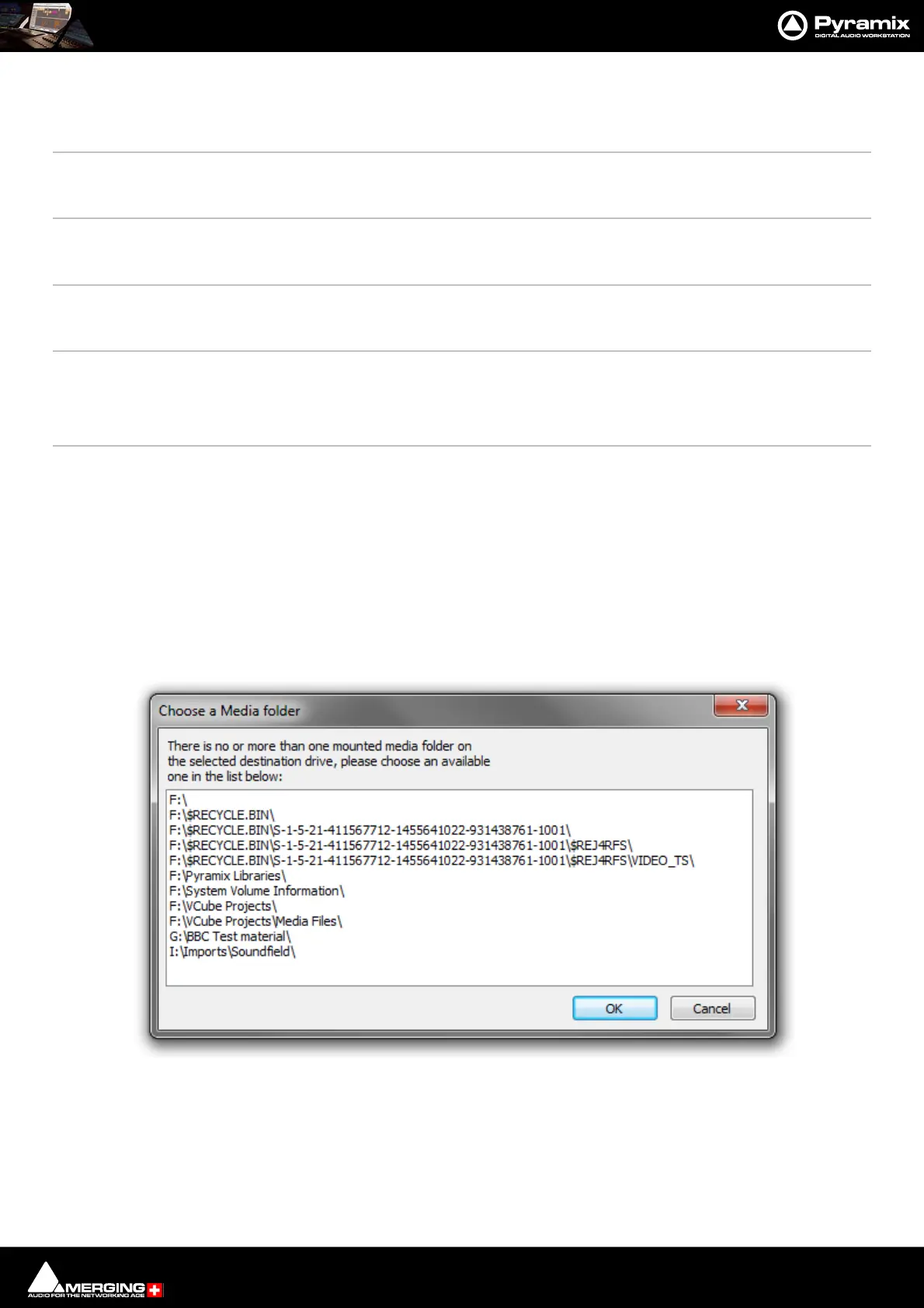
Paste with Media When more than one Media folder or no Media Folders are mounted this opens the
Choose a Media Folder dialog.
Select a suitable folder and click on OK to complete pasting the object complete with a
copy of the associated Media files to the target directory path chosen in the pop-up.
Click on OK to complete the Paste with Media Files
Library Edit menu Paste with Media - Choose a Media Folder dialog



 To Next Page