Station
Assignment
Strata CIX Programming Vol.1 12/09 5-9
Station
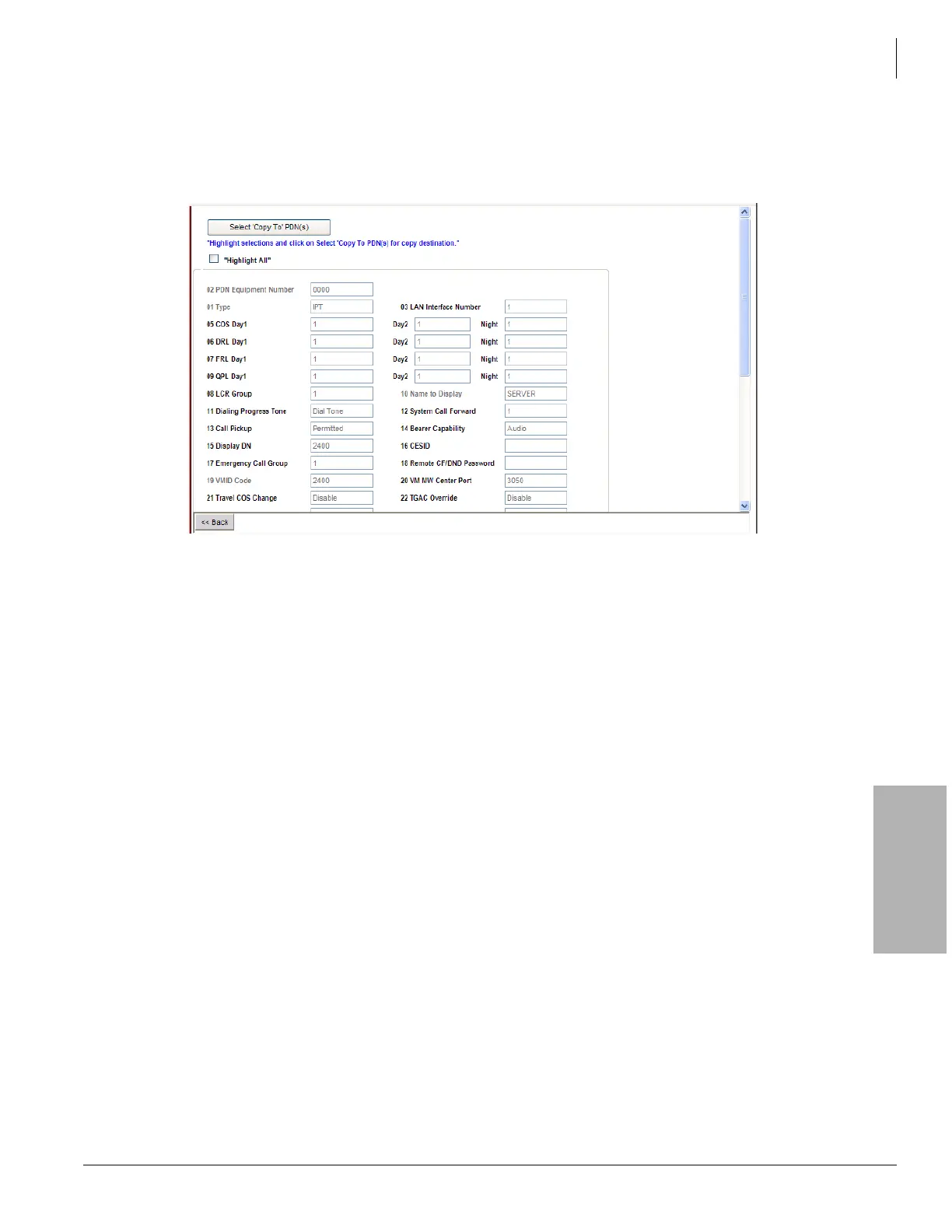
Station PDN Selective Copy
This screen gives you the option of selecting either all or some of the parameters to be copied to the
destination PDNs.
Using this screen you can do any of the following functions:
• Copy to multiple destination PDNs.
• Check All to select all the parameters, or select individual/multiple parameter(s) to be copied.
1. Select Station > Station Assignments. Enter the Primary DN.
2. Click Selective Copy. The Selective Copy screen displays.
3. Check Highlight All to select all the parameters or select individual/multiple parameter(s) to be copied.
Note If you want to copy almost all items and leave out a few, you can check Highlight All and then click
on the items that you don’t want to copy to deselect them.
4. Click Select ‘Copy To’ PDN(s) to start the copying process. End of Copy is displayed when copy is
complete.
Note You can return to the previous page and/or reselect copy to different destination PDNs by clicking
Back.
PDN Table View
The PDN Table View displays the following parameters set in Program 200/260—Station Equipment
Number, Type, Extension/Voice Mail, Primary DN, User Name, PDN VMID, COS, DRL, FRL, LCR Group,
System Call Forward Template, Network COS, the quantity of Station Speed Dial bins and Tenant.
To access the extended list
Select Station > Station Assignments and click the PDN Table View button. The Extended List
spreadsheet displays after it downloads from the CIX. This takes some time depending on the CIX
connection speed and database size.
The screen may be kept up and moved around to use as a reference and can be printed. The Extended
List spreadsheet can be sorted by all 20 columns and sorting can be toggled between Ascending and
Descending order. The entire table can be printed using the Print button on the screen.



 To Next Page