Note: Although the instrument generates pink noise, the Signal Generator position of the Instrument
section is unavailable in the RT60 function.
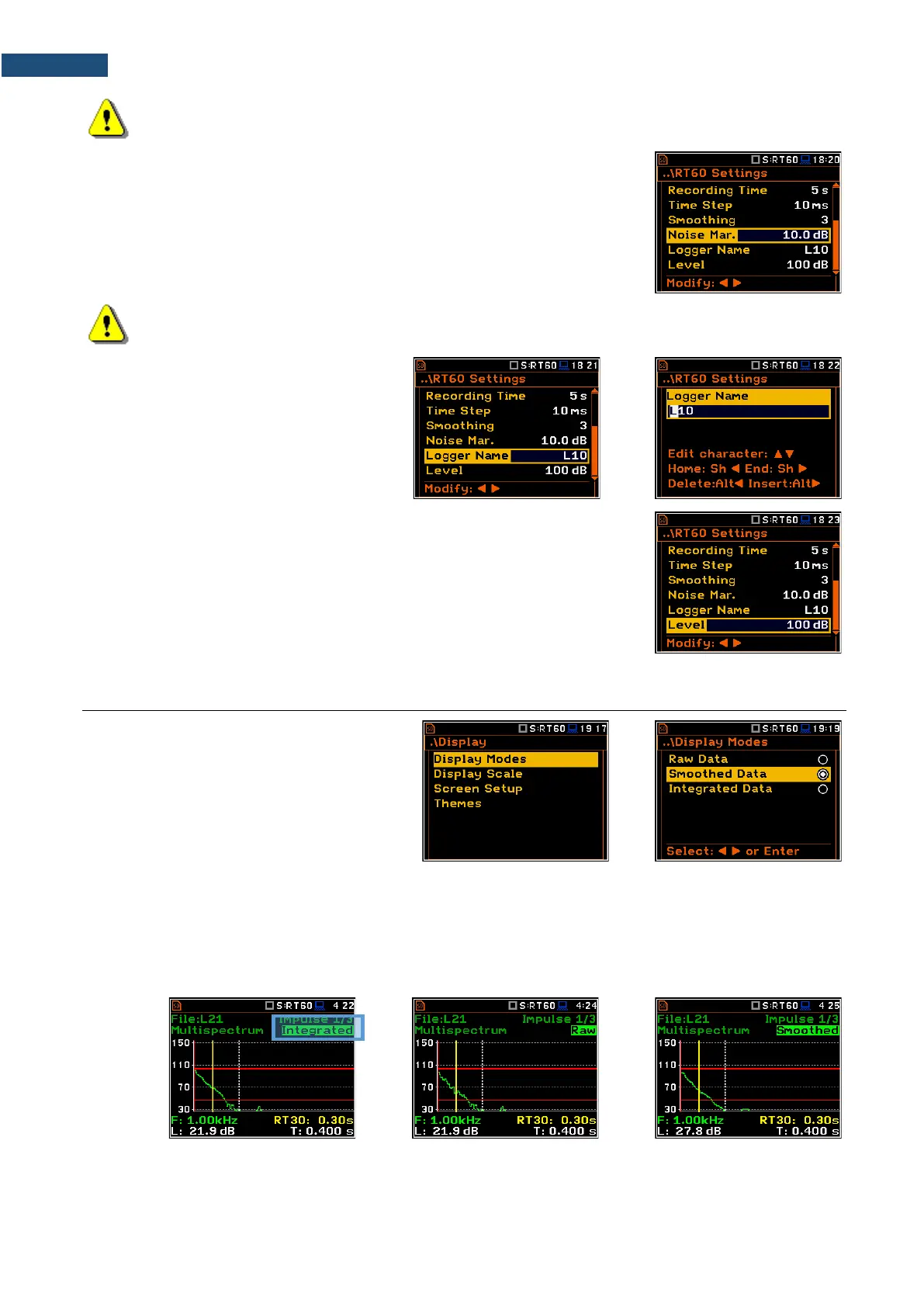
The Noise Margin parameter defines the margin value to the calculated noise
level (for more detail see Appendix E). This parameter can be set in the range
0.0 dB ÷ 20.0 dB with 0.1 dB step (default value is 10.0 dB).
Note: If the measurement must fulfil the ISO 3382 standard requirements the noise margin is
required to be set to 10 dB (or higher).
The Logger Name position allows you to
define the name of the logger file in which
data of the RT60 analysis will be recorded.
The name can be up to eight characters
long. After pressing the ◄ / ► key, the text
editor screen is opened.
The Level position defines the threshold level of the sound source for triggering
the RT60 measurement. If the measured sound is below the Level value, the
RT60 measurement will not start. The parameter can be set in the range
24 ÷ 136 dB with 1 dB step (default value is 100 dB).
For the Impulse method, the source is Leq(1) integrated by 0,5 milliseconds.
For the Decay method, the source is Leq(1) integrated by 1 second. It also
should be stable within ±0,5 dB for 2 seconds.
12.3 CONFIGURING RT60 VIEWS
The Display section contains elements for
programming measurement result
presentation and display parameters.
The Display Modes list allows you to select
the type of data displayed during the RT60
calculations.
Time data can be viewed as a Raw Data, Smoothed Data (or Integrated Data in case of Impulse method).
You may also switch between different data view modes during measurement in the presentation mode. For
this purpose, it is necessary to select the field with Raw, Smoothed or Integrated text (at the right upper corner
of the display) and change its content with the <Alt> and ◄ / ► key pressed together.


 To Next Page