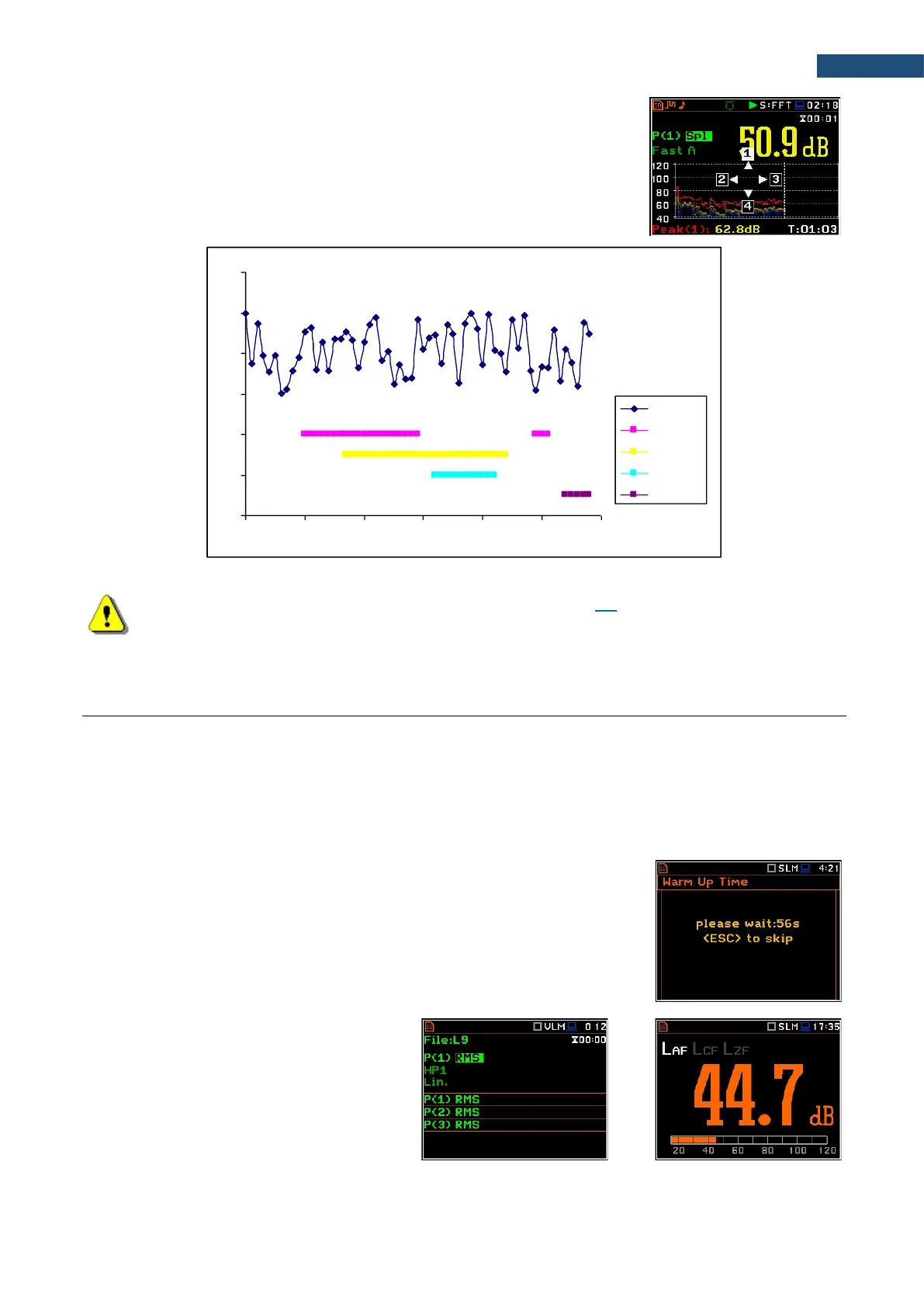
An example below presents markers on the time history plot.
Note: When the screen saver function is active (see Chapter 5.4) you may face the problem that
during dimmed or switched off screen you should press the ▲, ◄, ► or ▼ keys twice to activate
the marker, because the first press of these keys will cause switching on the screen. If activating
markers is sensitive for your measurement process, switch off the screen saver function.
2.5 WORKING WITH THE INSTRUMENT
The instrument is controlled by means of nine keys on the keypad. Using these keys, one can access all
available functions and change the value of all available parameters.
The instrument is equipped with the super contrast OLED colour display (320 x 240 pixels), which displays the
measurement results and the configuration menu.
The instrument has two general modes of operation: measurement performance and results preview mode and
configuration mode with the use of Menu functionality.
Turning instrument on
To turn the instrument on, press the <Alt> and <Start/Stop> keys at the same
time.
The instrument goes through the self-test routine after turning on, displaying
during this time the manufacturer logo, the name of the instrument and the
firmware version. The instrument will warm up for one minute, then it enters one
of the results view mode:
• the last used, just before the unit switch
off, in case of Vibration measurements
or
• the Running SPL view (if it was
enabled) or the last used, just before the
unit switch off, in case of Sound
measurements.
20
30
40
50
60
70
80
13:30:00 13:30:09 13:30:17 13:30:26 13:30:35 13:30:43 13:30:52
Leq
Marker 1
Marker 2
Marker 3
Marker 4


 To Next Page