Program Mode 6-73
Calibrate Touch Screen
If the touch screen fails to accurately respond to input, use the Calibrate Touch
Screen button on the Display tab. When selected, the tester will display the
calibration screen the next time it is powered up..
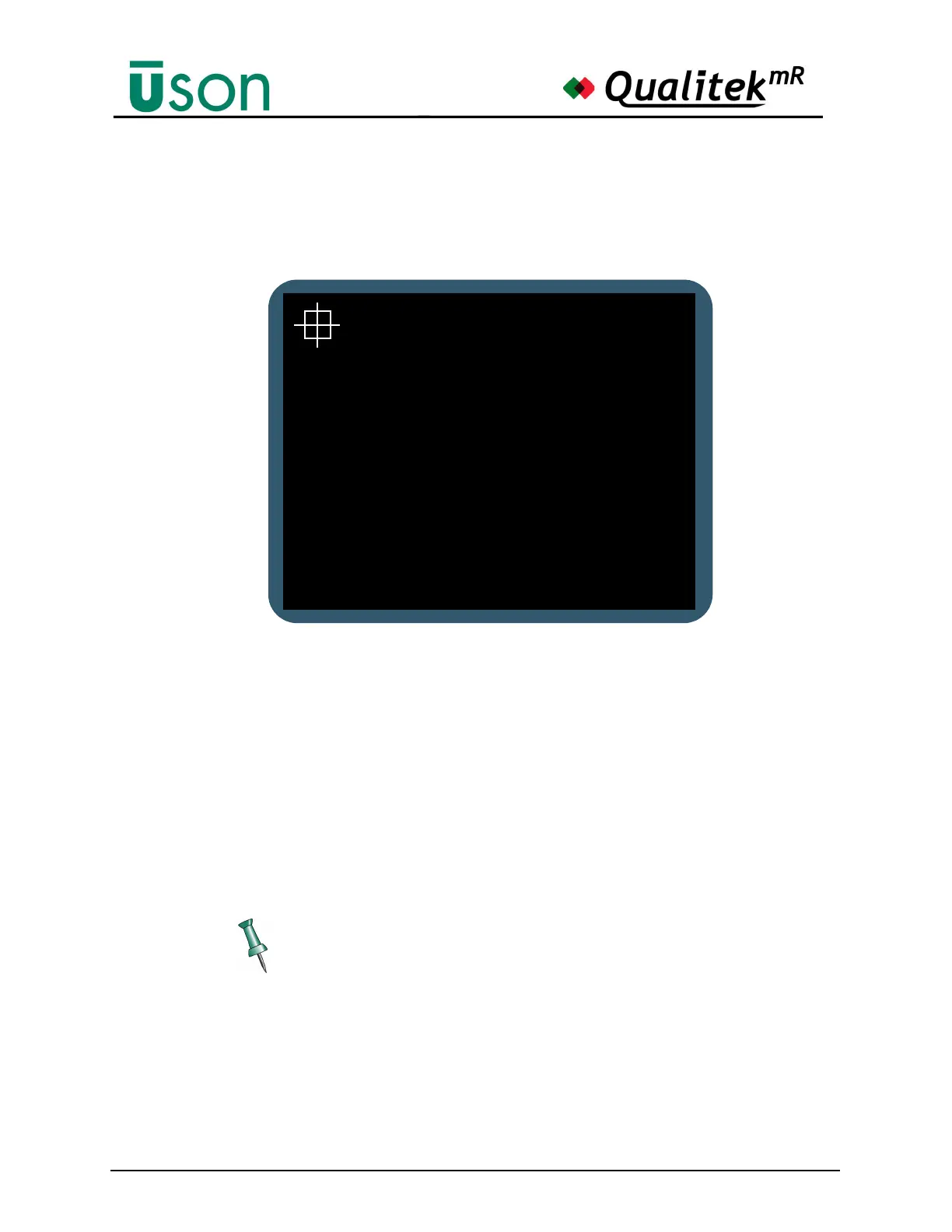
While powering up, just before the Home screen would normally appear, the
calibration screen will appear as shown above. At first, the crosshair target will be
seen in the upper left corner of the screen as shown. Touch that crosshair target
point as precisely as possible in its center. If you have difficulty touching precisely,
use a rounded-point stylus or the eraser end of a pencil to touch the crosshair.
Once the crosshair is properly touched, another point will appear (there will be 5
points to touch, in all). When the final point is touched the calibration is over and
the power up process automatically continues to the Home screen as usual.
If the screen response to input is not improved, it may be necessary to perform the
touch screen calibration again.
You can also activate the touch screen calibration procedure by connecting a
USB keyboard and simultaneously pressing CTRL + C. After simultaneously
pressing Ctrl and c, the following message displays: “Clear touch screen
calibration and perform a new calibration when switching the instrument on”.
Chose either OK or Cancel. The “Enter” key on the USB keyboard activates the
OK on the QmR screen. Next, proceed with a power cycle.
calibration utility
Touch crosshair to calibrate


 To Next Page