Quick Start 4-3
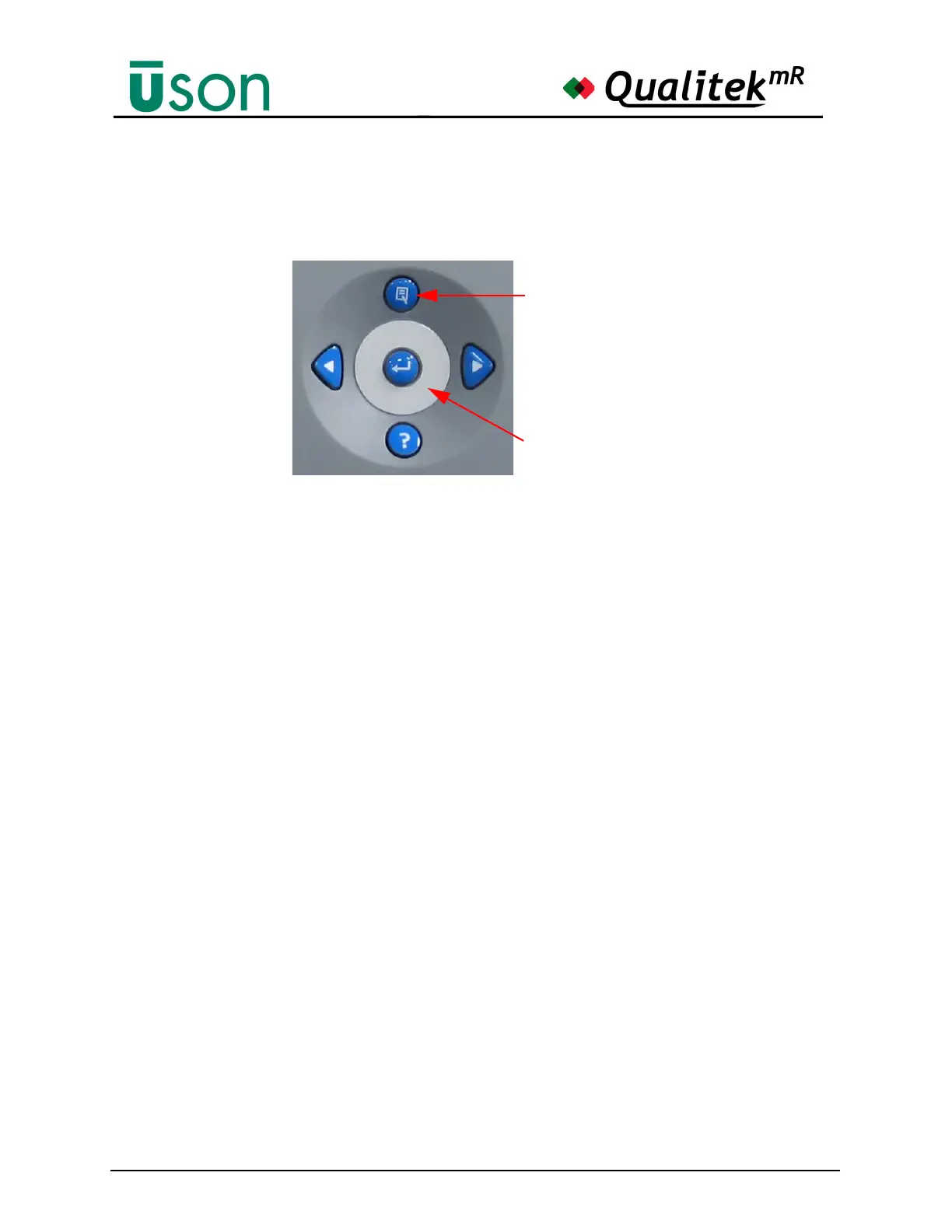
4.2.2 Navigation Pad
The Navigation Pad has 5 buttons and a touch-sensitive ring (called the scroll pad)
around the central button. Graphics on each button show what function it performs.
Enter Button
The center button is Enter. It can be used with the scroll pad to accept a selection
that has been highlighted.
? Button
Press this button to see the firmware revision number on Status Line. (The
firmware is the built-in program that controls the tester.)
Next and Previous Arrow Buttons (Left and Right).
These buttons are used to move the data entry cursor when using entering
alphanumeric data from the keyboard. They also will navigate from one top level
tab to the next one on Program Mode screen.
Menu Button
The Menu Button, located at the top position of the pad, is used to quickly return to
the Home screen of the current mode from almost any screen. Some sub-screens,
such as a keyboard display, require that their pending operation be completed or
canceled before the Menu Button is permitted to operate. Repeated presses toggle
between Run Mode and Program mode (when Program mode is permitted to the
operator.)
Scroll Pad
The Scroll Pad is is the touch-sensitive ring around the Enter button. The Scroll
Pad provides helpful navigation shortcuts on many screens. For example, use the
scroll pad to move the highlight cursor in list boxes or to change the scale of the
Profile and Trend graphs. In lists, it can scroll the list up and down. Experimenting
with the scroll pad on various screens will reveal other useful shortcuts to you.


 To Next Page