Using MetaASSIST View Administration
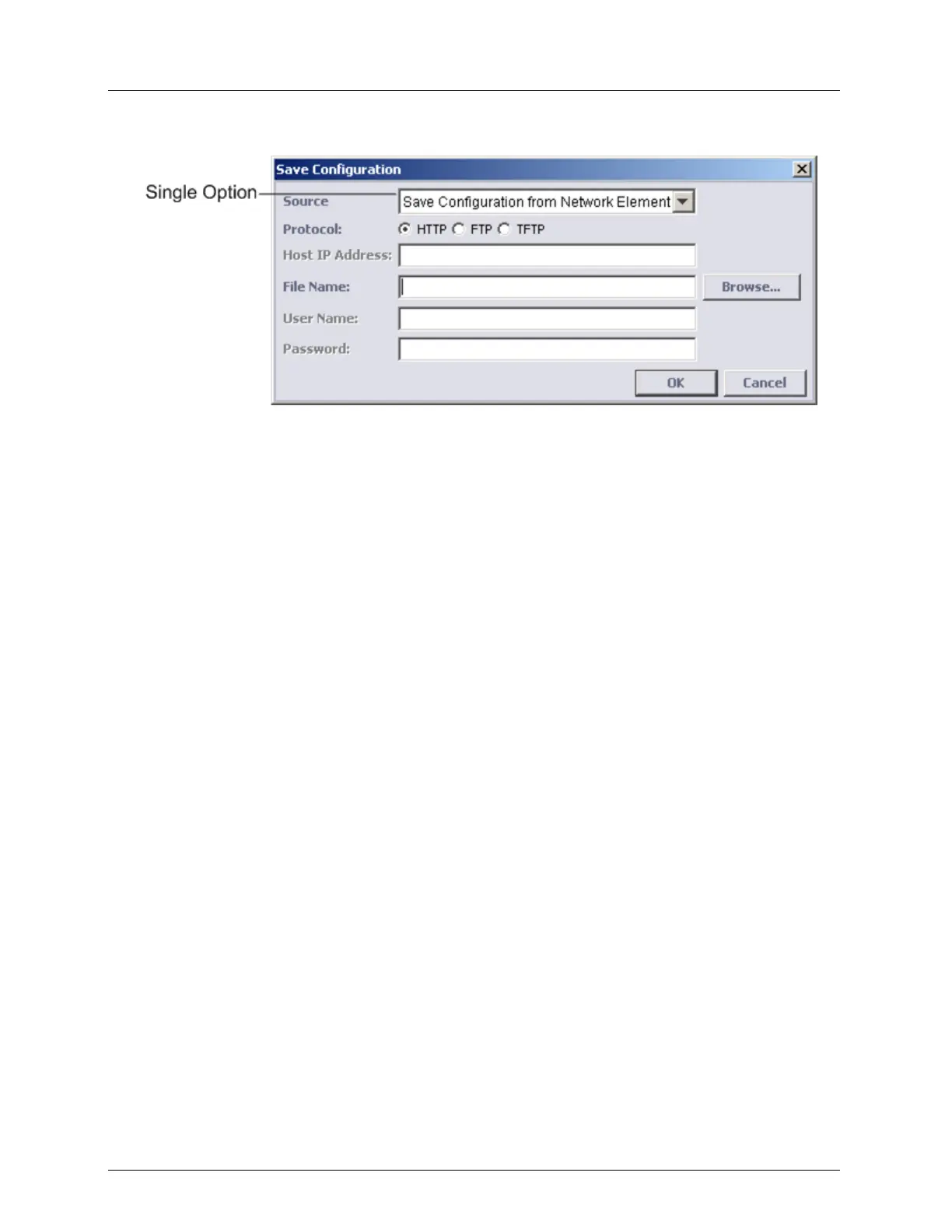
4. Click Save Config. The Save Configuration dialog appears.
5. Select a protocol option for download (HTTP, FTP or TFTP).
6. In the Host IP Address box, type the server IP address (for HTTP, skip this step).
7. In the File Name box, type a file name for the configuration file (for HTTP, you can
browse for a backup directory). MetaASSIST View automatically adds the .dat
extension.
8. For FTP only, in the User Name and Password boxes, type the user name and password
of the FTP server account.
9. Click OK. The configuration file is uploaded and saved.
Restoring Step 1: Downloading a Configuration File
To restore the configuration of the ML device system, download a previously saved
configuration file to the ML device. During download, the configuration file is checked for
validity and compatibility. An error message is displayed if the configuration file is invalid
(binary file was manually edited) or incompatible (differences in software version or NE
hardware model between the backup and the NE where the backup is restored).
To download the configuration file to the ML device
1. In the Network Element tree, open System Administration.
2. Open Configuration Backup. The Configuration Backup pane opens in the work area.
3. On the Host, run an FTP/TFTP server. The FTP/TFTP directory must point to the
configuration directory where the configuration file is stored (for HTTP, skip this step).


 To Next Page