Administration Using MetaASSIST View
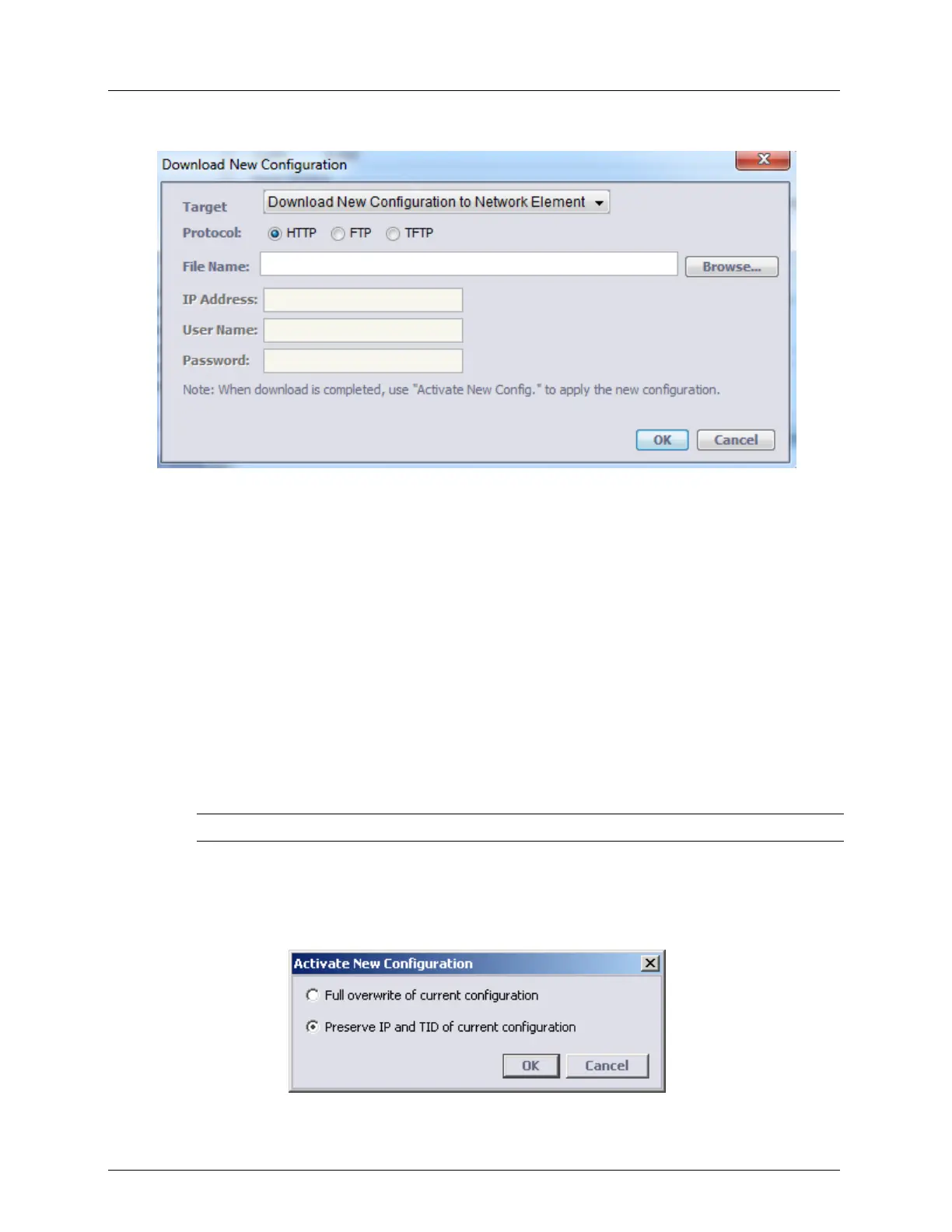
4. Click Download New Config. The Download New Configuration dialog appears.
5. Select a protocol option for download (HTTP, FTP or TFTP).
6. In the File Name box, type a file name for the configuration file with a .dat extension. If
you are using HTTP, you may also use the Browse button to locate the directory or the
file in which the backup file should be stored - in any case, the file name should have a
.dat extension.
7. In the IP Address box, type the IP Address of the FTP/TFTP server (for HTTP, skip this
step).
8. For FTP only, in the User Name and Password boxes, type the user name and password
of the FTP server account.
9. Click OK. The configuration file is downloaded to the ML device.
Restoring Step 2: Applying a Configuration File
This procedure is used to activate the restored configuration file. This may take a few
minutes.
NOTE: In order to delete the new configuration, go to Deleting Configuration File (on page 14-5).
To apply the new configuration file
1. In the Network Element tree, open System Administration.
2. Open Configuration Backup. The Configuration Backup pane opens in the work area.
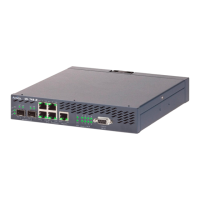
3. Click Activate New Config. The Activate New Configuration dialog appears.
4. Select the desired activation method:


 To Next Page