SFP Pluggable Modules Equipment and Port Configuration
MiTOP Configuration via MetaASSIST View
This section details the two-step MiTOP SFP configuration via the MetaASSIST View.
Step 1: Configuring the MiTOP SFP Management Parameters
1. Access the MiTOP SFP Pane (under Modules in the Network Element Tree).
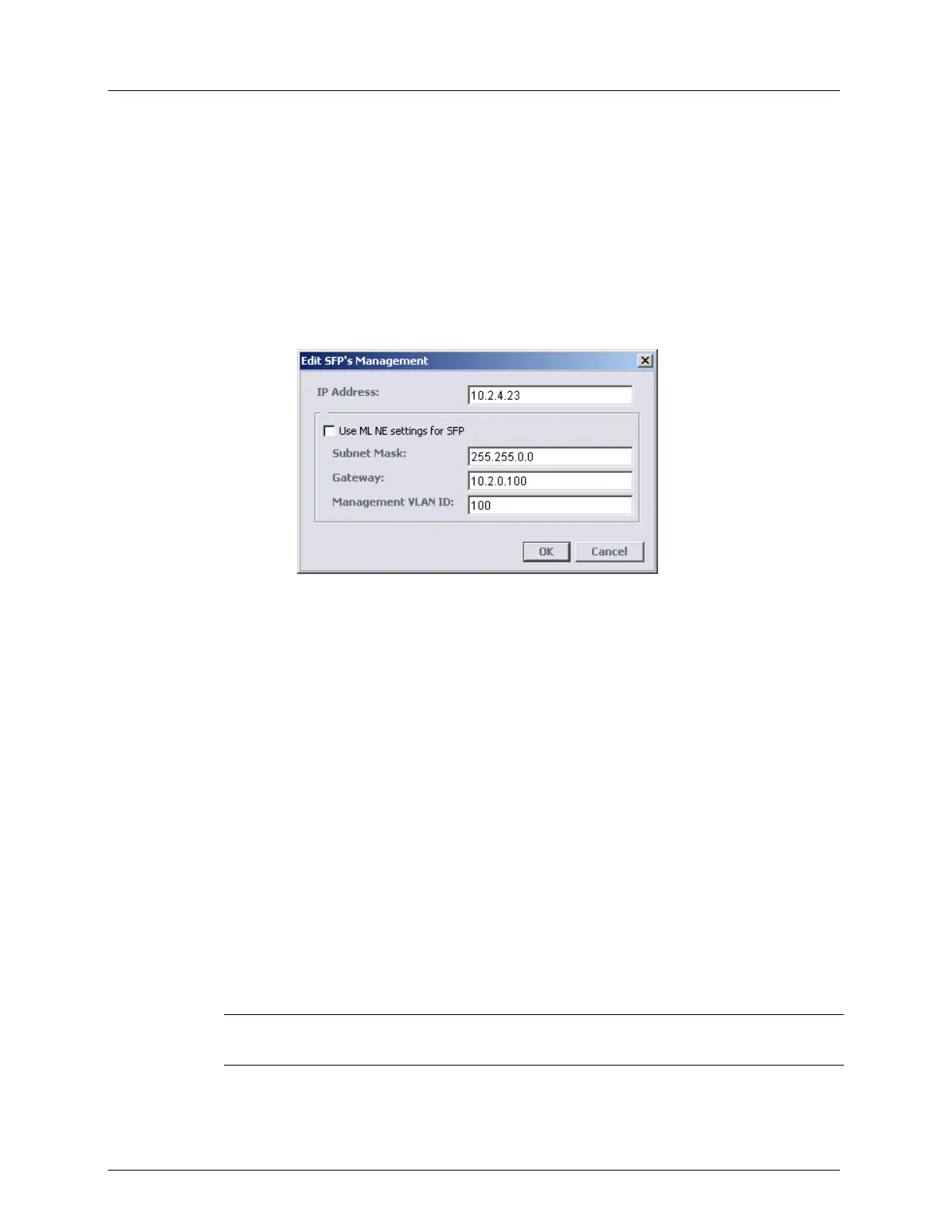
2. In the displayed pane, click the Edit SFP’s Mgmt button.
3. SFP management can be provided in a different or in the same as ML devices
Management plane. To use the same Management plane, checkmark the Use ML NE
setting to SFP checkbox.
4. To complete setting on the ML (for in-band access to SFP) open the VLAN pane of the
ML NE and specify an ETH-x port, where the SFP port is plugged in a Management
VLAN ID as specified in the above SFP dialog.
5. After configuring IP/LAN management access on the SFP, and the VLAN is set
accordingly on the ML NE ETH-x port, use the WEB browser to complete the rest of the
configuration, as specified below.
Step 2: Opening a WEB session to the MiTOP SFP module, to configure additional SFP
parameters
1. On the Network Element tree, click Modules, SFP-1-x (where x is the relevant port to
which MiTOP SFP device is connected). The MiTOP SFP screen opens.
2. Click the Browse button to open the default PC web-browser that is connected directly
to the SFP IP (assigned in the previous step).
3. Login to the SFP system using one of the following:
User Name "su" and Password "1234" or,
User Name admin and Password admin
4. For in-band (from wire) management, configure the SFP module for TAGGED frames in
the MGMT VLAN (to separate the configuration and service data on the SFP) and apply
COS=7 to MGMT traffic – to prioritize management above service.
NOTE: For connection to the SFP plugged into the CPE NE, configure the SFP in the
same Management plane as ML devices.


 To Next Page