Automatic Test: Test Locations
183
10
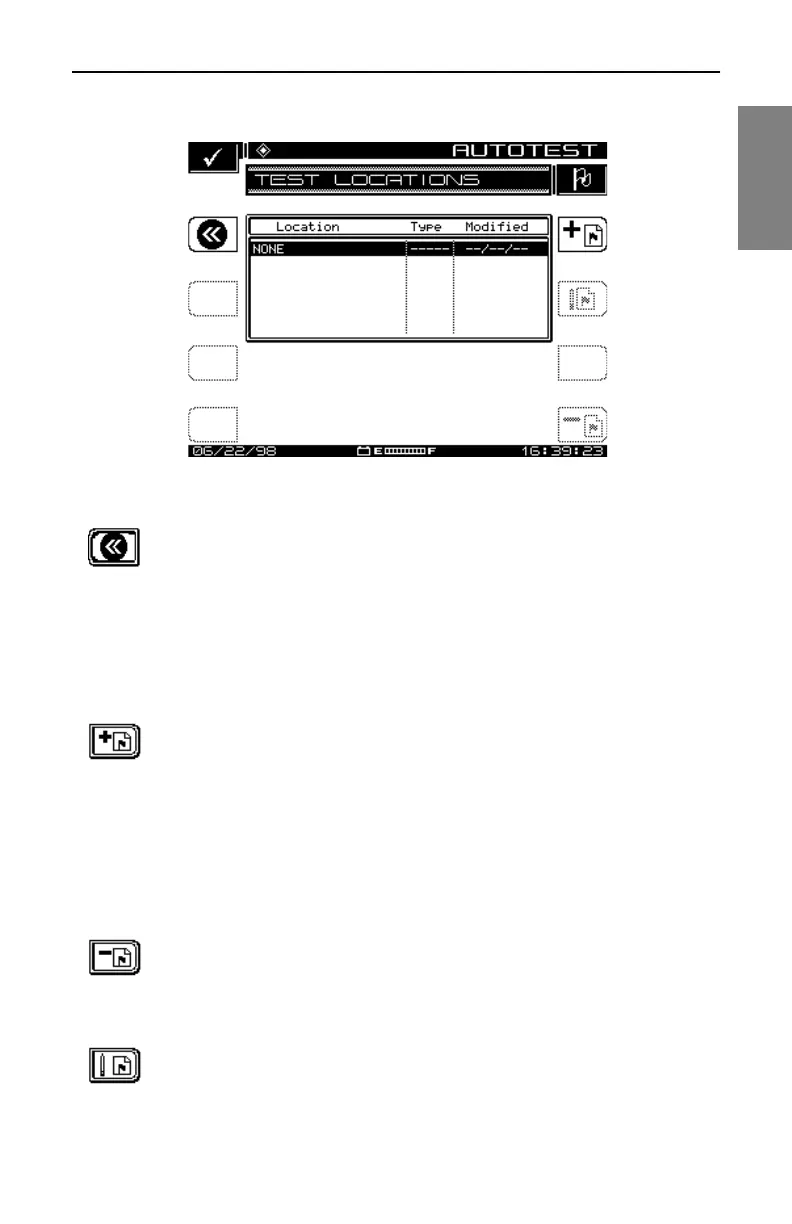
Fig. 10-2 The TEST LOCATIONS Screen
Press the Step Back soft key at the upper left to return to
the main AUTOTEST menu.
Use the up and down diamond keys to scroll through the list and select an
existing location.
Entering a New Location
To establish a new test location, perform the following steps:
Press the Add Location soft key. The Edit Box appears and the
program prompts you to name the location.
Enter the name and press the Enter soft key. The TEST
LOCATIONS screen appears (see Fig. 10-3).
Scroll through the list of characteristics, make the necessary
adjustments, and press the OK soft key
Deleting an Existing Location
Press the Delete Location soft key to delete the highlighted
location from the file.
Editing an Existing Location
Press the Edit Location soft key to edit the characteristics of a
selected test location. This calls up the TEST LOCATIONS


 To Next Page