Page 112 – 6. Shapes and Pixel Mapper effects
TitanUniversal_Man_v10_QU.doc 15 March 2016
6.1.1 Selecting a shape
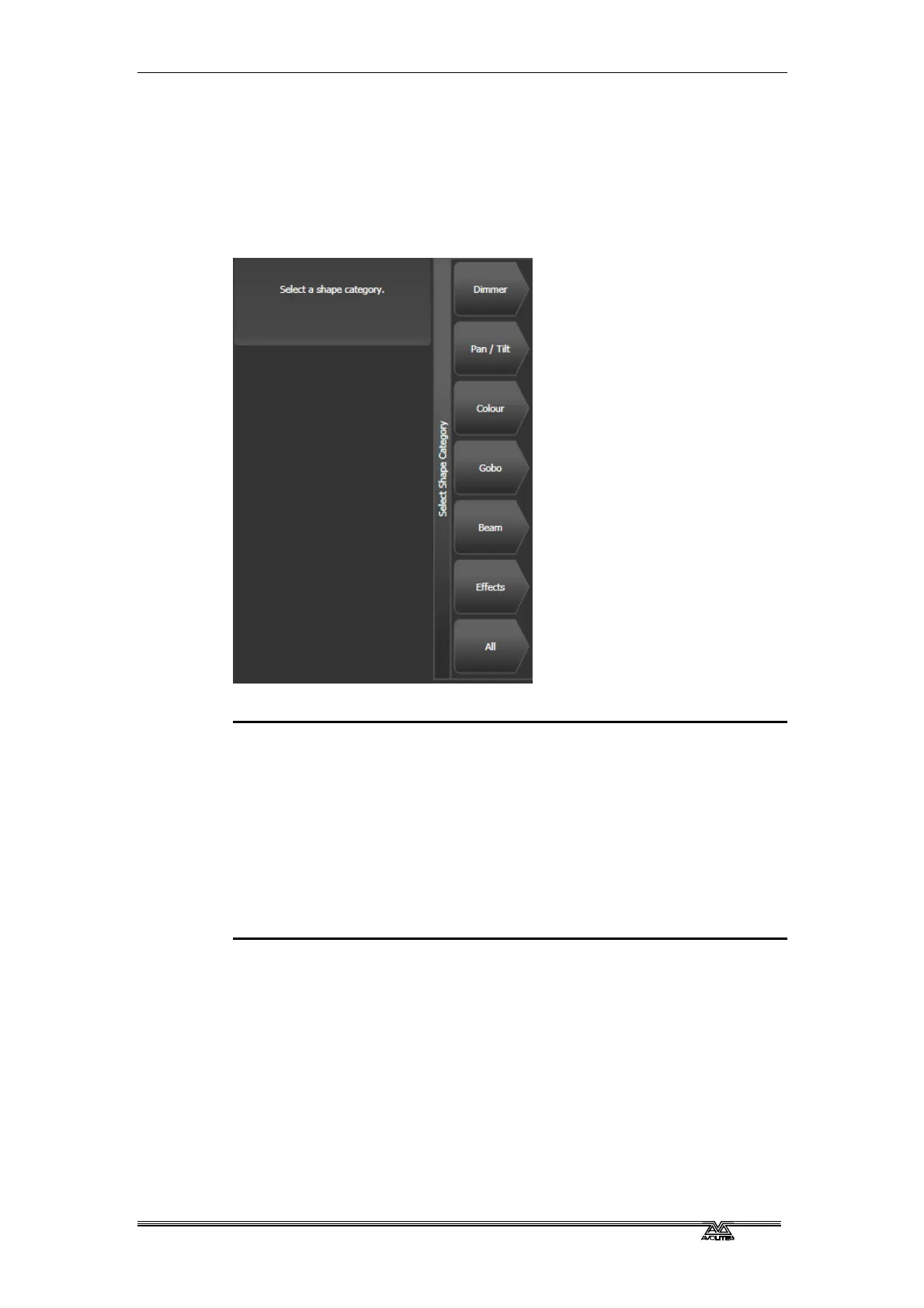
To run a shape, select some fixtures, pick the attribute of the shape
from a list on the softkeys, then choose the shape you want from the
Shapes window. Shapes are organised using the IPCGBES attribute
groups, so you can pick from a list of Dimmer shapes, or a list of
Pan/Tilt shapes, or Colour shapes, and so on. You can also pick from
a list of All Shapes.
When you create a shape, it will be applied to all selected fixtures.
1> Select the fixtures the shape is to be applied to.
2> At the main menu press [Shapes and Effects] then [Shape
Generator].
3> Press [Create] to start a new shape.
4> Press a softkey to select the attribute type to use in the shape
or press [All shapes] for a full list.
5> Press a softkey to select a shape, or touch the desired shape in
the Shapes window. You can type a search word on the
keyboard to search for a particular shape.
6> The shape will be applied to all selected fixtures.
• If you open the Shapes window, it will remain open for instant
selection of shapes (you don’t need to select [Shape
Generator]). The window will only show shapes which are
possible on the selected fixtures. Pressing attribute buttons will
filter the Shapes window to show only shapes for that attribute.
Press the Dimmer attribute button to show all shapes.



 To Next Page