Page 74 – 4. Controlling dimmers and fixtures
TitanUniversal_Man_v10_QU.doc 15 March 2016
• [Freeze current values] sets what happens to LTP (non-
intensity) channels you have modified. If set to [Freeze Current
Values] the channels remain as you set them. If set to [Release
To Playback Values] the channels will go back to how they are
set in the current playback. For example: you have an active
playback making some lights green, then you select the lights
and change them to red. If you press Clear with this option set
to [Freeze] then the lights remain red. If the option is [Release]
the lights will go back to green.
• [Clear/Maintain Cue Times] - determines whether or not to
clear the cue time information from the programmer (this will
not affect fixture attribute times in the programmer).
You can use the Channel Grid window to selectively view and remove
attributes from fixtures. See section 4.2.1 on page 89.
If you type a number then press Clear, HTP values in
the programmer will fade out over that time, for
example 5 Clear would fade over 5 seconds. This can be
very useful if you are trying to be subtle when making
changes during a show.
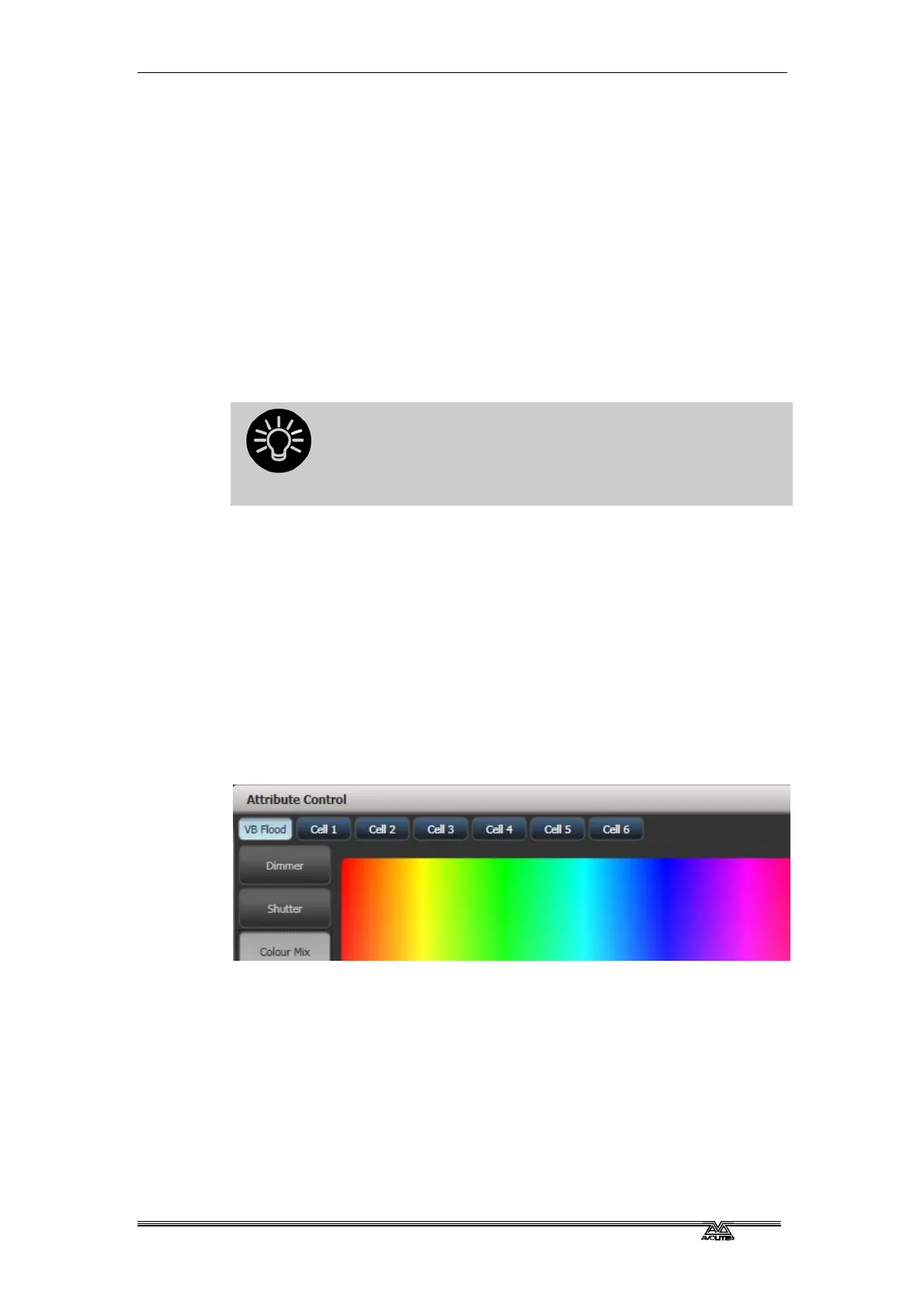
4.1.4 Fixtures with multiple cells/subfixtures
If a fixture has multiple cells of control (for example an RGB LED
batten) and its personality supports it, you can select and control the
fixture either as a whole or as independent cells. This is particularly
useful when using Shapes or the Pixel Mapper.
If you select the fixture using the handle it is patched on, all cells of
the fixture will be controlled together.
You can use the buttons which appear at the top of the attribute
editor window to select the main fixture, or individual cells for control
(use the [Open Workspace Window] softkey to open the Attribute
Editor window).
You can also use Unfold to expand the cells onto individual select
buttons. In the Fixtures workspace, the current page of fixtures will
be replaced by select buttons for each individual fixture cell. On fader
handles, the unfolded fixture cells will start at handle 1.
There are two ways to unfold fixture cells:
• Press Unfold then select range of fixtures. The cells will
immediately appear on the handles.
• Select fixtures, press Unfold, then press [Selected Fixtures].
This method allows for non-consecutive fixtures to be unfolded.



 To Next Page