Page 178 – 8. Chases
TitanUniversal_Man_v10_QU.doc 15 March 2016
through its fade. The order of the fixtures is set by the order
you selected them when the cue was saved; you can change
the order using Unfold.
From version 3 of Titan software, [Cue Overlap] is no
longer available in chases. Instead use a Cue List set to
“Link With Previous” and set the Offset as desired.
8.5.2 Individual cue times in chases
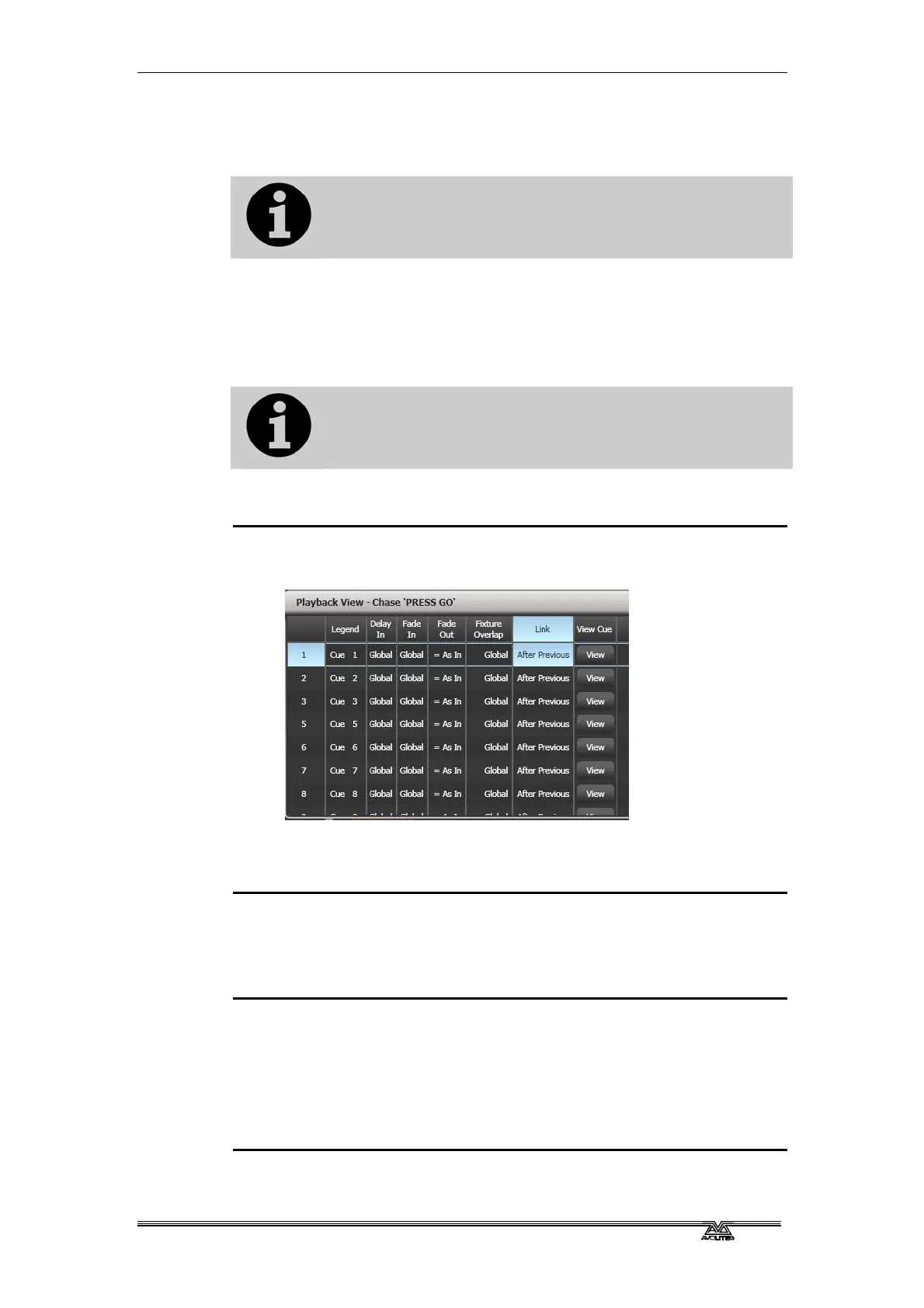
You can configure each cue in a chase to have its own timing
information. You can use the Playback View window, or the Unfold
function to set individual times for cues in chases.
It is easier to use a Cue List rather than a chase if you
need a lot of different timings or link/unlinks. Cue lists
are described in the next chapter.
Using the Playback View window:
1> Touch the playback display relating to the fader, or press
Window Open then the swop button of the playback. The
Playback View window will open.
2> In the grid, touch the times you want to edit.
3> Use the softkey options to change the times or settings.
4> Repeat from 2 to change other times or settings.
• You can change a range of cues all at once by dragging across
the grid to select multiple cells, or you can use wheel B to select
multiple cells for editing.
Using Unfold:
1> Press the Unfold button, then the Swop button of the chase to
be edited.
2> Press [Edit Times] then the Swop button of the unfolded cue
you want to edit.
3> Set up the timing options as required. The options are
described below.
4> Press Unfold to get out of unfold mode.


 To Next Page