Page 40 – 2. Setting up and using the console
TitanUniversal_Man_v10_QU.doc 15 March 2016
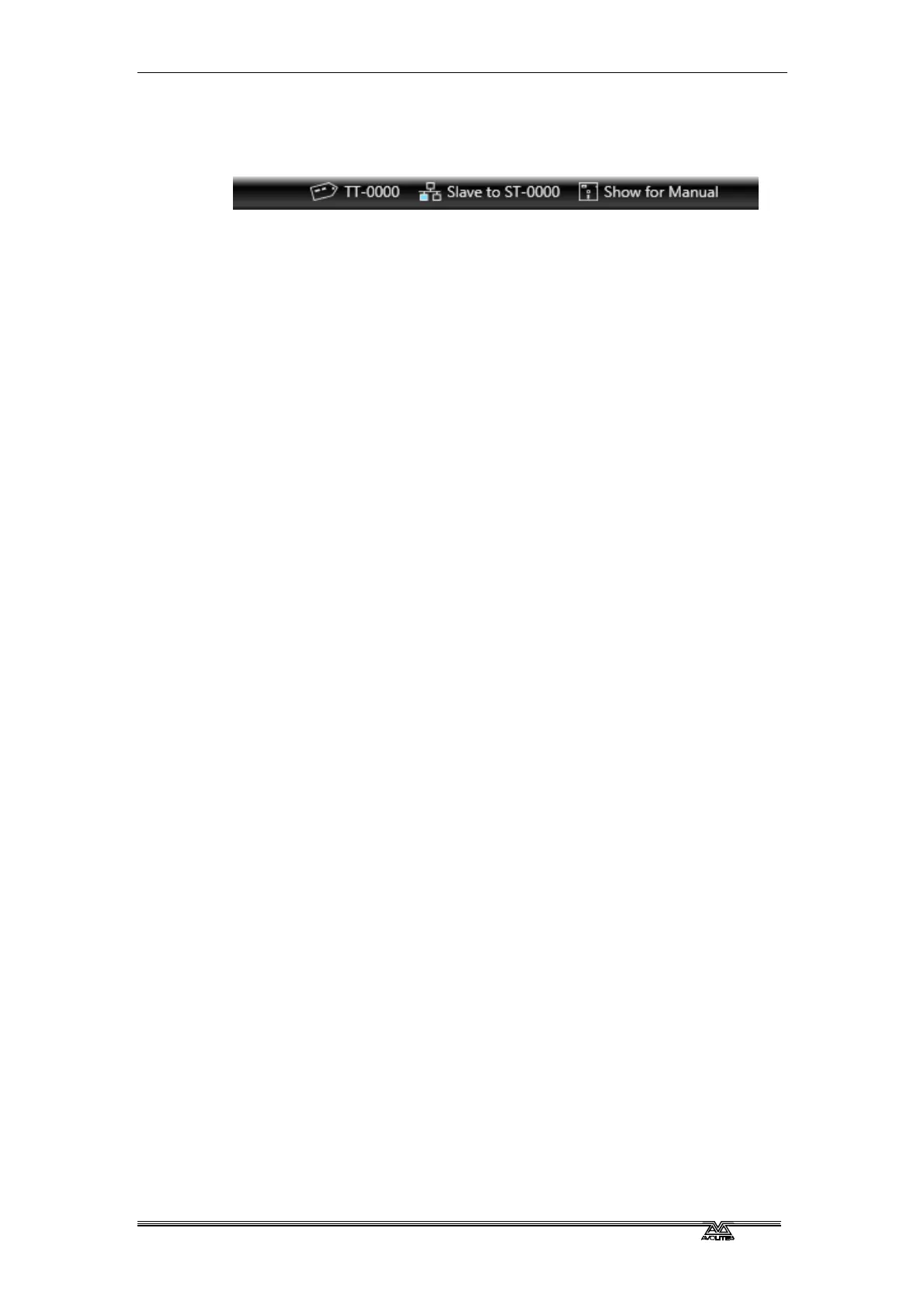
The toolbar will show details of the master/slave status. Console
legends can be changed in the System menu using the [Console
Legend] option.
Consoles connected in a multi-user session work on the same show.
If the same handle worlds are selected then an action on one console
is mirrored across them all, for example firing a cue on the slave
console will also fire the cue on the master. If the master has
motorised faders, the fader will move; if not, fader levels must match
before they can take over. If different handle worlds are selected,
users can work independently on their own pool of handles.
In all situations the master console outputs DMX and channels in a
remote programmer are shown with a blue dot on the touch wheel
views. If two or more consoles are editing the same fixture, the last
console to change any attribute will take over control of the fixture.
Slaves can leave a session using the [Leave Session] button in the
Sessions View or in the TitanNet menu. The console will restore the
local show it had loaded prior to joining. Master consoles have the
option to [Terminate Session].
If a console is running as backup, it has options to [Takeover], [Sync
now] and [Leave Session]. If [Takeover] is selected, the console will
immediately become the master and take over DMX output with the
chosen user and handle worlds selected. The console which was
master will go into a dormant state with DMX disabled.
• Consoles must be running Titan v8 or above to join a multi-user
or backup session with another Titan v8 console.
• Tracking backup operation is also described in section 11.6.2 on
page 223.
2.5 Titan Simulator
Need to pre-program or tweak your show before you get to the
venue? No problem, just run the Titan Simulator on your PC. You can
then load your show and simulate any of the Titan consoles, using an
on-screen “virtual panel”.
You can also use the Titan One software without the Titan One dongle
within the simulator for pre-programming.



 To Next Page