6. Shapes and Pixel Mapper effects - Page 115
TitanUniversal_Man_v10_QU.doc 15 March 2016
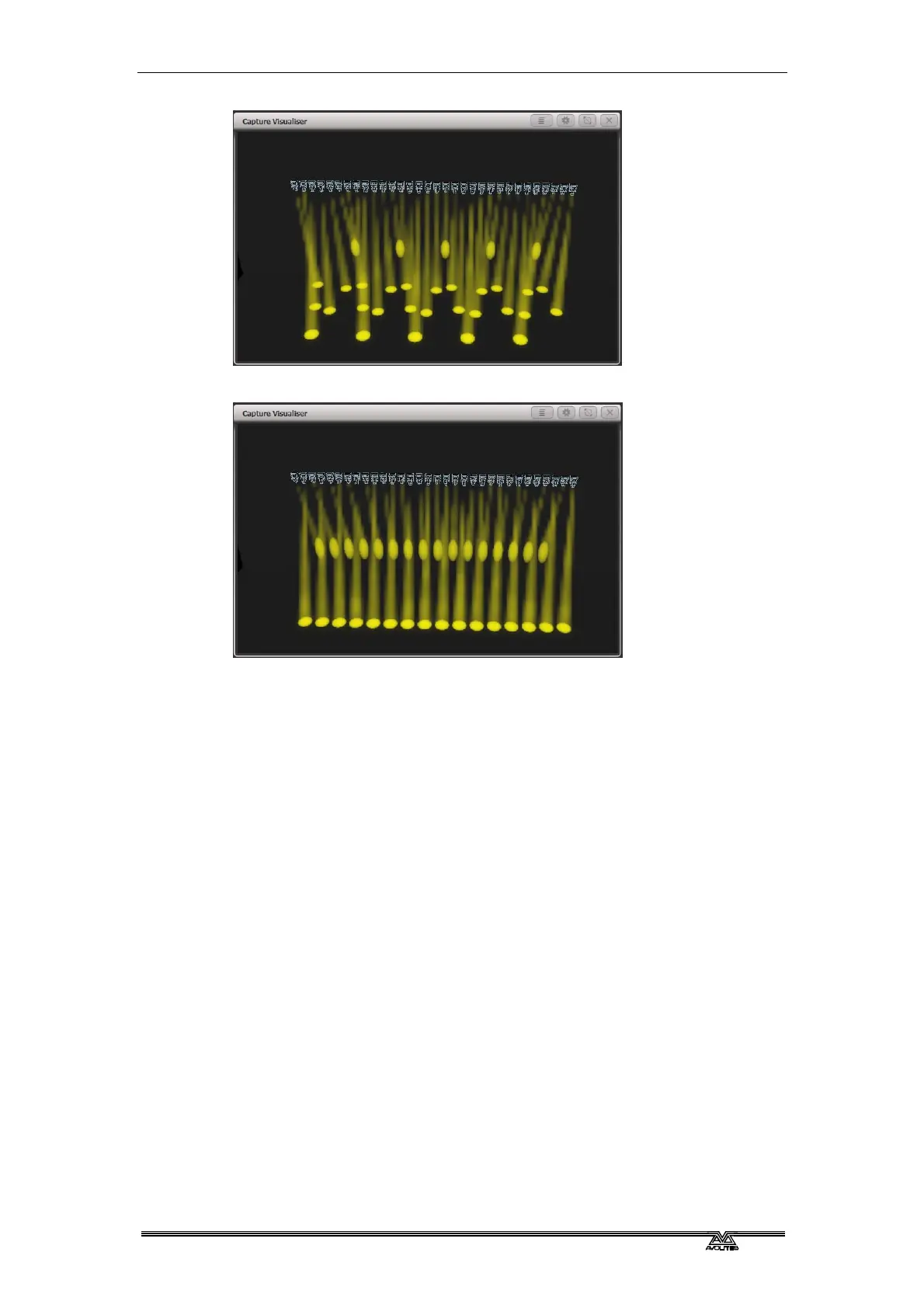
Spread=2 (Phase=180 degrees)
The display above the left hand wheel shows the phase in degrees.
For example, 180 degrees repeats every 2 fixtures, 90 degrees
repeats every 4 fixtures, 60 degrees repeats every 6 fixtures, and so
on.
The Offset function allows you to set the starting phase of the shape,
when more than one shape is running. For example, if you were
running a Cyan shape and a Magenta shape to create a mix of
colours, you would probably want to start them with Cyan at full and
Magenta at zero to give the full range of colours. In this case you
would set one of the shapes to have a Phase Offset of 180 degrees.
Without the phase offset, both shapes would reach full at the same
time.
6.1.4 Shape direction
The [Shape Direction] softkey opens a menu allowing you to set a
direction for the shape. If you have defined a 2D layout for the group
(see *) this allows you to have shapes that visibly move in particular
directions.
You can keep the shape direction menu open using the Menu Latch
button, to allow you to try different options and see the effects.
6.1.5 Using shapes in cues
When you save a shape into a cue, you can set the playback fader to
control the size and/or speed of the shape to give you more options
at show time; you can also control the size and speed from Size
Masters and Speed Masters. . See 7.6.3 on page 168.



 To Next Page