Page 90 – 4. Controlling dimmers and fixtures
TitanUniversal_Man_v10_QU.doc 15 March 2016
• Selected: shows only selected fixtures
You can select fixtures by touching the fixture names on the left of
the screen, or if you select any fixture values, the appropriate fixture
will automatically be selected.
You can clear attributes in the channel grid by selecting them (touch
or touch and drag to select multiple attributes). Then press Clear.
You can edit values by selecting one or more values in the grid, then
modify the values using the wheels, or type a new value on the
numeric keypad and press Enter.
You can filter what is shown in the grid either by IPCGBES attribute
(using the buttons top left) or by fixture type (using the buttons
below that).
4.2.2 Intensity window
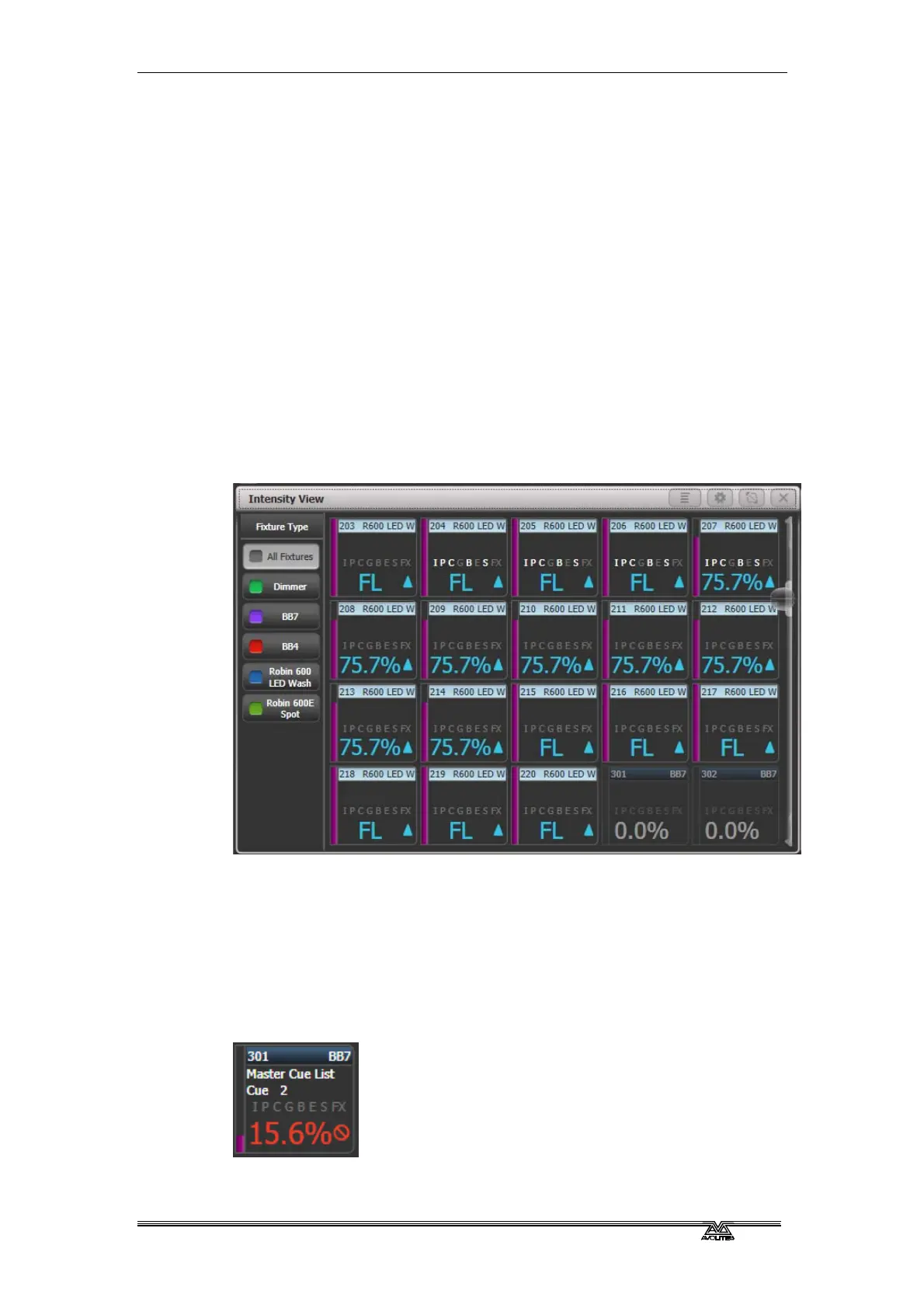
If you want to see at a glance the intensity setting of each fixture,
the Intensity window is the place to be. To show the window, press
[Show workspace window] then [Intensity].
Each fixture has a block showing the intensity as a number and as a
bar down the left side. The header bar shows selection/programmer
state like fixture buttons – blue for selected and cyan for in
programmer.
Rising or falling intensity is shown with a blue up arrow or a green
down arrow.
Tracked values from previous cues are shown with a magenta equals
sign.
In a solo or block cue a red “not permitted” symbol is shown.



 To Next Page