4. Controlling dimmers and fixtures - Page 77
TitanUniversal_Man_v10_QU.doc 15 March 2016
4.1.6 Setting attributes on the touch screen
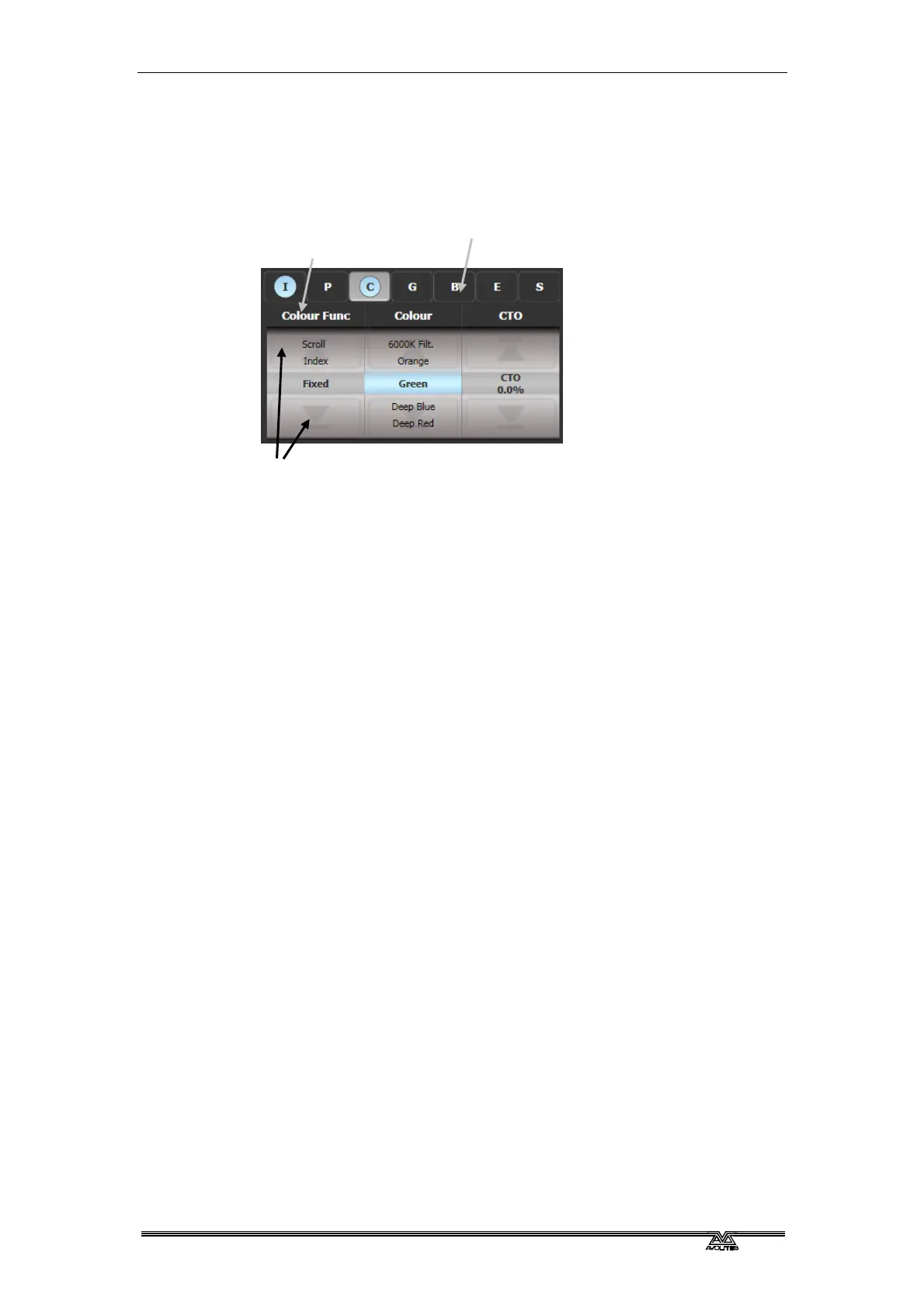
The touch display above the wheels shows the attribute bank
(Intensity, Position, Colour and so on) and the current values on the
wheels.
Touch the IPCGBESFX attribute bank buttons to change to a different
bank. You can also use the physical attribute bank buttons as usual.
The current attribute bank is shown with a grey background.
If attributes have been modified, the attribute button has a pale blue
highlight.
The Roller display shows the attributes available on each wheel.
These may be shown as a percentage value, or named values for
attributes with fixed positions such as a colour wheel. If the attribute
has been modified, the current value in the programmer is
highlighted in blue.
You can touch the roller image to change the attribute to the
next/previous value. For continuously variable controls like a dimmer,
touching the roller will set the attribute to full or zero.
Attribute editor window
For attributes with fixed values such as gobos and fixed colour
wheels, the Attribute Editor window can be easier to work with than
the wheels. It also offers a colour picker window for fixtures with RGB
or CMY colour mixing.
Press Window Open then [Open Workspace Window] then [Attribute
Edi
tor] to show it. As a shortcut you can also show it by touching the
attribute name text just below the IPCGBES buttons.
The buttons on the left of the window select the attribute to change.
Touch here to open
attribute editor
Touch here to change
attribute bank
Touch here to change attribute
values up and down



 To Next Page