Page 138 – 6. Shapes and Pixel Mapper effects
TitanUniversal_Man_v10_QU.doc 15 March 2016
When set to 'Select Only' fixtures are locked in position on the grid
and cannot be dragged around. This provides an alternative way of
selecting fixtures to edit while preventing accidental movement.
If you find you suddenly cannot move anything around this is
probably the reason!
Note that X,Y and Angle wheel control is still available.
Context menu – ‘Wheels Move Full Pixel/Sub Pixel’
Allows you to position fixtures across pixel boundaries when using the
wheels. The Snap option centres the fixture on the nearest cell.
Context menu – ‘Wheels Rotate Individual Fixtures/Selection
Sets whether individual fixtures rotate, or whether the whole
selection rotates.
6.6.5 Playback Order and Priorities
Suppose you wished to create a white pulsating oval on one playback
and a blue spiral on a second playback. Normally these effects would
layer differently depending on the order you fire the playbacks, but
you can use playback priorities to make them always layer the same
way
To create first effect:
1> Select a group containing a fixture layout as described in
previous example and go to [Create Effect].
2> Select [Effect] to access the global effect controls and change
'Background Opacity' to zero. (This will allow it to overlay the
other playback.)
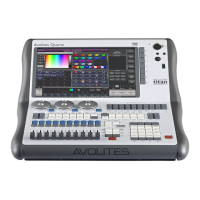
3> Double-Click [Layer 1] (or press [+]) and choose Circle from
the elements that appear. (Double-click is a shortcut to
elements and animations.)
Reduce height to make a rugby ball (or American football if you
insist).


 To Next Page