Page 56 – 3. Patching
TitanUniversal_Man_v10_QU.doc 15 March 2016
1> Press Patch, [Fixture] and select the type of fixture you are
looking for
2> Press [Options], then [Find Fixture] to enable the Find Fixture
mode.
3> Turn Wheel B to go through all possible DMX addresses. Wheel
A sets DMX lines.
4> When the fixture responds with its Locate state, you have found
the correct DMX address.
4> Turn off [Find Fixture] mode and (if not already occupied) patch
the fixture. The DMX address/Line will be automatically set to
match the Find Fixture settings.
• On consoles with 3 wheels, wheel C (DMX Slot) jumps through
DMX addresses using the fixture channel count (for example if a
fixture uses 16 channels, it will jump through in 16’s).
3.2 Changing the patch
3.2.1 Patch View
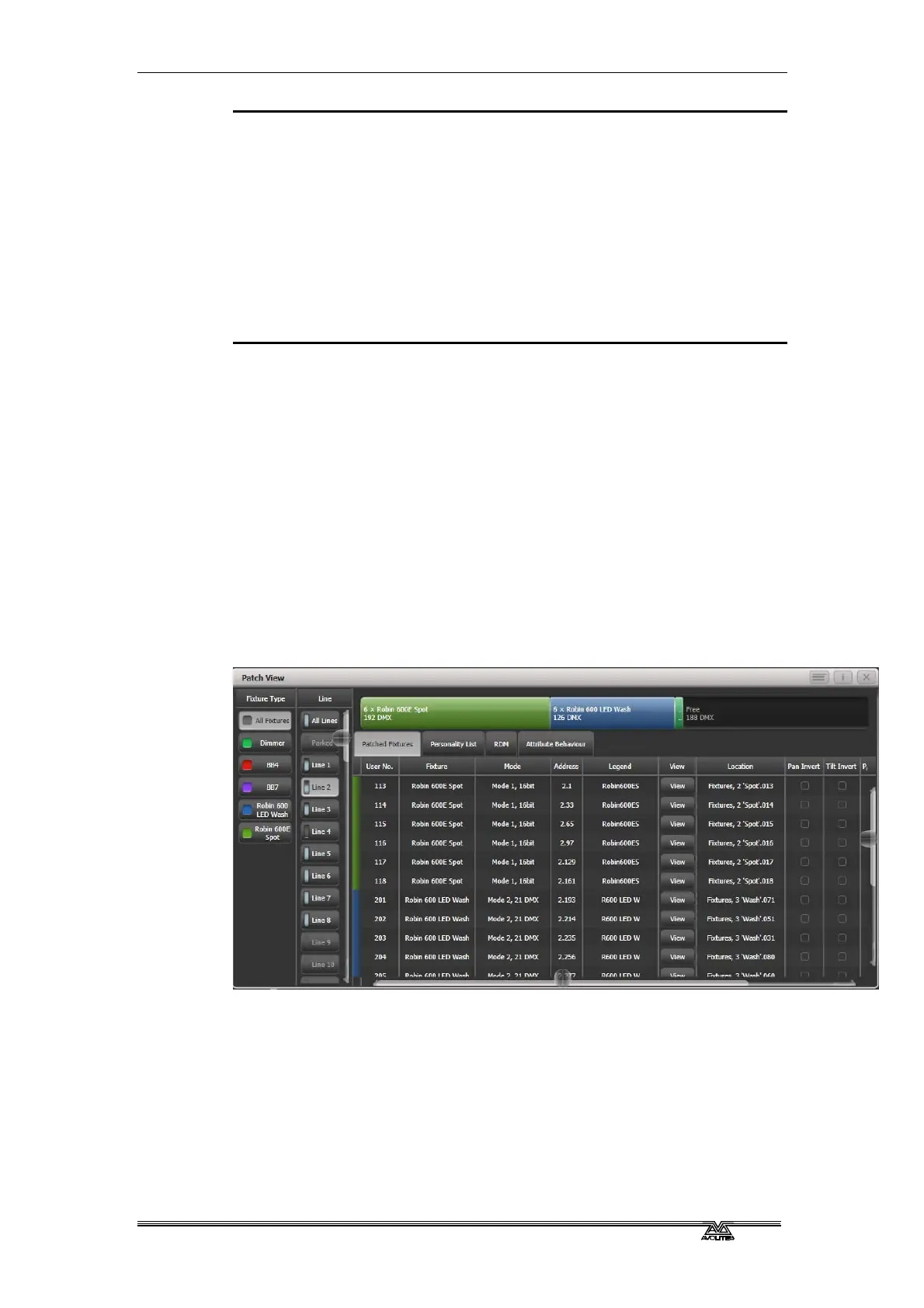
The Patch View window gives a full overview of how all the fixtures in
your show are patched, and allows you to patch, repatch, legend,
renumber, invert, pan/tilt swap, freeze, exchange, park and view
fixtures. If you need to change the settings of multiple fixtures (for
example, changing the DMX address of several fixtures) then it’s
really easy to do in one operation in the Patch View.
To show the Patch View window press Window Open then Patch, or
use the Open Workspace Wi
ndows menu command.
Fixture type: lists the different types of fixture in your show. Each
fixture has a unique colour code. Click on these buttons to filter the
view so it only shows one fixture type.
Line: lists the available DMX output lines/universes. The blue
bargraph in the button shows how much of the line is used by
patched fixtures and how much is free. Click a button to show the
details of that line in the right hand side of the window.
The coloured bar at the top shows how fixtures are patched on the
selected output line, using the unique colour code for each type of



 To Next Page