Page 68 – 3. Patching
TitanUniversal_Man_v10_QU.doc 15 March 2016
is a mixture of inverted and non-inverted fixtures in the
selection.
• Some attributes cannot be inverted.
• Invert can also be set from the Attribute Behaviour tab of the
Patch View window.
3.4.3 Attribute limits
You can set upper and lower limits for any attribute. This can be
useful for example to limit the pan/tilt movement of a fixture, or if a
fixture has a combined dimmer/strobe function and you only want the
dimmer part of the operation.
Attribute limits are set either from the Edit Fixtures menu or using
the Attribute Behaviour tab of the Patch View window.
1> Press Patch.
2> Press [Edit Fixtures].
3> Press [Set Limits].
4> Select the fixtures to be set.
5> Use the softkeys to select which attributes are to be set, then
select upper or lower limit.
6> Input a percentage value for the limit value, or press [Set To
Current Value]. To remove a limit press [Remove Limit].
7> Press Exit when finished.
From the Attribute Behaviour tab, use the context buttons to set
Attribute Limits.
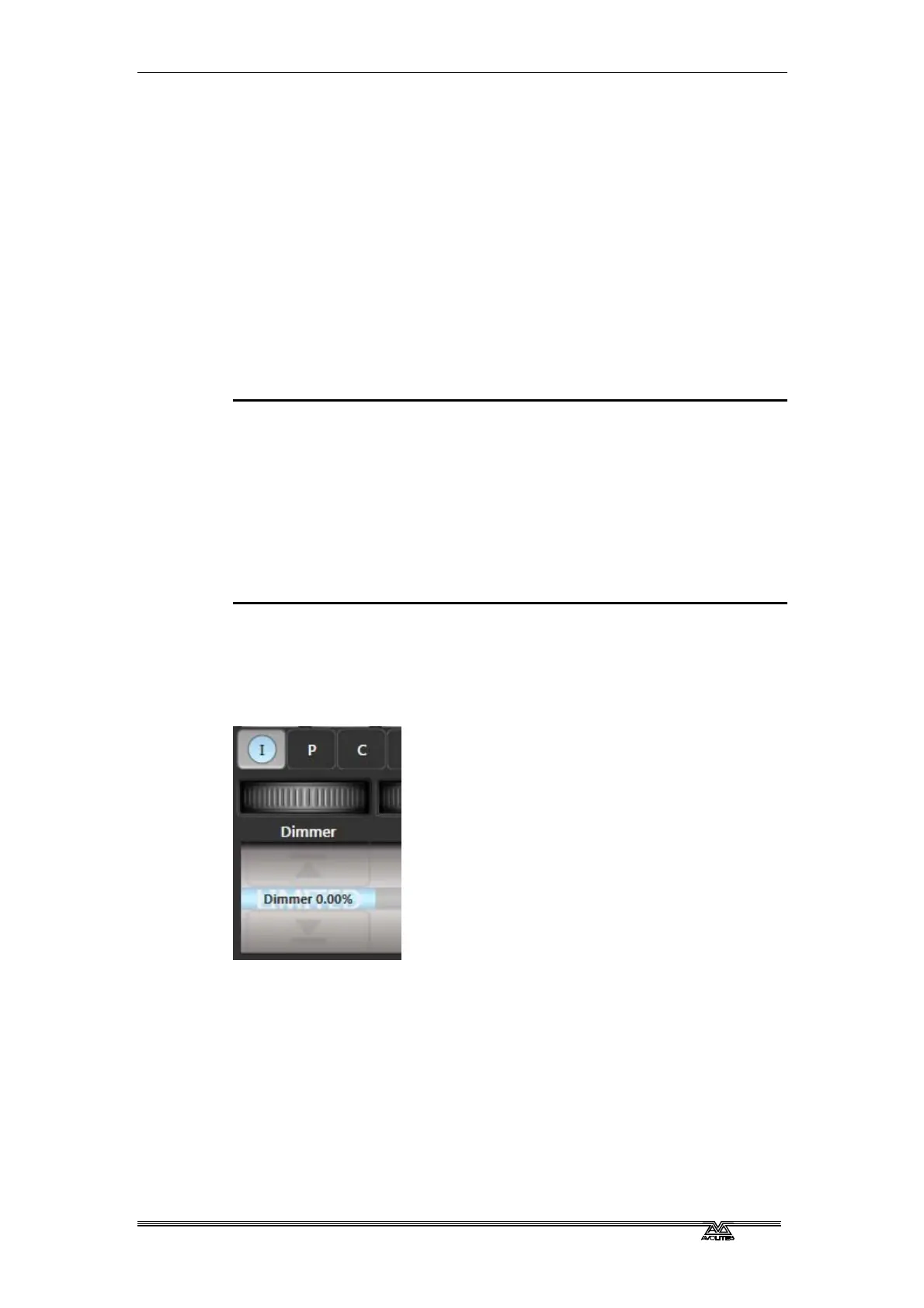
It is still possible to put values into the programmer outside the
limits. A “limited” watermark will appear on the wheel view behind an
attribute when it is being limited.
3.4.4 Fixture Offset
You can set an offset to any attribute of any fixture. The normal use
for this is to correct pan/tilt positions when fixtures are rigged in a
different orientation to how they were programmed. The offset is
applied to channels just before final output.
There are 4 ways to set an offset:
• Select fixture, Locate, then adjust attributes to the desired
locate value. Then press Record, Locate, [Update Offset]. This
does not change the actual locate value but sets the difference



 To Next Page