13. User Settings and other options - Page 239
TitanUniversal_Man_v10_QU.doc 15 March 2016
compatibility window to the appropriate workspace window. You need
to do this twice, once with the “Fixtures and playbacks” window
selected, and once with the “Palettes and groups” window selected.
13.2.6 Configuring an external monitor
For extra workspace you can connect an external monitor to the DVI
port on the console.
The external monitor is disabled by default and will show a 'disabled'
message. To enable, switch to System mode and select [Display
Setup] then press [External Display Disconnected]. The option will
change to [External Display Connected] and the display will be
enabled.
For best performance of the console, disable monitor outputs you
aren’t using.
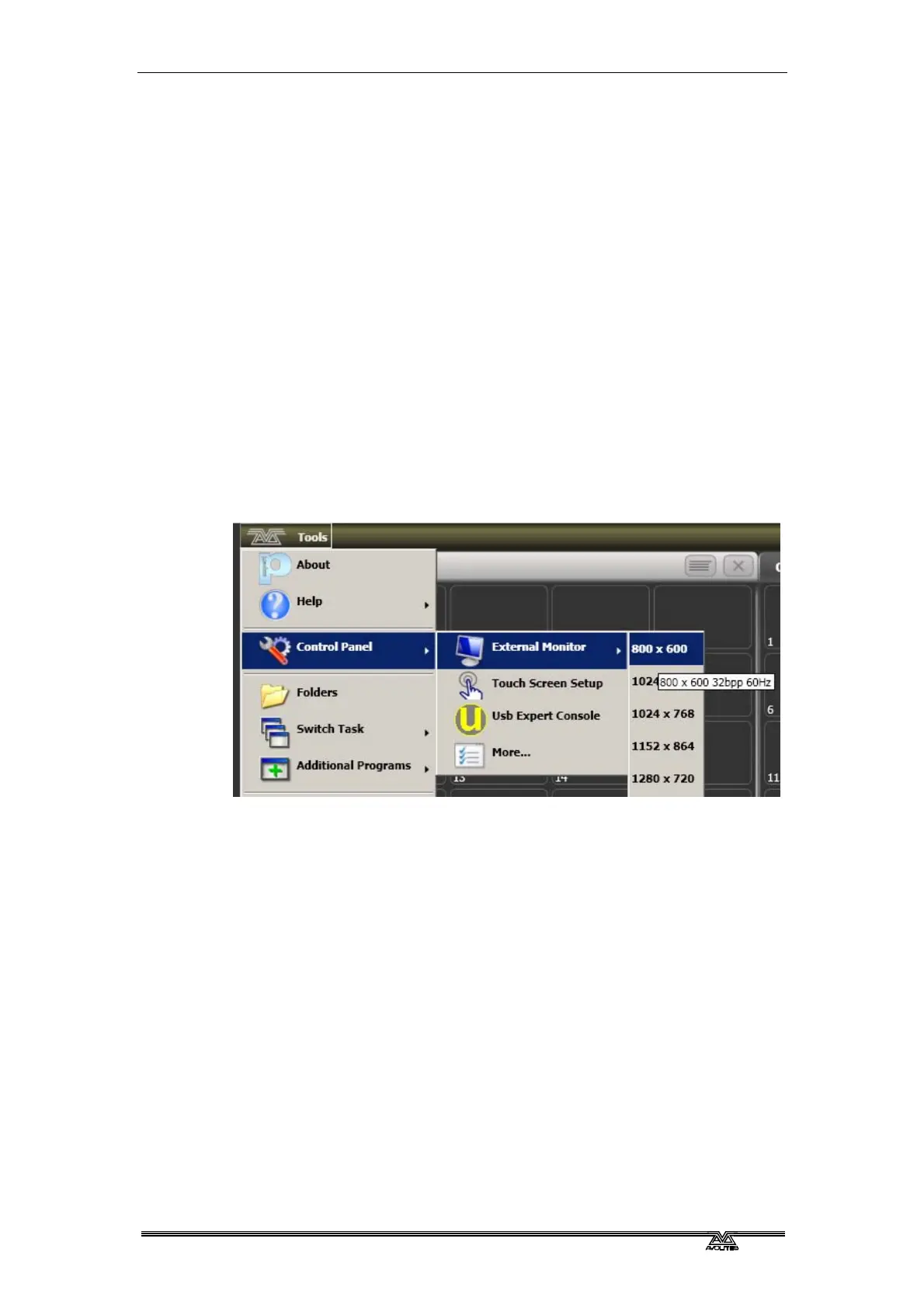
If you need to change the monitor resolution or settings, click 'Tools'
at the very top of the touch screen and select 'Control Panel', then
'External Monitor', then select the option to match the resolution of
your monitor.
Troubleshooting
If you cannot see anything on any screen, there are some keyboard
shortcuts that should in most cases reset all the screens back to their
correct settings. You will need to connect an external keyboard
(standard PC type) to activate these.
Ctrl+Shift+Alt+Esc reset to factory default settings (1024x768 for
external monitor)
Ctrl+Shift+Alt+F1 (600x800 for external monitor)
Ctrl+Shift+Alt+F2 (1024x768 for external monitor)
Ctrl+Shift+Alt+F3 (1280x1024 for external monitor)
Ctrl+Shift+Alt+F4 (1600x1200 for external monitor)
All of the above will reset the touch screen to the required resolution.
The first shortcut is the preferred choice, however none of these
should be used unless it’s necessary (using the menu or Display
Setting where possible). Once any of these keyboard shortcuts has
been used, power off and restart the console to complete the
changes.



 To Next Page