12. Remote control - Page 231
TitanUniversal_Man_v10_QU.doc 15 March 2016
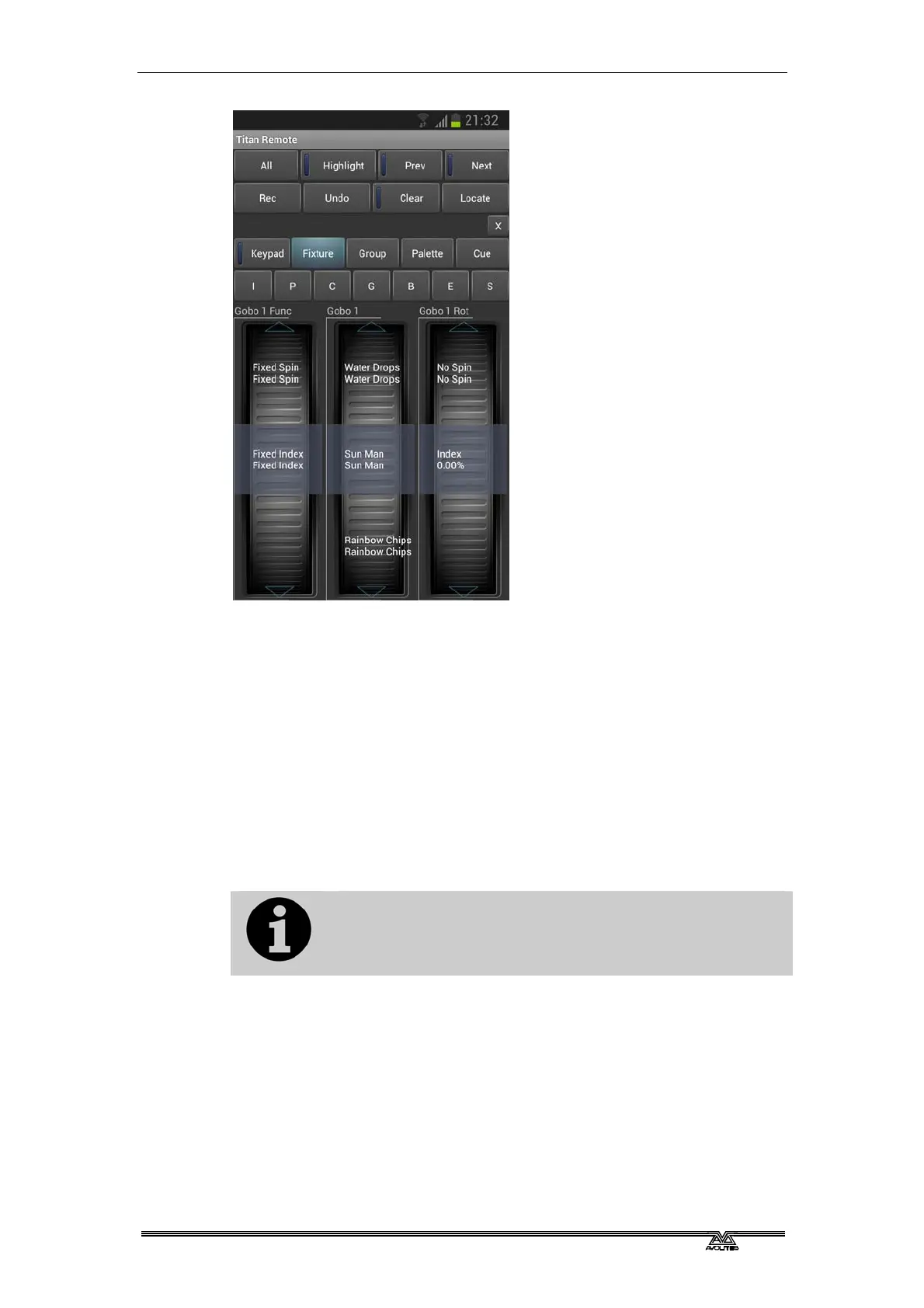
The wheels show function values (such as colours or gobo names). To
go to the next function, just touch the arrows at the top or bottom of
the wheel. To manually scroll the value, spin the wheel with your
fingers. If there are more than three functions, touch the IPCGBES
button again to change to the other functions.
Press the Clear button to clear the selection and all changes in the
remote programmer. Hold down the clear button to clear all
programmers (for example if someone has been doing something on
the console at the same time, this will clear the console’s programmer
too).
You can also play back cues using the Cue screen. Hold down a
playback button to kill or release an active playback.
If you update the legends of palettes or cues on the
console while the remote is running, the legends on the
remote will not be updated. Exit and restart the remote
app to show legend changes made on the console.
12.2.3 Recording groups and palettes
You can record groups and palettes using the Rec button on the
remote, then click a workspace button as normal. You can also hold
down an empty button to quick record a group or palette.
If you hold down a used palette button, the current programmer will
be quick merged into the existing palette.
You cannot record cues using the remote.



 To Next Page