Page 26 – 2. Setting up and using the console
TitanUniversal_Man_v10_QU.doc 15 March 2016
2.3.1 Workspace windows
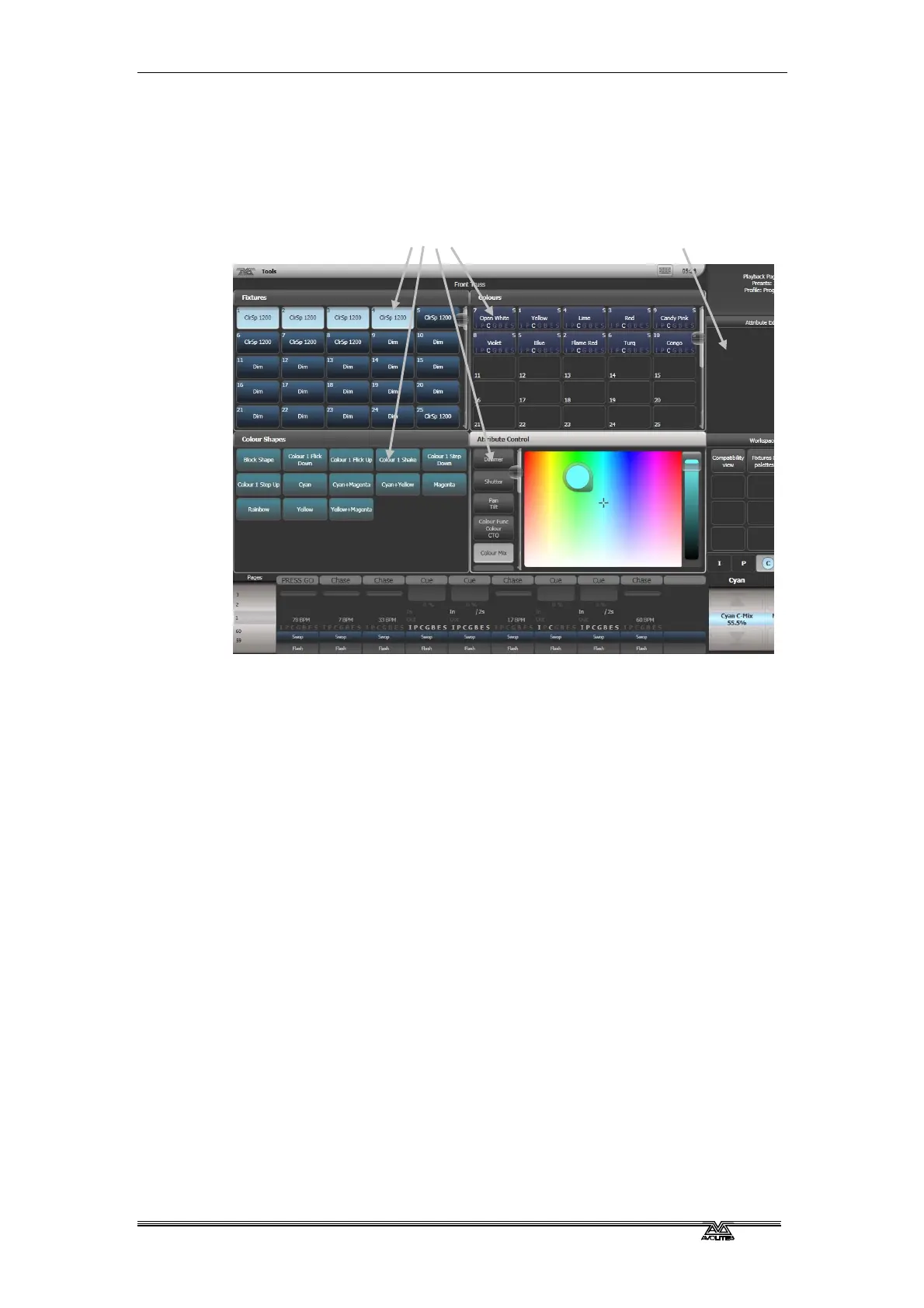
The main area of the screen contains the workspace windows. These
contain buttons for selecting fixtures, groups, palettes, playbacks and
so on. Information windows such as Playback View and the integrated
Visualiser application can also appear as a workspace window.
Opening and positioning workspace windows
You select which workspace windows you want to see using the
[Open Workspace Window] menu command on the root menu. You
can also press the Window Open button to access the [Open
Workspace Window] option while in another menu and there are
shortcuts to open some windows as list
ed in the next section.
You can change the positions and sizes of the windows by using the
Window Control buttons above the numeric keypad or the Window
Options button (cog icon) at the top of each screen. The min/max
button swaps the active window between full screen and quarter size.
The size/position button moves the active window around the possible
positions. You make a window active by clicking/touching its header
bar.
You can move the active window to a different monitor by pressing
Avo and the Size/Position button, or Window Open then [Window
Options] then [Move Screen].
Shortcuts to open workspace windows
Press Window Open then an Attribute Bank button to open the Palette
wi
ndow for that attribute.
Press Window Open then Patch to open the Patch View window.
Press Window Open then a fixture select button to open the Fi
xture
View window showing patch details for that fixture.
Press Window Open then Connect to open the View Cue window.
standard window positions
Context menu buttons



 To Next Page