2. Setting up and using the console - Page 27
TitanUniversal_Man_v10_QU.doc 15 March 2016
Press Window Open then Off to open the Active Playbacks window.
Press Window Open then Macro to open the Macro window.
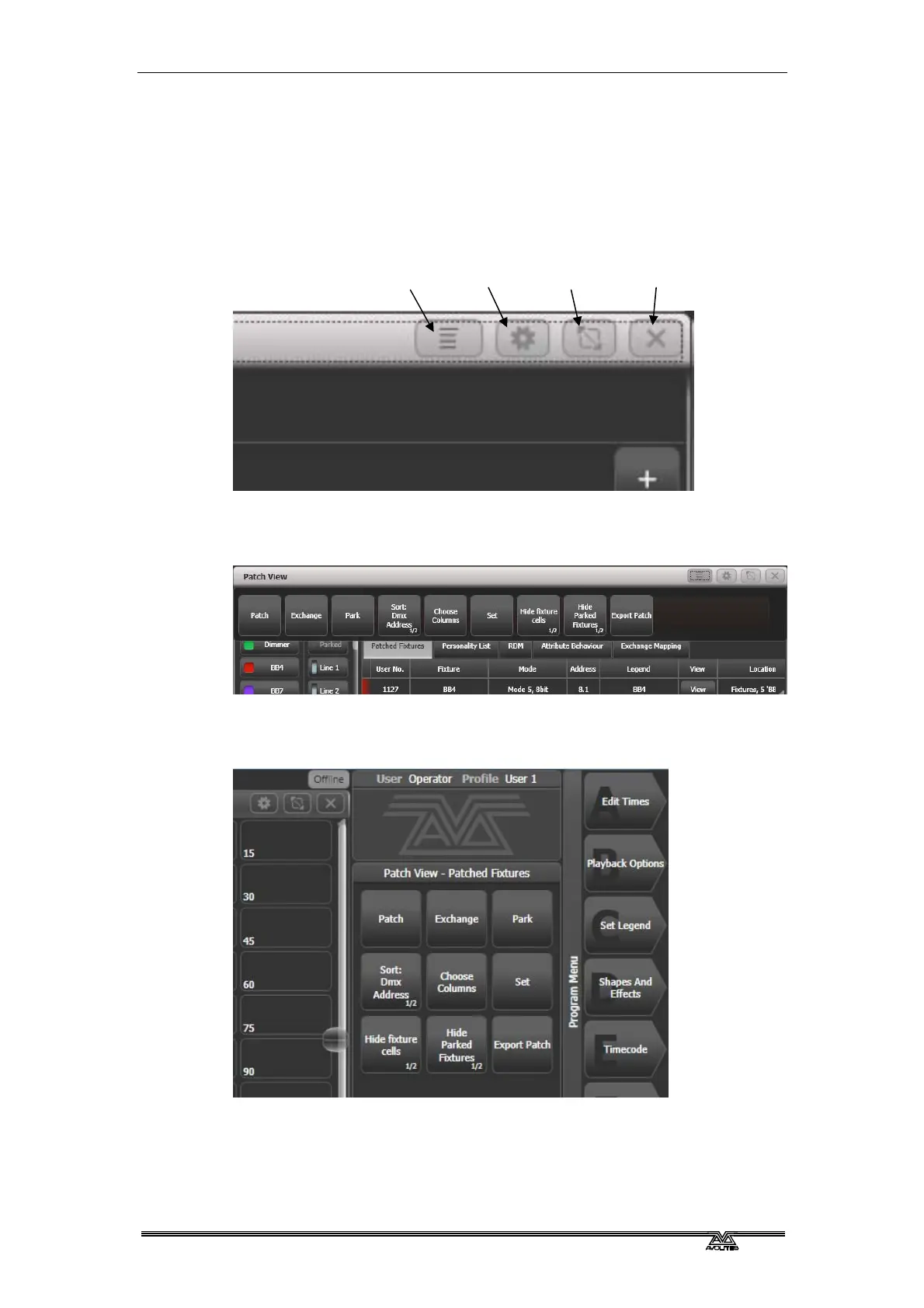
Window setup buttons
At the top ri
ght of each window are three or four buttons which
access other functions for the window.
The Context Menu button is only shown on Sapphire Touch and Titan
One, and gives a drop down menu at the top of the window showing the
context menu buttons which relate to the current window.
On all other consoles the context menu buttons are automatically shown
below the prompt area on the top right of the main screen. The buttons
change to match the active window.
The Window Appearance Options button (cog icon) lets you select
the standard window sizes and positions. Buttons are also shown
allowing you to set the button size and the text size of the window.
The Appearance options may vary depending on which window it is,
the setup of the console and if you have any external monitors.
Context
menu
Window
options
Resize
window
Close
window


 To Next Page
 Loading...

