13. User Settings and other options - Page 237
TitanUniversal_Man_v10_QU.doc 15 March 2016
Quarter size
Double wide
Double height
Maximised
If you accidentally set a window to a single grid size,
you can’t then get to the Window Layout button to
resize it. Select the window and use the [Min/Max]
softkey to set the window to a fixed size.
You can move the active window between screens from the Window
Appearance screen, or by pressing View then [Window Options] then
[Move Screen], or hold Avo and the Size & Position button.
You can close the active window using the Close button. You can
close all windows by pressing Avo+Close, or use the [Close All]
softkey.
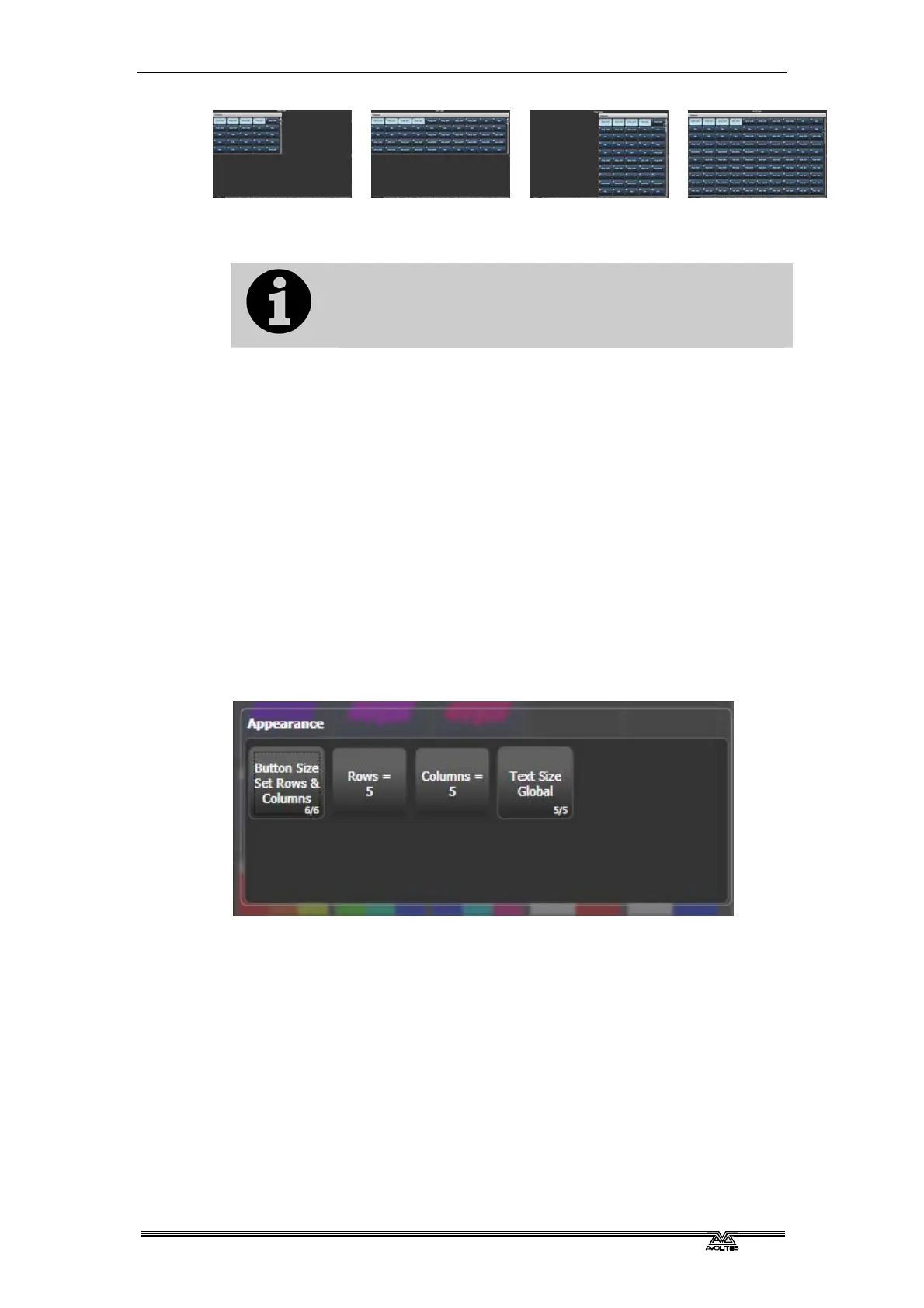
13.2.3 Controlling button layout
Buttons normally resize automatically to suit the screen size and
resolution, however this means that moving shows between different
consoles can make the number of rows and columns change, causing
buttons to move around. If you have set a particular layout you want
to keep (for example positioning fixtures to match the layout on
stage), open the Window Appearance menu using the Cog button and
set Button Size to [Button Size Set Rows & Columns]. You can then
set a fixed layout using the [Rows] and [Columns] buttons.
The Rows and Columns settings are remembered even if you change
the button size to one of the automatic sizes, which allows you to
swap between auto and fixed modes.
13.2.4 Saving workspaces
You can save different workspace setups to the Workspaces touch
buttons (to the left of the menu) by pressing Window Open then
[Record Workspace], then touching one of the Workspaces buttons.
T
his button will then reconfigure the entire workspace with a single
touch. You can also save workspaces onto any grey handle or macro
button.
Workspaces are saved with the show.



 To Next Page