6. Shapes and Pixel Mapper effects - Page 133
TitanUniversal_Man_v10_QU.doc 15 March 2016
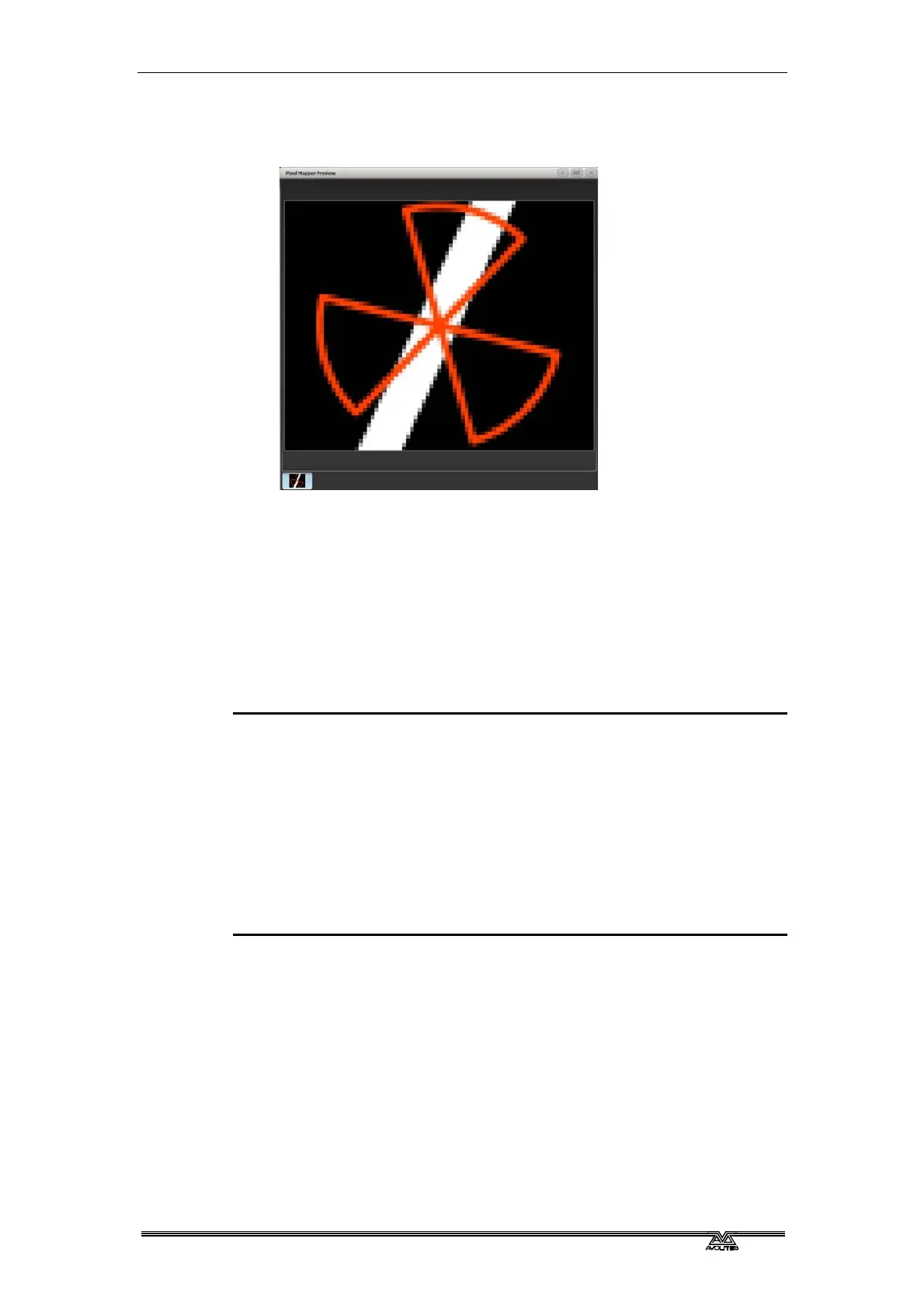
• Note how the red fan sits on top of the white bar when they
interact. This is because the white is on a lower layer. A higher
layer number has priority over a lower number.
6.6.3 Creative use of fixture layouts
Because each fixture group can contain a different layout it is possible
to create more than one arrangement of the same fixtures for pixel
mapping.
By arranging fixtures in certain layouts you can easily achieve
complex effects.
Example 1: Odd/Even
1> Select your fixtures.
2> Open the Selection Pattern menu by pressing the 'All' key.
3> Choose [Odd] from the softkey options. (This will select all the
odd numbered fixtures according to fixture order.)
4> Record a group.
5> Press '+1' (or 'Next') key. (This will select all the even
numbered fixtures.)
6> Merge this into the first group.
7> Open the Layout Editor. ([Shapes And Effects]/[Pixel
Mapper]/[Edit Group Layout]/(select group).)
By doing the above you should be able to see how we have quickly
created a layout where the all the odd fixtures are arranged together
on the left followed by all the even fixtures on the right.
This arrangement could be used as it is. A block element animated to
run horizontally left to right will run across all your odd fixtures
followed by all the even fixtures.
An alternative goal might be a vertical 'cascading' effect:



 To Next Page