Page 244 – 13. User Settings and other options
TitanUniversal_Man_v10_QU.doc 15 March 2016
13.4.2 Selecting a Key Profile
13.4.3 Individual Key profiles for playbacks
Each playback can have an individual Key Profile allocated to it. This
allows you to customise the panel button functions differently for
each playback. The Key Profile for the playback is selected using the
[Key Profile] option on the Playback Options menu (softkey B on the
main program menu). If the playback Key Profile is set to “None”, the
default global profile is used.
13.5 User Settings
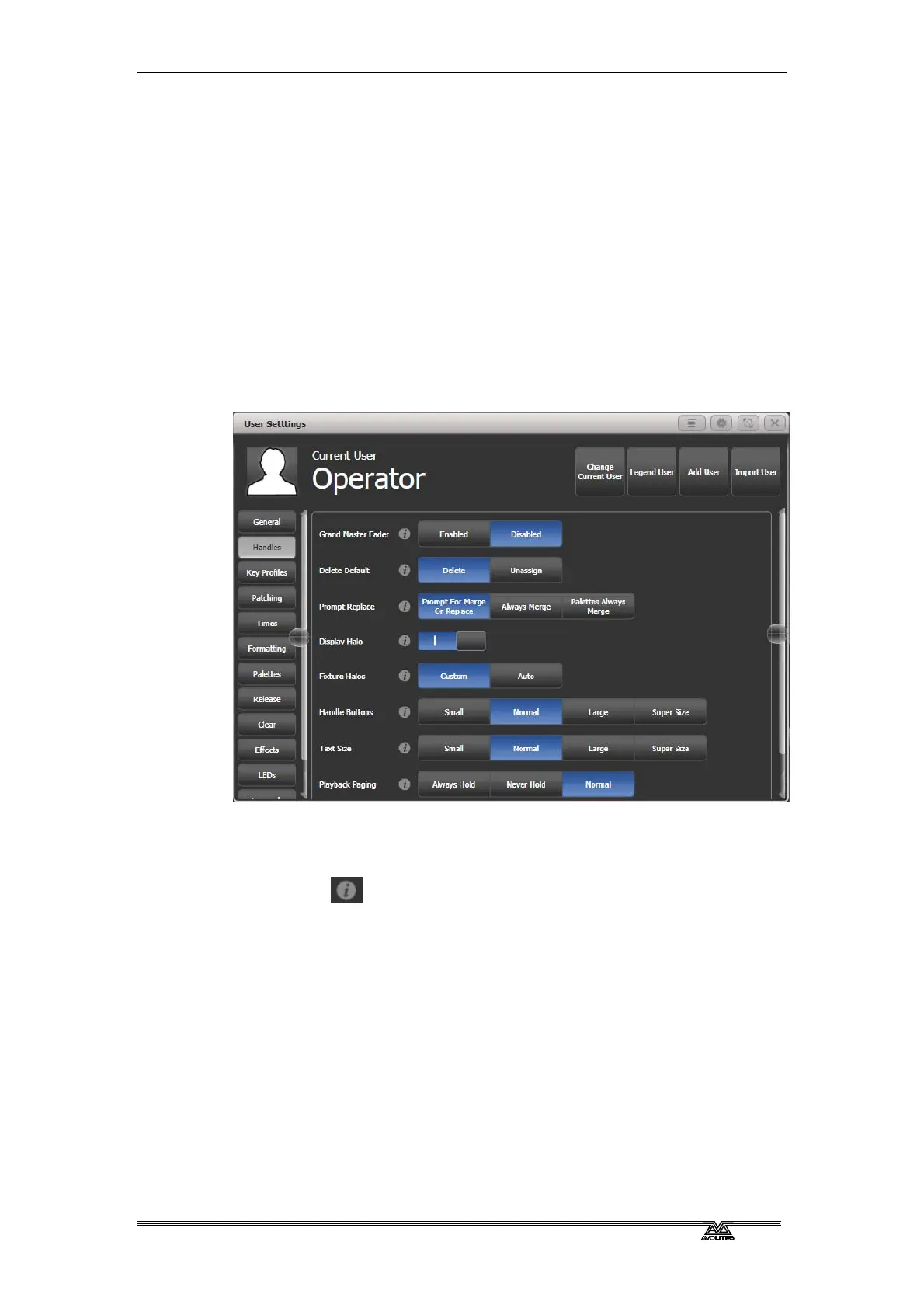
The User Settings menu may also be accessed from Program mode:
hold down the Avo Shift button and press [User Settings].
A window will open showing the user settings, or you can also set the
same options using the softkey options. User Settings are individual
for each User and you can change the User from this screen.
Click on the
button for a help window on each setting.
Options are divided into categories on the softkeys or down the left
hand side.
13.5.1 General
Chase Snap: If enabled the Next Step and Prev Step buttons will
snap to the new state. If disabled, programmed fades will be shown.
This is the same function as the Snap button which features on some
consoles.
Cue List Snap: If enabled the Next Step and Prev Step buttons will
snap to the new state. If disabled, programmed fades will be shown.
Clear Record Mask: sets whether the record mask is cleared back to
All Enabled when you enter the Record function, or whether it
remains as you previously set it.



 To Next Page