Page 92 – 4. Controlling dimmers and fixtures
TitanUniversal_Man_v10_QU.doc 15 March 2016
• User Number Hidden/User Number Shown/DMX Address
Shown: Sets what information is shown in the top left corner of
the button
• Legend Shown/Hidden: Sets whether the fixture legend is
shown in the top bar
• Cue Information Shown/Hidden: Sets whether the button shows
the current cue information
• Attribute Mask Shown/Hidden: Sets whether the button shows
the IPCGBESFX settings
• Halo Colour Custom/Auto: If set to Custom, buttons will have a
halo colour if you have set one, otherwise they will not have a
halo. If set to Auto, buttons will be coloured using the
automatic fixture type colour used in the filter buttons on the
left.
• Fixture Cells Shown/Hidden: If set to Shown, separate buttons
are shown for cells (sub-fixtures) of any multi-celled fixture,
along with a master intensity.
• Tracked Fixtures Shown/Hidden: (This option only appears
when the view is filtered to Live Cue or Connected Cue). Sets
whether fixtures with tracked intensity are shown or not.
4.3 Fixture groups
4.3.1 Using fixture groups
You can create groups of fixtures or dimmer channels, which can then
be quickly selected together by pressing a single button or typing the
group number. You can, for example, make a group for each type of
fixture, then also group by stage left / stage right, etc.
If you have a lot of fixtures, clever use of groups will greatly increase
your programming speed.
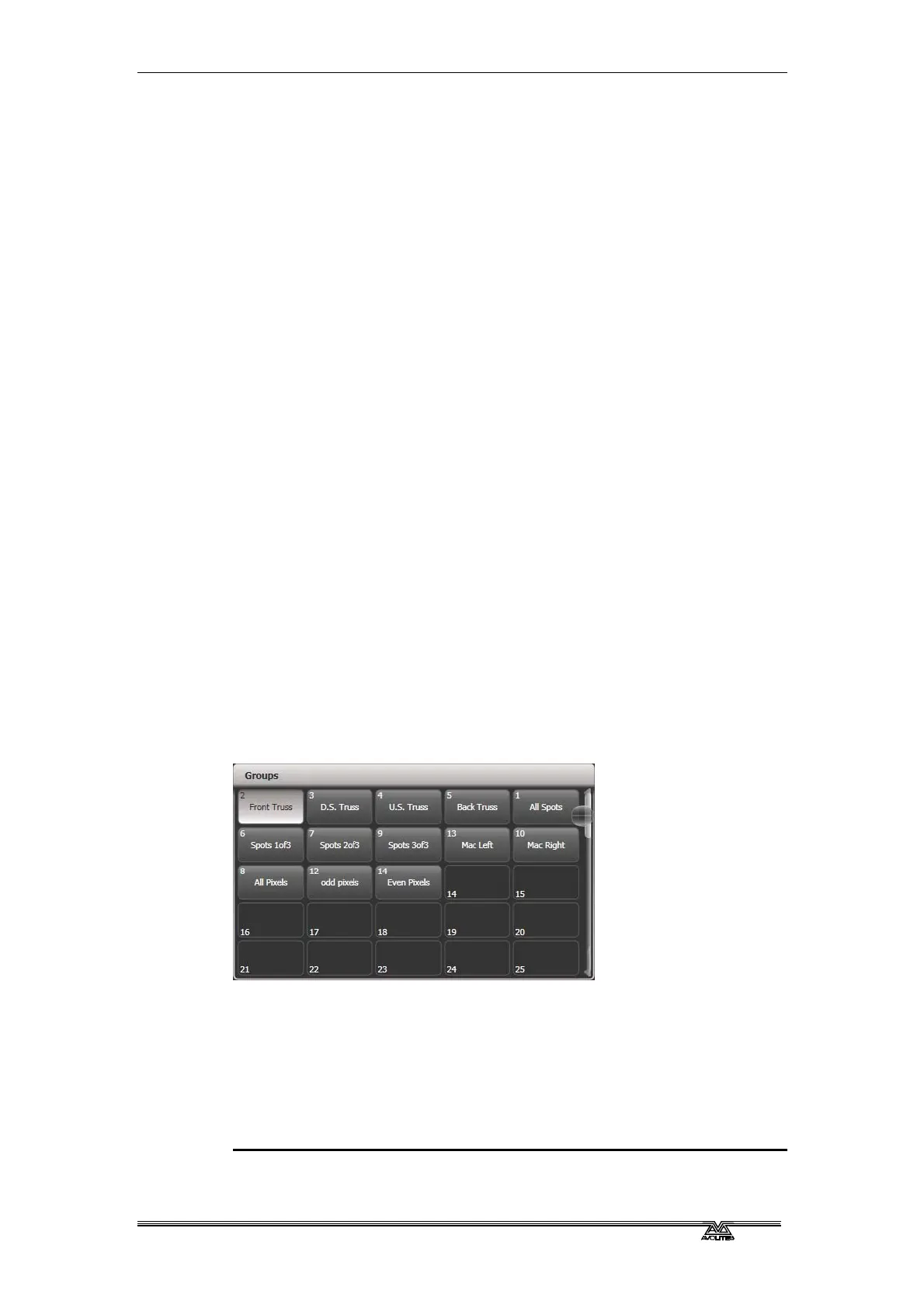
Groups can be stored in the Groups window, on the grey button of
fader handles or on Macro/Executor buttons.
If you assign a group to a handle with a fader, the fader becomes an
intensity master for the group. See section 11.1.5 on page 212 for
more det
ails.
If the Groups window is not visible, you can show it by pressing
Window Open, Group (above numeric keys).
1>
Select the fixtures/dimmers you want in the group (the order in
which you select them will also be stored in the group).



 To Next Page