Page 50 – 3. Patching
TitanUniversal_Man_v10_QU.doc 15 March 2016
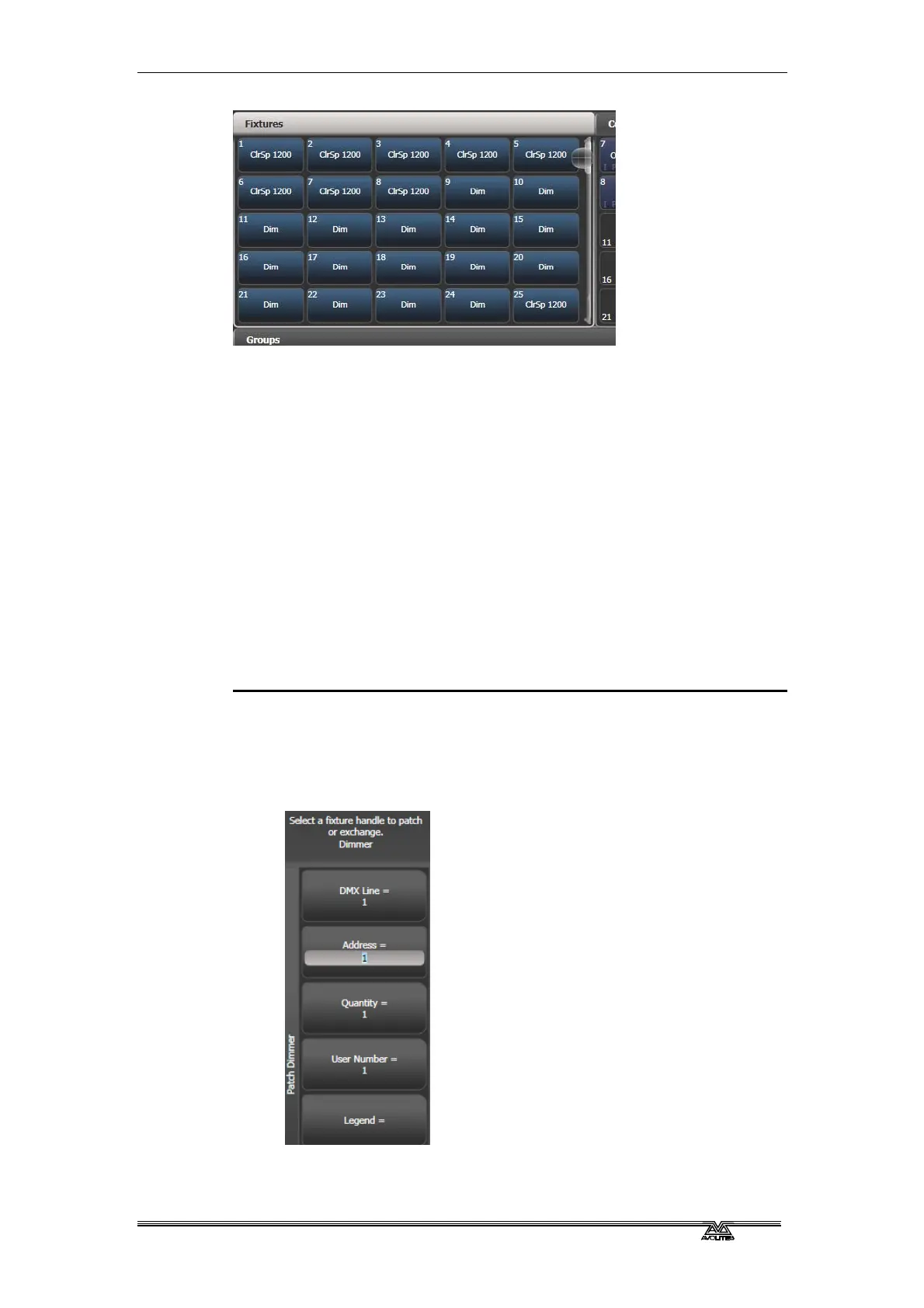
Fixture buttons can be shown either in pages with Page buttons, or
you can use the scroll bar on the right to show different pages. Use
the [Pages Show/Hide] button on the right of the screen to select
between page buttons and scrolling mode. You can change the fixture
page at any time.
You can allocate fixtures and dimmers to Groups, which allows you to
quickly select a set of fixtures with one button. Groups are described
in the next chapter.
Once you have patched fixtures or dimmers, the Patch View screen
shows you an overview of what is patched where and lets you edit
the patch. See section 3.2.1 on page 56.
3.1.2 Patching dimmers
Each fixture button can control single or multiple dimmer channels.
You allocate a button using the Patch menu (described below) or the
Patch View window (see section 3.2.1).
1>
Press Patch (one of the ), then [Dimmers].
2> [DMX Line=] shows you which of the DMX output lines you are
patching onto. Enter a new number to change the line. [Address
= ] shows the DMX address about to be patched. You can
change this by typing in the new address on the numeric
keypad and pressing Enter.
3> To patch a single dimmer, press a Fixture touch button, a
Macro/Executor button or the blue Select button of a fader



 To Next Page