Page 158 – 7. Cues
TitanUniversal_Man_v10_QU.doc 15 March 2016
• If you change an attribute using a different palette, the new
palette will be stored instead.
7.3.3 Playback and Cue view
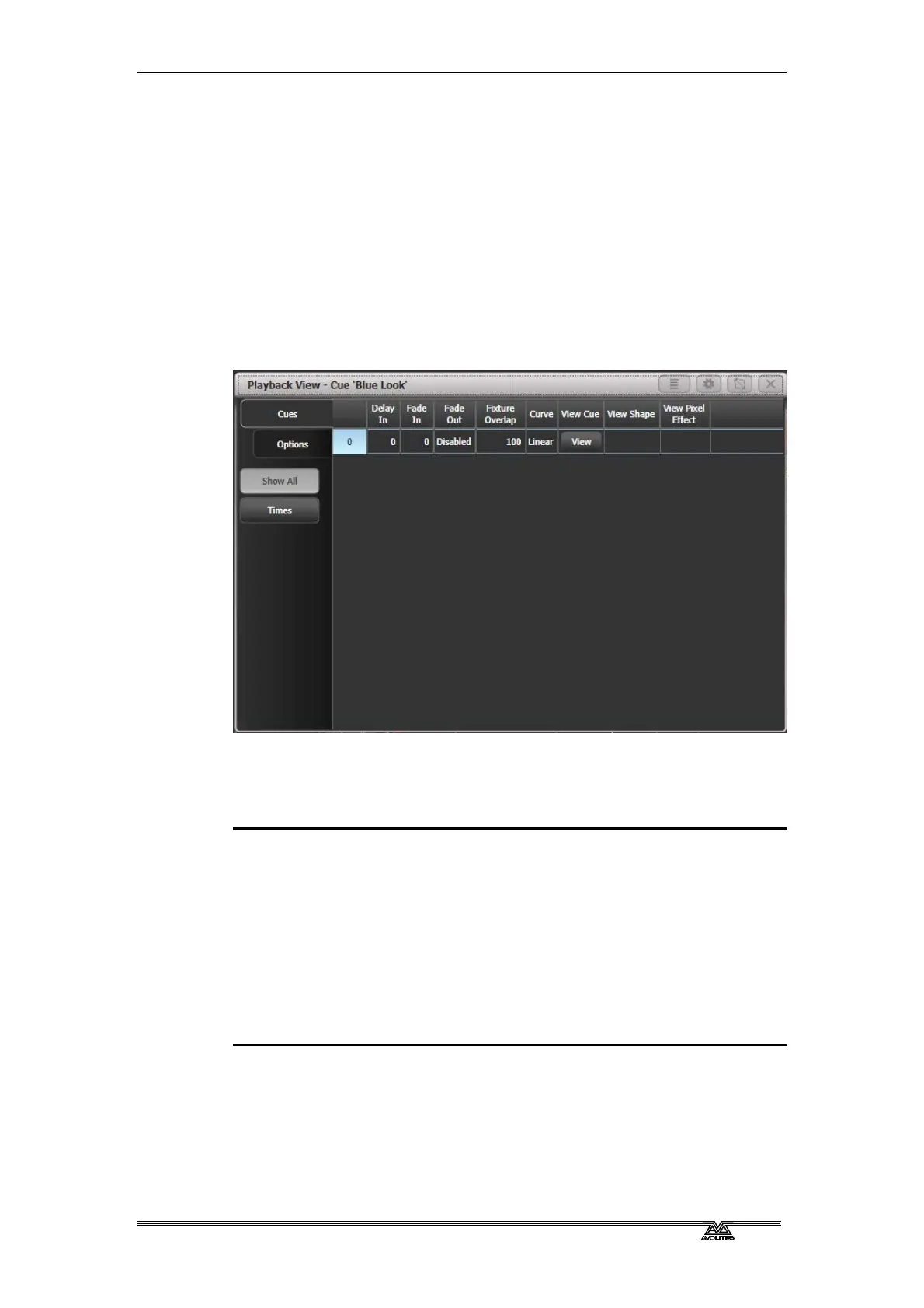
To see the current timings of the cue, touch the playbacks display for
the fader, or press Window Open then the swop button of the
play
back you want to view. The screen will show details of the delay,
fade, overlap and curve settings for the cue. You can touch each item
to enable editing.
The Times button on the left removes some of the columns, showing
only timing related information.
You can configure which columns are shown in the Playback View
using the [Edit Columns] context menu button. Once you have set a
view you can save it to a filter button which appears below the Times
button on the left.
1> Press [Edit Columns] on the context menu.
2> Using the softkeys, enable or disable the columns to get the
view you want.
3> Press Record. An [Add] button will appear at the bottom of the
screen.
4> Press the [Add] button to create a filter button for this view.
5> You can set a legend and colour halo for the filter button using
the normal [Set Legend] function.
6> You can delete filter buttons by pressing Delete then the
button.
If you touch the View button at the right hand end of the row or the
[View Cue] context button, the Cue View window opens, showing you
details of the settings individual timings for all the fixtures in the cue.


 To Next Page